Share article:


Netflix Watch History: Can You Clear or Hide It?

Updated: 2026-01-21
Related to: Moyea Netflix Downloader
27 Views
What this guide covers:
- This article discusses the ways of viewing, deleting, and hiding your Netflix watch history to maintain an organized and customized account. It also shows how to save movies and shows using Moyea Netflix Downloader to have them offline and in high quality without impacting your watch history.
Have you opened Netflix and noticed that your watch history is filled with everything that you can be guilty of? Regardless of whether it was binge-watching late-night or a documentary that you simply could not resist watching, Netflix keeps tracking all the stuff you watch.
Sometimes you might want to clear or delete your history, either so that your suggestions are fresh, or to maintain your privacy, or you want to take certain shows off the watchlist. The positive thing in this, however, is that Netflix does provide some easy methods of managing your watch history. In this article, we will show you how to watch, delete, or hide Netflix watch history step by step. Let’s get started.
Quick AccessCLOSE
Can You Delete Watch History on Netflix?
Well, you can remove or hide all the things in your Netflix watch history, but it is not as simple as you can delete everything. Netflix gives you the option of removing specific shows or movies from your history, and that way, they cannot influence your recommendations as well. But not all devices have a one-click clear all history feature. Some older devices can lack this feature.
When you delete any title from your watch history, it will not be listed in your viewing history, and Netflix will no longer recommend or list it in your Continue Watching list. This, however, can take a few hours on all the devices connected to your account. Cleaning your watch history is easy, but possibly time-consuming. Below we will share in detail, how to do it on mobile and computer.
How to Delete Netflix Watch History on a Computer Web Browser?
If you are using the browser, here is how to do it:
Step 1: Open your web browser and log in to your Netflix account.
Step 2: your profile icon will appear in the top right corner, click it and select Account.
Step 3: Now choose your profile under the Profile and Parental Controls.
Step 4: Press on the viewing activity. This will display a complete history of the shows you’ve watched on Netflix.
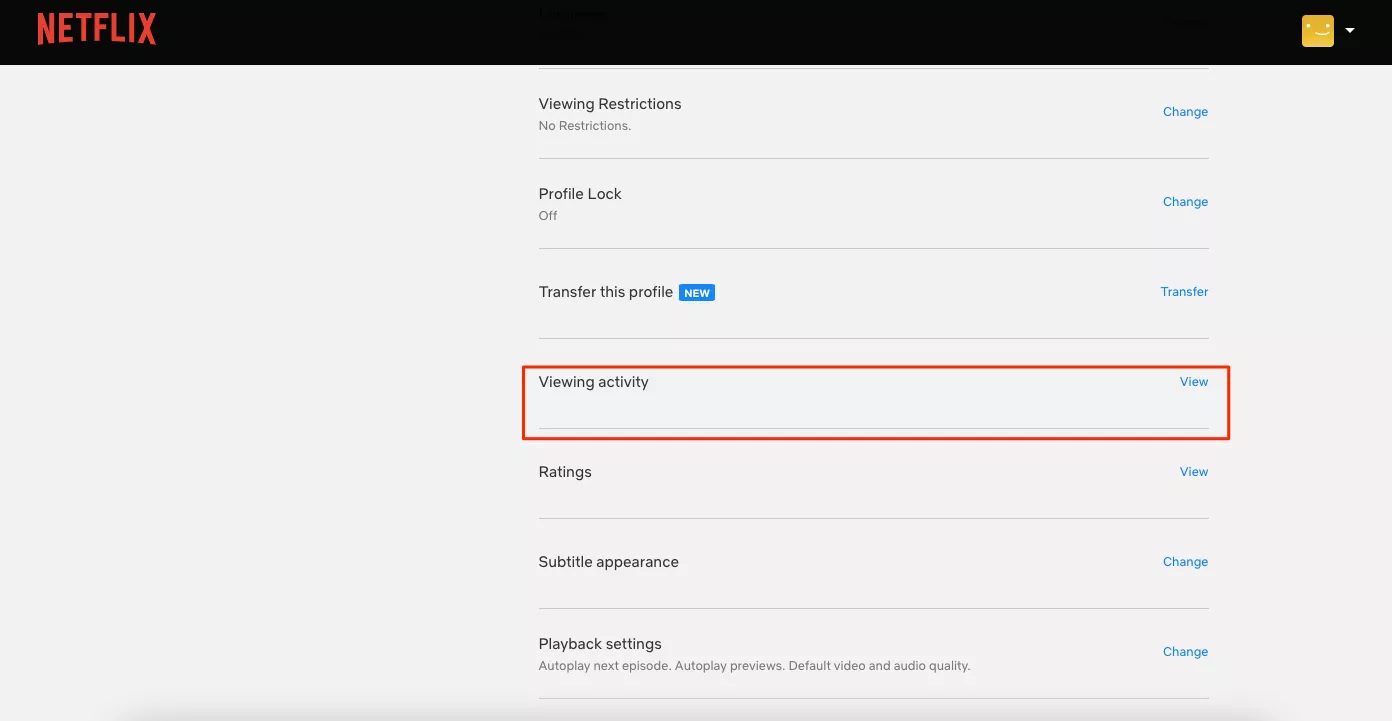
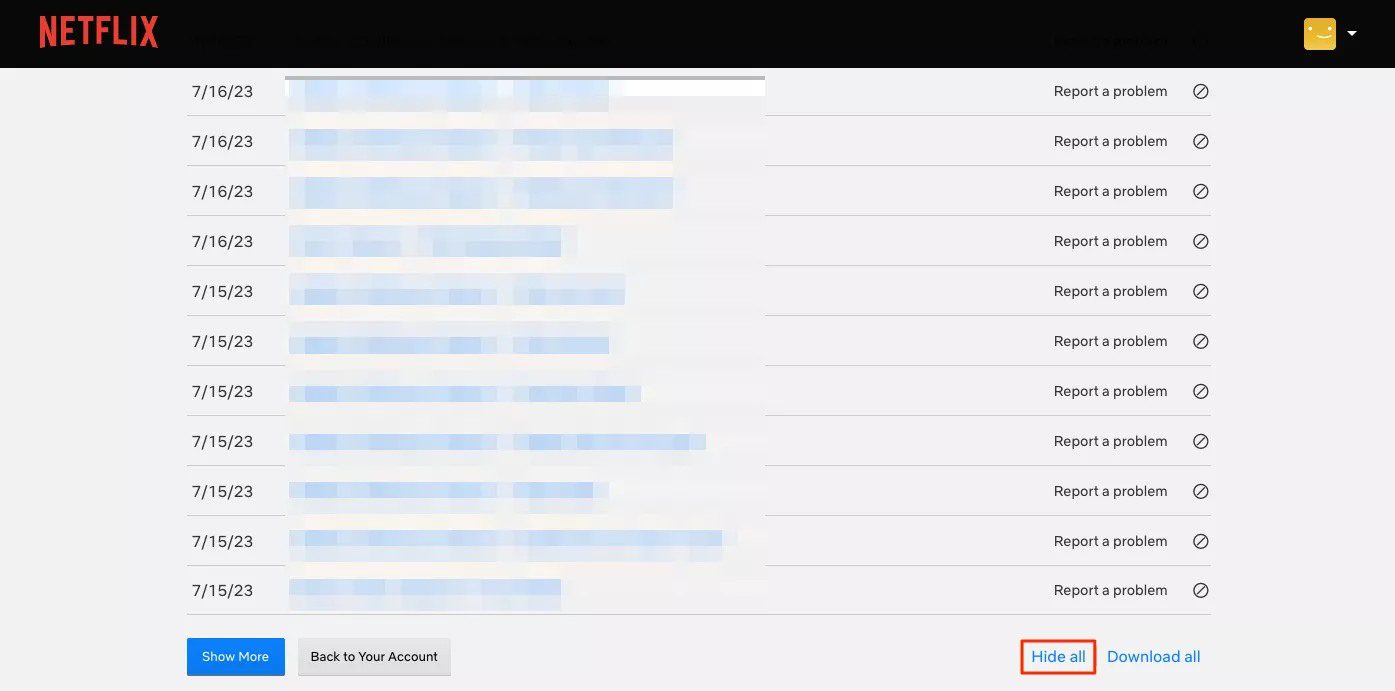
Step 5: If you want to delete only one show or title, press the Remove icon next to that show. Now this will hide that specific title from your watch history, and it will no longer affect your future recommendations.
Step 6: In case you want to hide everything you have watched on Netflix, then scroll to the bottom of the page and choose the Hide All option. Now your whole watch history will be cleared out. Keep one thing in mind that this may take a few hours to appear across all your devices.
How to Delete Netflix Watch History on the Mobile App?
If you are using a mobile app, follow the steps below:
Step 1: Log in to your Netflix account on an Android or iOS device.
Step 2: Visit the Continue Watching section.
Step 3: Look for the title you want to remove. Click on the three-dot icon next to it.
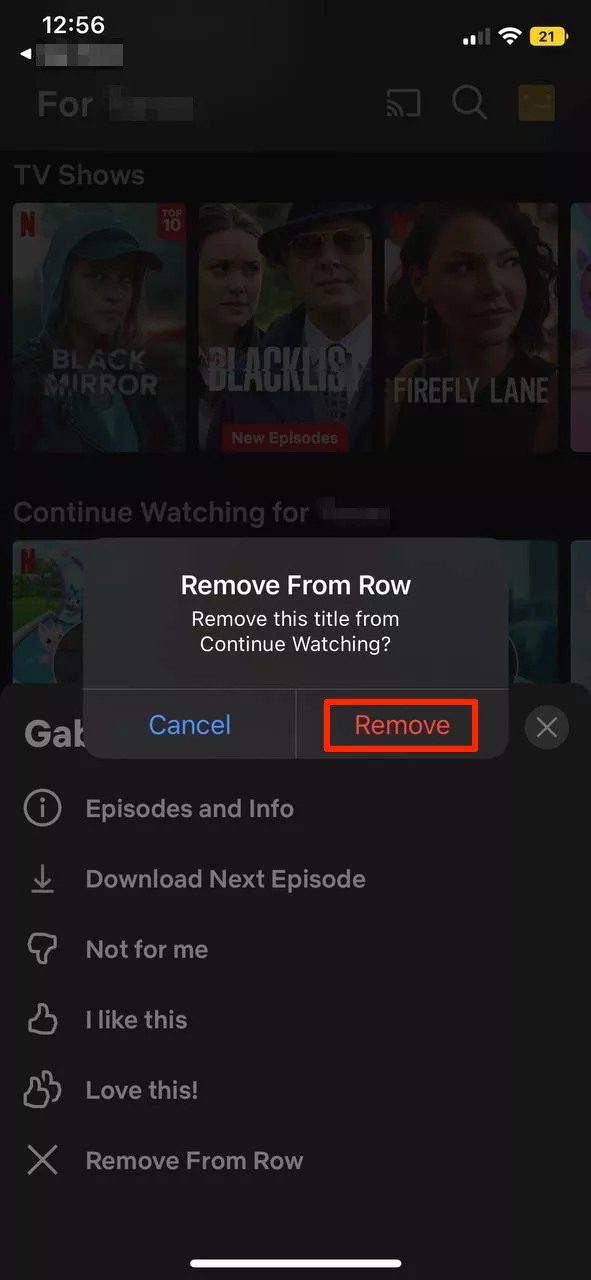
Step 4: Click Remove from Row.
Step 5: Now confirm it by tapping Remove.
Bonus Tip: Create Personal Netflix Playlist for Offline Viewing
If you would like to manage your Netflix playlist in your local files, then Moyea Netflix Downloader is all you need. With Moyea Netflix Downloader, you can watch your favorite shows or movies on Netflix without buffering, internet problems, and being amazed by titles that appear in the watchlist. It is an exclusive application that enables you to save Netflix videos on your computer without any fuss. It stores metadata by retaining all audio tracks and subtitles.Its batch download feature allows you to save whole seasons and shows to form your own offline playlists in no time.

-
- Download Netflix movies and shows at up to 1080P without ads.
- Convert Netflix video to MP4/MKV file with original quality.
- Batch download multiple Netflix episodes across seasons.
- Reserve multiple subtitles and audio tracks for easier management.

Check steps below to learn how to download Netflix videos with Moyea:
Step 1: Launch Moyea Netflix Downloader and log in to your Netflix account. Browse and find the show or episode you want to watch.
Step 2: You can also select format, resolution, subtitles, and audio language before downloading.
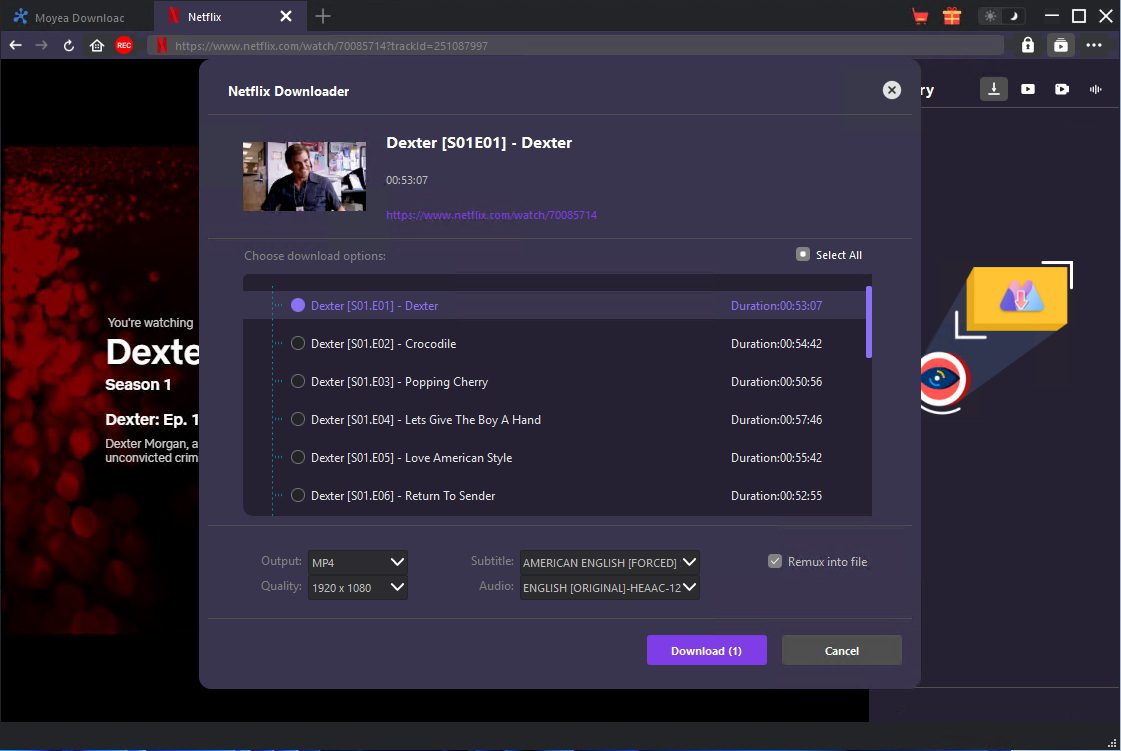
Step 3: Hit the Download button along the video. The video will be saved on your computer.
Now you can create your own Netflix library without any content appearing in your watch history or influencing Netflix suggestions to you.
FAQs
1. Can you automatically clear Netflix watch history?
No. You must have to clear Netflix watch history manually in the account settings.
2. Can deleting watch history affect Netflix recommendations?
Yes. Netflix recommends shows based on your watch history. So, if you delete your watch history, it will affect your future Netflix recommendations.
3. Will removing a title from Continue Watching delete it from your watch history?
Yes. If you click on a title and remove it from the Row, it will be removed from Continue Watching and the viewing history.
4. Can you recover deleted Netflix history?
No, after deleting your Netflix history, you cannot recover it.
Conclusion
You do not have to go far to control your watch history on Netflix. It is easy to delete any titles on Netflix. If you want to make your account neat and personal, you can disable all of them. And in case you want to watch it offline, you can use a reliable application like Moyea Netflix Downloader. Using this tool, you can save movies and shows in high quality that do not affect your watch history. By following all of these tips together, you are sure to enjoy Netflix in a neat, tidy, and convenient way.
 Terms of Use: Moyea is intended solely for personal, educational, and non-commercial archival purposes use. It allows users to save a local copy of videos that they have legally subscribed or purchased. Any commercial utilization, unauthorized redistribution, or online sharing is prohibited. Users assume full responsibility for complying with copyright laws.
Moyea Netflix Downloader

 Try for Free
 Try for Free
 Download Netflix movies and TV shows to 1080P MP4/MKV;
Batch download entire seasons, series, or multiple episodes;
Download subtitles and audio tracks;
Pack subtitles into output video or save subtitles as SRT/SUP file;
Automatically remove ads during downloads.
Related

StreamFab Netflix Downloader Review: Features, Pros & Cons

Netflix Not Working on Roku? Solve It Now

3 Proven Ways to Watch Netflix Without Ads

How Netflix Extra Members Change Account Sharing?

How to Log out of Netflix on TV? Easy But Secure Methods Here

Netflix Cancellation Guide: What Happens Next


 English
 日本語
日本語