Share article:


How to Deactivate a Facebook Account

Updated: 2026-01-14
Related to: Video Downloader
20 Views
Summary:
Deactivating your Facebook account keeps your data, and if you want to know how to deactivate your Facebook account, learn this post with detailed steps on a computer browser and phone.
Outline
If you are tired of Facebook and want to step away for a while, deactivating your Facebook account is a good way. It is not deleting your Facebook permanently. It’s just hiding your profiles from others. In this guide, I will guide you on how to deactivate your Facebook account with step-by-step instructions.
Deactivate Facebook Account vs Delete Facebook Account
Before you proceed, you need to make sure you want to leave for good or just want to leave for a short time. Facebook offers two ways: "Deactivate" and "Delete." They are completely different.
"Deactivate" is pausing your account. It is more like a temporary method for those people who want a digital detox but plan to return eventually, and the data will be kept well.
"Delete" is permanently leaving the platform. It will clear all your data on this platform, and once the deletion is done, you will be wiped out from Facebook. You cannot return anymore.
How to Deactivate Facebook Account on Desktop (Windows & Mac)
For computer users, you can manage your account settings on any browser. Since Meta has centralized all privacy settings in one account center, the whole process is simple enough. Here are the steps to follow.
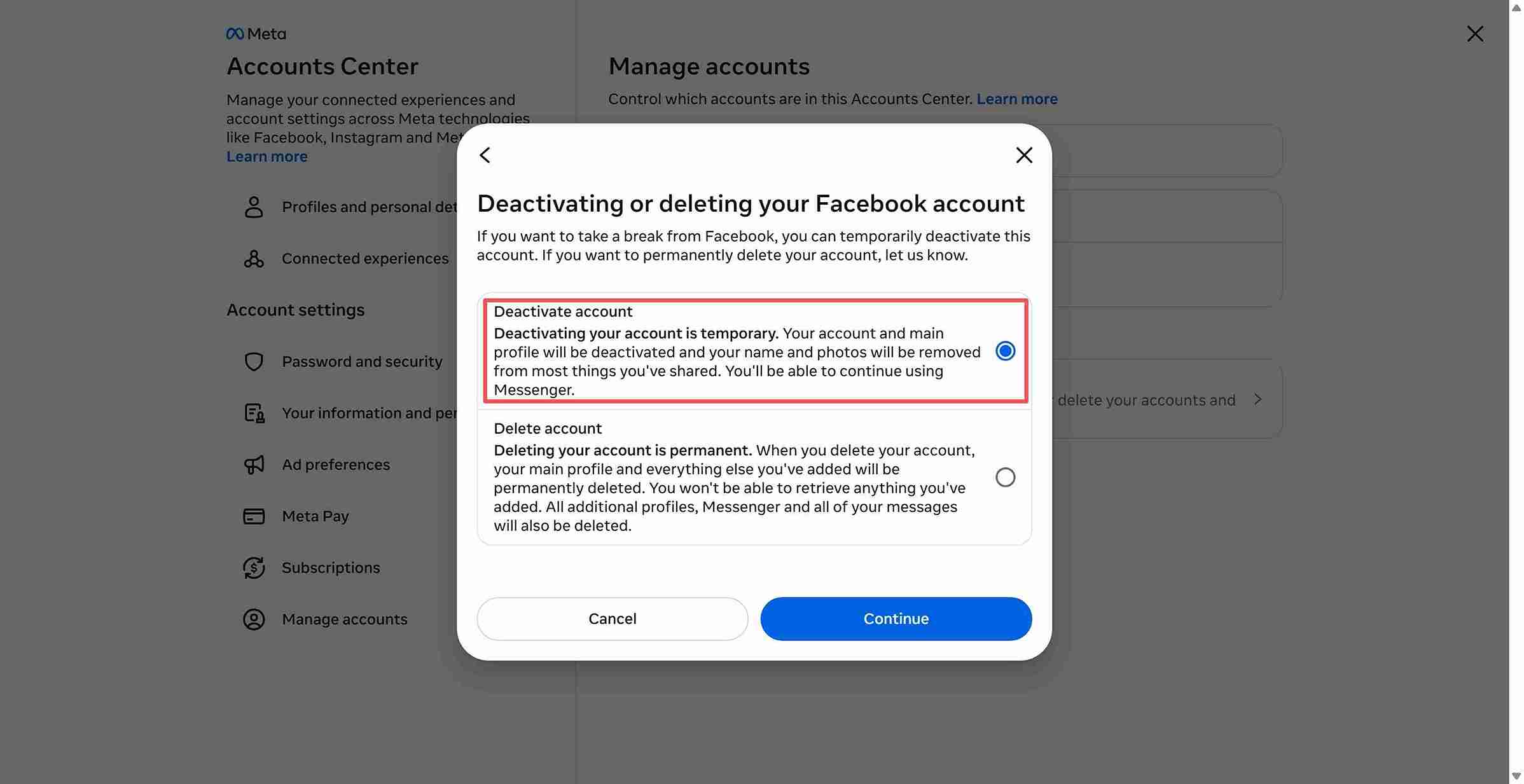
Step 1: Open your Facebook account. Click on your profile picture and choose Settings & privacy, and then click Settings.
Step 2: On the left panel, click on account center > Manage accounts.
Step 3: Click on Account ownership and control, then select Deactivation or deletion.
Step 4: Click on your profile picture again.
Step 5: Choose to deactivate your account.
Step 6: Enter your password and follow the instructions to complete the process.
How to Deactivate Facebook Account on iPhone and Android
If you prefer to deactivate your Facebook account on your mobile phone, this is easy as well. The steps are pretty the same. Follow the steps below.
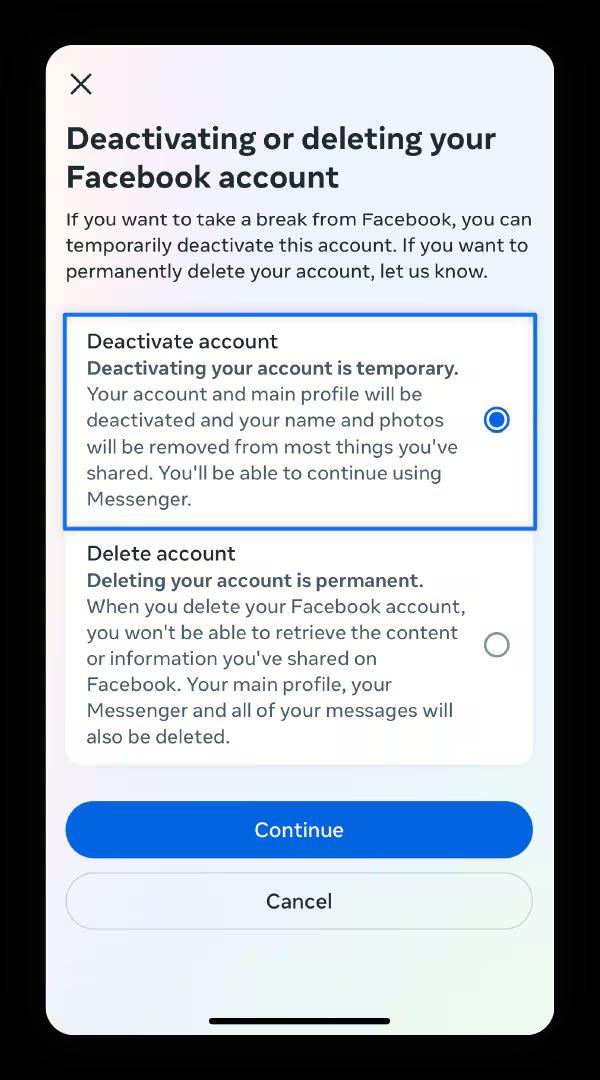
Step 1: Open your Facebook app on your Android/iOS device.
Step 2: Click the profile picture and choose Settings > Account Center.
Step 3: Find Manage account > Account ownership and control.
Step 4: Choose to deactivate your Facebook account.
Step 5: Follow the instructions to complete the activation process.
What Happens After You Deactivate Facebook?
Your profile is hidden: No one can check your profile, pictures, or timeline. If someone tries to search for you, your name won’t show in the results.
Shared content remains: The posts you share on the public will be hidden, and no one can see them. However, the chat messages that you send to your friends will remain in their boxes.
Group Activity: You are still a group member in your group, and your name may still be visible in posts and comments you made in private groups. But, if you are the admin of the group, the admin page will be deactivated, and you should grant the right to others.
Messenger Access: By default, even if your account is deactivated, Facebook allows you to use Messenger, which means you can still chat with your friends.
App Logins: You can still use the "Log in with Facebook" feature to log in to your third-party apps and websites.
Tip: Access Your Videos Without Logging In
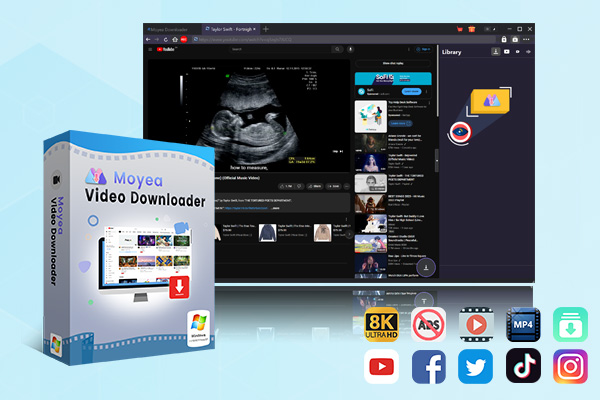
One downside to deactivating your account is that you cannot browse your Facebook reels unless you reactivate it. If you want to enjoy your reels offline during the "off the grid", you can download Facebook reels before you deactivate your Facebook account. One of the best Facebook downloaders is Moyea Video Downloader. It allows you to download Facebook videos in up to 8K quality in MP4/MKV formats. You can download in bulk and transfer them to your mobile device, so you can watch them anywhere.

-
Moyea Video Downloader
– Enable users to download online videos/live streams from 1000+ sites easily at high speed.
– Download 8K video and 320 kbps audio without quality loss.
– Download TV series episodes of all/certain seasons at once.
– Save downloaded online videos to MP4/MKV/WEBM format.
How to Reactivate a Deactivated Facebook Account
If you are finished with digital detox and are ready to go back, reactivating your account is simple. Follow the steps below to reactivate your account.
Step 1: Open your Facebook app or visit Facebook.com on your browser.
Step 2: Enter your credentials to log in.
Step 3: Once your account comes in, the account will be reactivated automatically. Your personal profiles, pictures, friend lists, and posts will be restored, and other people can find you again.
- If you forget your password after a long time, you can click “Forgot Password" to reset your password. Also, if you use your Facebook to log in third-party app like Spotify may trigger an automatic reactivation of your Facebook account.
FAQs
1. How long can I keep my Facebook account deactivated?
There are no time limits. You can deactivate your Facebook account for weeks, months, or even years until you decide to reactivate it.
2. Can people still see my comments or posts on their timeline?
Once you deactivate your account, your timeline will be hidden. However, your comments in other people’s posts and groups may remain visible. Your name will show as plain text (not the clickable link).
3. What happens to my tagged photos?
The tagged photos will be kept, because they belong to the creators. However, the tagged name (your name) will turn to plain text.
Conclusion
Stepping away from Facebook doesn’t mean that you have to say goodbye. You just hit the deactivate button and have the choice to decide when to go back, without worrying about losing a piece of your data. Just follow the steps in the article to deactivate your account, and if you want to review your reels offline, don’t forget Moyea Video Downloader is there to help.
 Terms of Use: Moyea is intended solely for personal, educational, and non-commercial archival purposes use. It allows users to save a local copy of videos that they have legally subscribed or purchased. Any commercial utilization, unauthorized redistribution, or online sharing is prohibited. Users assume full responsibility for complying with copyright laws.
Video Downloader

 Try for Free
 Try for Free
 Download videos from 1000+ websites.
Download live streams streaming sites.
Download videos in up to 8K resolution.
Save videos as MP4, MKV, WEBM files.
Batch download videos from playlists and channels.
Download audio tracks and subtitles.
Automatically remove ads during downloads.
Related

5 Best LinkedIn Video Downloaders to Download LinkedIn Videos

SaveFrom.net Still Banned in the US: What Are the Alternatives?

How to Watch Deleted YouTube Videos?

Twitch VOD: What It Is and How It Works
Full Review of Savethevideo: Is Savethevideo Safe?

Is Crunchyroll Free? How to Watch Anime Without Paying


 English
 日本語
日本語