Share article:


How to Record YouTube Live Stream (Beginner-Friendly Guide)

Updated: 2025-12-17
Related to: Streaming Video Recorder, Video Downloader
31 Views
Summary:
- Are you frustrated because you can’t record YouTube live streams? This article will solve your problem and show you how to record YouTube live streams, very friendly for beginners!
MenuCLOSE
YouTube Live is the native video streaming tool of YouTube. Through YouTube Live, any qualified YouTube channel can broadcast live videos without the need for expensive equipment or video editing skills. It has the characteristics of being user-friendly for beginners, having diverse functions, and being completely free, making it the core platform for content creators to interact with their audiences in real time.
However, we all know that video live streaming is played in the form of real-time streaming of the streaming end data. Therefore, if you want to watch the live stream again or make secondary creations after the live stream ends, you must use the live recording function. Besides, the live recording function also provides convenience for those who cannot watch the live stream in real time due to time differences or busyness. This article will provide details about how to record YouTube live stream for you.
Part 1: Can You Record a YouTube Live Stream?
Sure, the YouTube platform has an automatic archiving feature built in. However, it’s important to note that this feature is only applicable to your own live broadcasts. This function enables you to easily access and manage your own live video recordings. For live broadcasts initiated by others, YouTube does not provide a direct recording function for users to capture others’ live streams. This is mainly due to YouTube’s protection of the copyrights of live content creators. So, what if you want to record YouTube live stream of others? Keep reading and you’ll find the answer.
Part 2: How to Record Your Own YouTube Live Stream?
YouTube offers an automatic archiving feature. When you start a live stream and the live video is less than 12 hours long, YouTube will automatically record the entire live session and save it to your channel. The saved video will be labeled as a “live archive” and will appear in your video management list just like a regular uploaded video. This feature applies to all types of live streaming and saves videos in high quality, including 1440p and 2160p (4K).
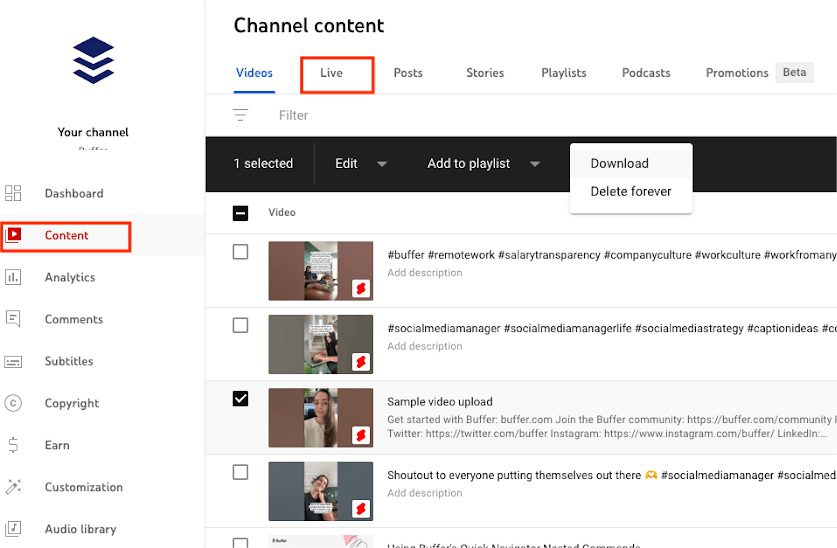
The automatically archived videos are also easy to access; you just need to go to “YouTube Studio” and find “Content” to view them! However, it’s important to note that the automatic archiving feature has limitations. For example, videos longer than 12 hours or poor network connections may prevent the video from being fully saved. Another inconvenient limitation, which I mentioned in Part 1, is that you cannot record someone else’s live stream. In fact, we can choose third-party recording tools, which can effectively meet our needs.
Part 3: How to Record Someone else’s YouTube Live
1. Use Moyea Streaming Video Recorder
Moyea Streaming Video Recorder is an easy-to-use online video recording tool that supports recording various encrypted or DRM-protected on-demand videos at up to 5x speed, including movies, short videos, live streams, and more. Recorded live videos can be output as MP4/MKV files with up to 4K quality, playable on any of your devices. It features a built-in browser and automatic frame positioning technology, so you don’t have to worry about pop-ups or other programs interrupting the recording process. Give it a try!
Step 1: Download and install Moyea Streaming Video Recorder.
Step 2: Click the three dots in the upper right corner, open “Settings” and adjust them according to your personal needs.
Step 3: Open YouTube directly and find the live stream you want to record.
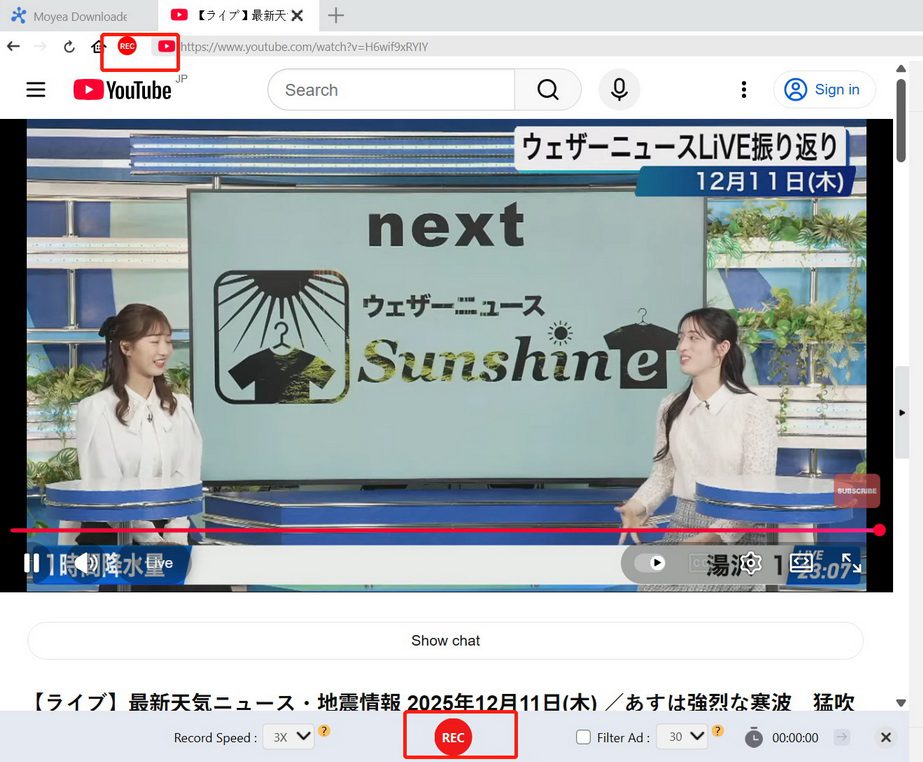
Step 4: Click “REC” in the top left corner, adjust the recording speed, and then click “REC” at the bottom of the page to start recording.
2. Use OBS
OBS is a powerful, free, open-source recording software that provides extensive recording settings, allowing you to easily control parameters such as video quality, bitrate, and file format. It allows you to mix multiple sources such as screen, webcam, game window, images, and audio to create high-quality live streams or video files, completely free of charge, without watermarks or time limits.
Step 1: Download and install OBS.
Step 2: Click the plus sign in the bottom left corner to add a scene.
Step 3: Click the plus sign under “source” and select “Window Capture”.
Step 4: Select the browser in which you are playing the YouTube live stream.
Step 5: Click “Start Recording” to begin recording. Once finished, you can find it in the “File”.
Part 4: Alternative Way: Download YouTube Live Stream
Are you not interested in the recorder I recommended just because you prefer downloading? No worries, you can try Moyea Video Downloader. It is a highly professional downloader that supports downloading videos from thousands of websites including YouTube, offers multiple resolution options, and has stable download speeds. It also features background recording, timed stop, multiple audio tracks, and more. The downloaded content can be exported as MP4/MKV. Here are the specific steps:
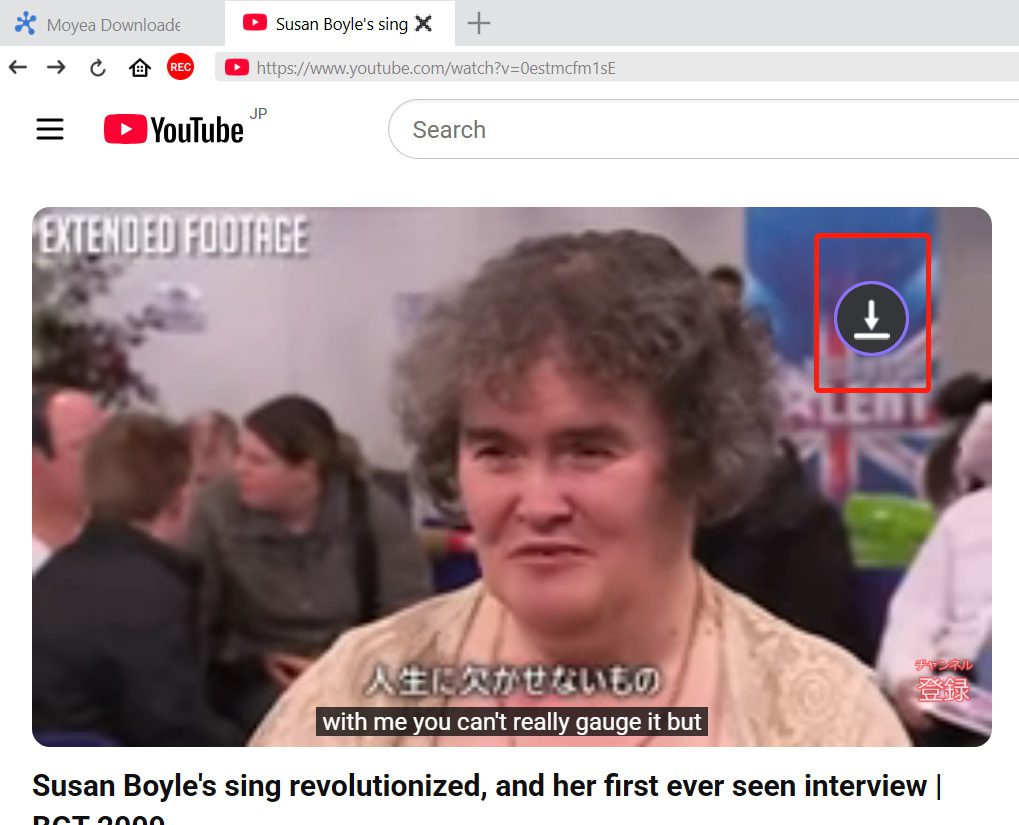
Step 1: Open the live stream you want to record, and a download button will automatically pop up.
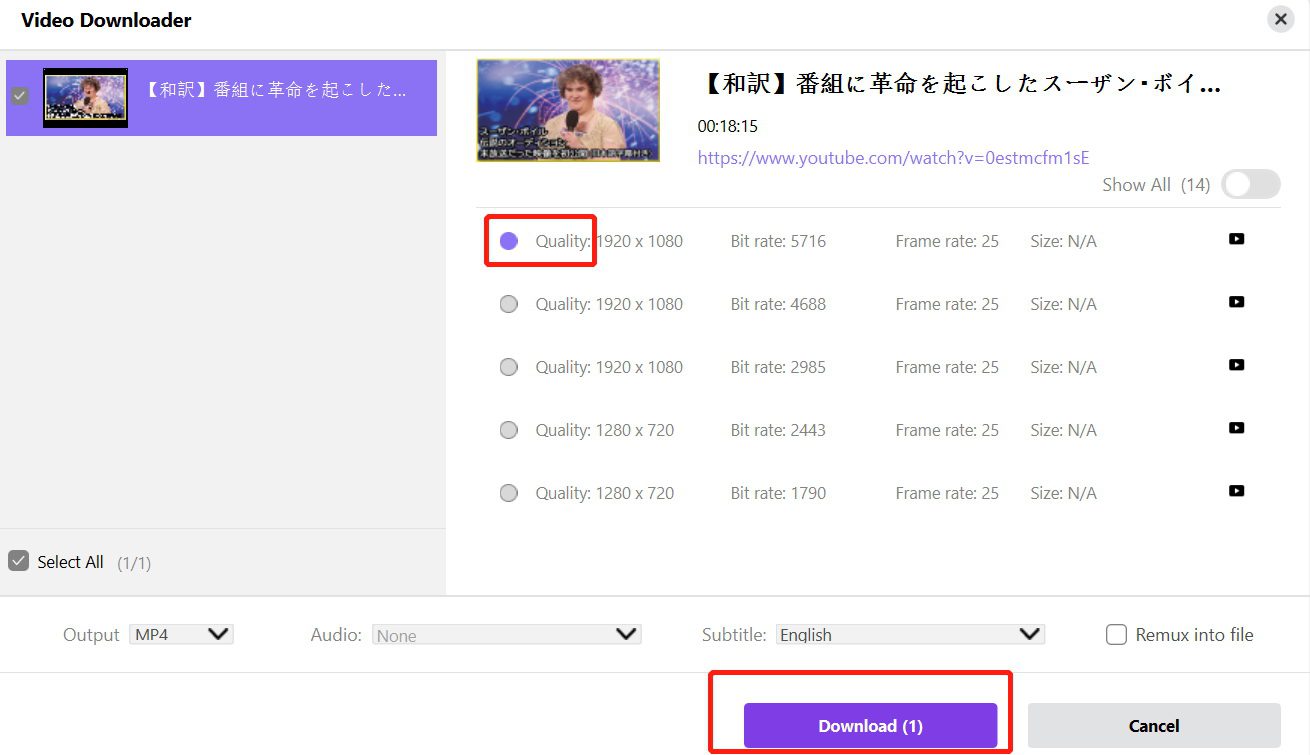
Step 2: Adjust the quality and then you can download.
Step 3: Once the download is complete, you can find it in the “Library”.
Part 5: Final Words
Now, can you record a YouTube live stream through my introduction? But no matter which method you choose, please be aware and strictly abide by copyright laws and the principle of fair use. Without the explicit permission of the creator, the recorded live content of others should not be used for any commercial purposes, public dissemination, or claiming originality. However, you can use it for personal viewing or teaching and so on within a limited scope. If you need to re-create, it is best to contact the creator in advance to obtain clear authorization to avoid infringing on others’ rights.
 Terms of Use: Moyea is intended solely for personal, educational, and non-commercial archival purposes use. It allows users to save a local copy of videos that they have legally subscribed or purchased. Any commercial utilization, unauthorized redistribution, or online sharing is prohibited. Users assume full responsibility for complying with copyright laws.
Streaming Video Recorder

 Try for Free
 Try for Free
 Record live streams, videos, and clips from 1000+ websites.
Record DRM-protected streaming videos.
Save recordings as MP4 or MKV files.
Record videos in up to 4K resolution.
Record videos at up to 5× speed.
Skip commercials during recording.
Related

5 Best LinkedIn Video Downloaders to Download LinkedIn Videos

SaveFrom.net Still Banned in the US: What Are the Alternatives?
How to Watch Deleted YouTube Videos?
Twitch VOD: What It Is and How It Works
Full Review of Savethevideo: Is Savethevideo Safe?

Is Crunchyroll Free? How to Watch Anime Without Paying


 English
 日本語
日本語