Share article:


How to Update Instagram App to Get the Latest Features

Updated: 2026-02-26
Related to: Video Downloader
34 Views
Summary:
This article shares the specific steps for updating Instagram on iOS and Android devices. It also teaches you how to turn off automatic Instagram updates, outlines the key new features you can experience after updating Instagram, and answers frequently asked questions about updates.
Outline
As a long-time Instagram user, I understand the importance of keeping the app updated. Updating Instagram not only ensures smoother operation and avoids bugs, but also allows you to experience new features as soon as they’re released. Whether it’s creating richer content, easily saving Instagram videos, or having more fun interactions with friends, updating the Instagram app is essential. Recently, many friends have asked me how to manually update Instagram, and some want to know what new features are worth trying after updating. Now, I’ll share my practical experience and compiled tips, guiding you step-by-step through updating Instagram and mastering its new features.
How to Update the Instagram on iOS
I primarily use my iPhone to access the Instagram app. Regardless of which iOS device you’re using to run the Instagram app, the steps for updating Instagram on an iOS device are similar and simple. Below, I’ll use the process of how to update Instagram on iPhone as an example to show you the specific steps for updating Instagram on an iOS device:
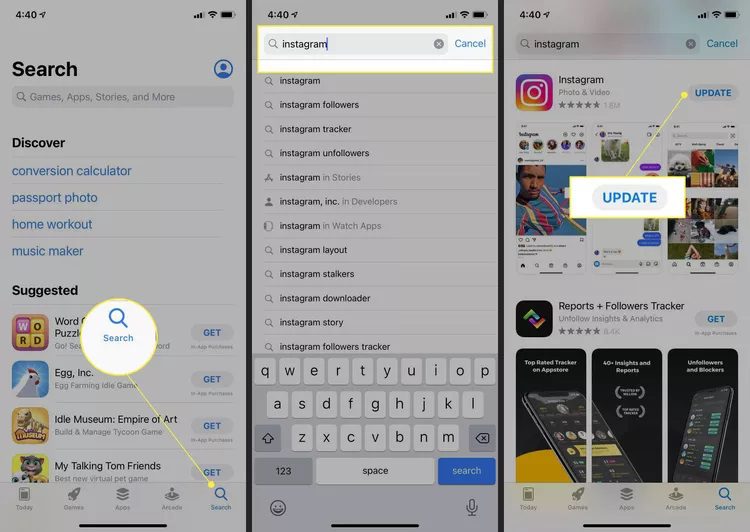
Step 1: Open the App Store app on your iPhone and ensure your device is logged in with your Apple ID.
Step 2: Tap "Search" in the bottom navigation bar, enter "Instagram" in the search box at the top, and tap the official Instagram app in the search results to enter its details page.
If an update is available, a blue "Update" button will appear on the page. Tap it to start the download and installation. You can exit the App Store during the update process; it will complete automatically in the background.
If the page displays "Open," the app is already the latest version. "Get" means it’s not installed. A cloud icon indicates it was uninstalled and needs to be re-downloaded. Once the update is complete, tap "Open" to launch the app.
- Before updating, your phone should have 150 to 300 MB of free storage space. It is recommended to connect to Wi-Fi to avoid consuming mobile data.
How to Update the Instagram on Android
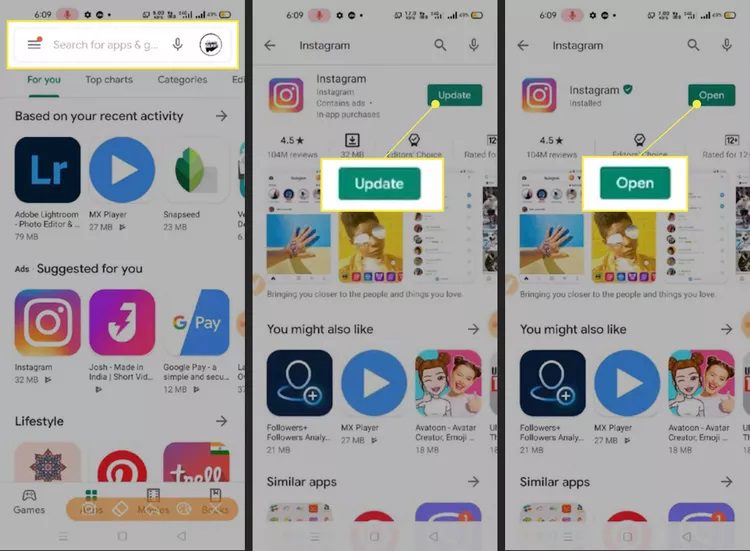
The process of updating Instagram on Android devices is largely the same as on iOS. Both require finding the Instagram app in the app store. The primary and safest way to update Instagram on Android devices is through the Google Play Store. The complete steps are as follows:
Step 1: Unlock your Android device and open the Google Play Store on your home screen, ensuring you are logged into your Google account.
Step 2: Tap your profile picture in the upper right corner of the Google Play Store page, and select "Manage apps & device" from the pop-up menu. Switch to the "Updates available" section; the system will automatically list all apps available for update.
Step 3: Find Instagram in the list, tap the "Update" button to the right of the app, and wait for the download and installation to complete. To update multiple apps at once, tap "Update all" at the top of the page.
- It is not recommended to update via unofficial APK files to prevent app crashes or security risks.
How to Turn Off Automatic Updates
While automatic updates keep the Instagram app up-to-date, allowing for smooth saving of Instagram videos and use of new features, it can sometimes download automatically when using mobile data or change some user habits after an update. Therefore, I disable automatic updates as needed. The steps are different for iOS and Android, but both are simple.
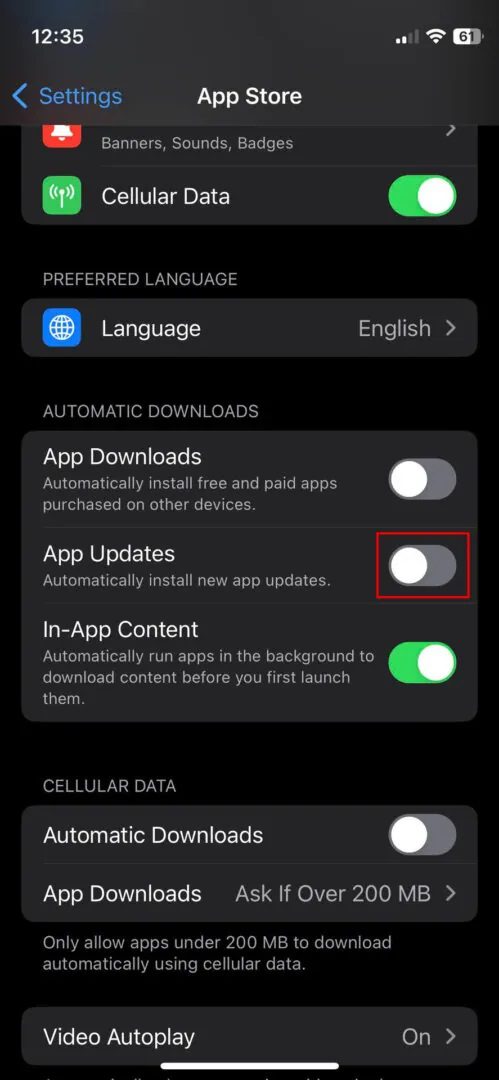
iOS Devices: Open your phone’s "Settings," find and tap "App Store." In the "Automatic Downloads" section, turn off the "App Updates" switch. This will disable automatic updates for Instagram. Note that other apps will also have their automatic updates disabled. To restore automatic updates later, simply turn the switch back on.
Android Devices: Open the Google Play Store, tap your profile picture in the upper right corner, and go to "Settings." Find "Network preferences" and expand it, then tap "Auto-update apps." Select "Don’t auto-update apps," and finally tap "OK." This will disable automatic updates for all apps, preventing Instagram from being automatically updated.
Key New Features You Should Know
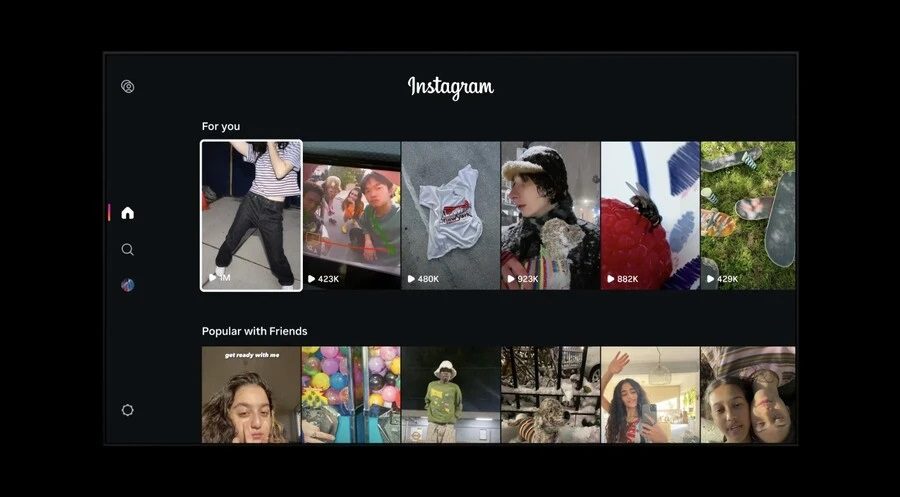
With each update, Instagram introduces a host of useful and fun new features. After trying them out, I found these features particularly worthwhile, covering content creation, social interaction, and personalized experiences, significantly enhancing the user experience.
1. Reels Feature Fully Upgraded.
Reels can now be up to 20 minutes long, sufficient for editing tutorials or shooting mini-documentaries; you can also long-press the left or right side of the screen to achieve 2x playback speed. You can also tap "…" on the Reels page to enable automatic scrolling, freeing your hands for watching videos. Even more thoughtfully, Reels captions and stickers can be automatically translated, making it easy to understand content from overseas creators.
2. New Editing Tools.
Instagram’s dedicated editing app, "Edits," is perfect for creators. It includes features like a teleprompter, green screen effects, AI clip extraction, and the ability to save frequently used sound effects, allowing for one-stop video editing without switching between multiple apps.
3. Richer Private Message Interaction.
You can now share 30-second music previews directly in private messages without switching to other music apps. Additionally, you can schedule private messages to be sent at set times, perfect for precise message delivery. In one-on-one or group chats, you can pin up to three important messages, images, or GIFs, so you’ll never have to worry about important content being scrolled away. You can long-press on private messages in unfamiliar languages and select "Translate" for direct translation, making chatting with foreign friends effortless.
4. Personalized Algorithm Customization.
On the Reels page, you can click the double heart icon in the upper right corner to access "Your Algorithm" settings. Then, you can choose which content tags you want to see more of or less of, and add custom tags to make the platform’s content recommendations more tailored to your preferences.
5. Fun Instagram AIs Launch.
Click the smiley face icon in the upper right corner of private messages to chat with popular AIs on the platform. You can also create your own personalized AI. Simply describe the AI’s purpose, choose its personality, customize its appearance, and more to create your own AI companion.
FAQs
While updating Instagram, my friends and I encountered some minor issues. Therefore, I’ve compiled a list of frequently asked questions and their solutions.
1. Why isn’t there an update button on my Instagram?
If you don’t see the update button, it’s most likely that the app is already the latest version, and the page will display "Open". It could also be that your device’s system version is too low and doesn’t support the latest Instagram update. In this case, you need to upgrade your phone’s system first.
2. Why isn’t my Instagram updating?
Firstly, check if your device’s network is stable. Then, check if your device has enough storage space. Clear enough space and try again. If it still doesn’t work, restart your device and then try updating again.
3. Why are some functions not working after updating Instagram?
Some new features are rolled out gradually by region and account, and may not be available to your account yet. You can also try logging out and logging back in, or clearing the app cache and then trying again.
4. Can I download Instagram videos after updating the app?
The Instagram app does not have a direct video download function. After the update, you can use tools like Moyea Video Downloader to download Instagram videos. This tool is specifically designed for the Instagram platform, supporting the download of regular Instagram videos and Reels short videos. Furthermore, Moyea Video Downloader can achieve lossless 8K video download quality and automatically remove ads from Instagram videos. Downloading videos with Moyea Video Downloader is simple and efficient, requiring no complex technical skills; even first-time users can quickly get started. In short, using Moyea Video Downloader to save Instagram videos is an excellent choice.
Conclusion
In general, updating Instagram is not complicated. On both iOS and Android devices, updating Instagram only requires a few simple steps in the corresponding app store. You can also choose to turn automatic updates on or off according to your usage habits. Timely updates to the Instagram app not only ensure more stable operation but also unlock various new features launched by the platform, making content creation and social interaction more fun. If you want to efficiently and effectively save Instagram videos, the professional tool Moyea Video Downloader is the perfect partner. It is compatible with the latest version of Instagram’s video parsing, supports high-definition lossless downloads of Instagram videos, and perfectly solves the problem of not being able to download videos within the Instagram app. From updating the Instagram app to unlock new features to easily saving your favorite Instagram videos with Moyea Video Downloader, this combination can significantly enhance your Instagram user experience.
 Terms of Use: Moyea is intended solely for personal, educational, and non-commercial archival purposes use. It allows users to save a local copy of videos that they have legally subscribed or purchased. Any commercial utilization, unauthorized redistribution, or online sharing is prohibited. Users assume full responsibility for complying with copyright laws.
Video Downloader

 Try for Free
 Try for Free
 Download videos from 1000+ websites.
Download live streams streaming sites.
Download videos in up to 8K resolution.
Save videos as MP4, MKV, WEBM files.
Batch download videos from playlists and channels.
Download audio tracks and subtitles.
Automatically remove ads during downloads.
Related

5 Best LinkedIn Video Downloaders to Download LinkedIn Videos

SaveFrom.net Still Banned in the US: What Are the Alternatives?
How to Watch Deleted YouTube Videos?

Twitch VOD: What It Is and How It Works
Full Review of Savethevideo: Is Savethevideo Safe?

Is Crunchyroll Free? How to Watch Anime Without Paying


 English
 日本語
日本語