Share article:


How to Use Hulu Picture-in-Picture Mode on Any Supported Device?

Updated: 2026-05-21
Related to: Hulu Downloader
134 Views
Summary:
Want to multitask while streaming on Hulu? Learn how to do picture-in-picture on Hulu on phones and PCs, and fix it when the Hulu PiP feature is not working in this guide.
The Picture-in-Picture feature is a lifesaver when you want to stream your favorite show on Hulu while multitasking in other tabs or apps. But does Hulu have picture-in-picture? The answer is Yes! In this guide, I’ll show you exactly how to enable Hulu picture-in-picture mode on your PC and phone, and how to troubleshoot Hulu picture-in-picture not working as expected.
Outline
Part 1: Get Hulu Picture in Picture on Computer
Hulu continually offers the latest features and services for desktop users. Its picture-in-picture feature allows you to work on other tasks while keeping an eye on your videos on your computer. Here, I will introduce two options.
Option 1: Hulu built-in PiP icon
When streaming on Hulu’s web app or site, you can enable its built-in PiP mode. You can find its PiP icon in the bottom right corner of the player, near the Settings icon. This will shrink the video into a small window that stays only within the Hulu website, like a mini player. If you switch to a different tab or minimize the browser, the video will disappear. If you want it to stay on top of everything, you may turn to option 2.
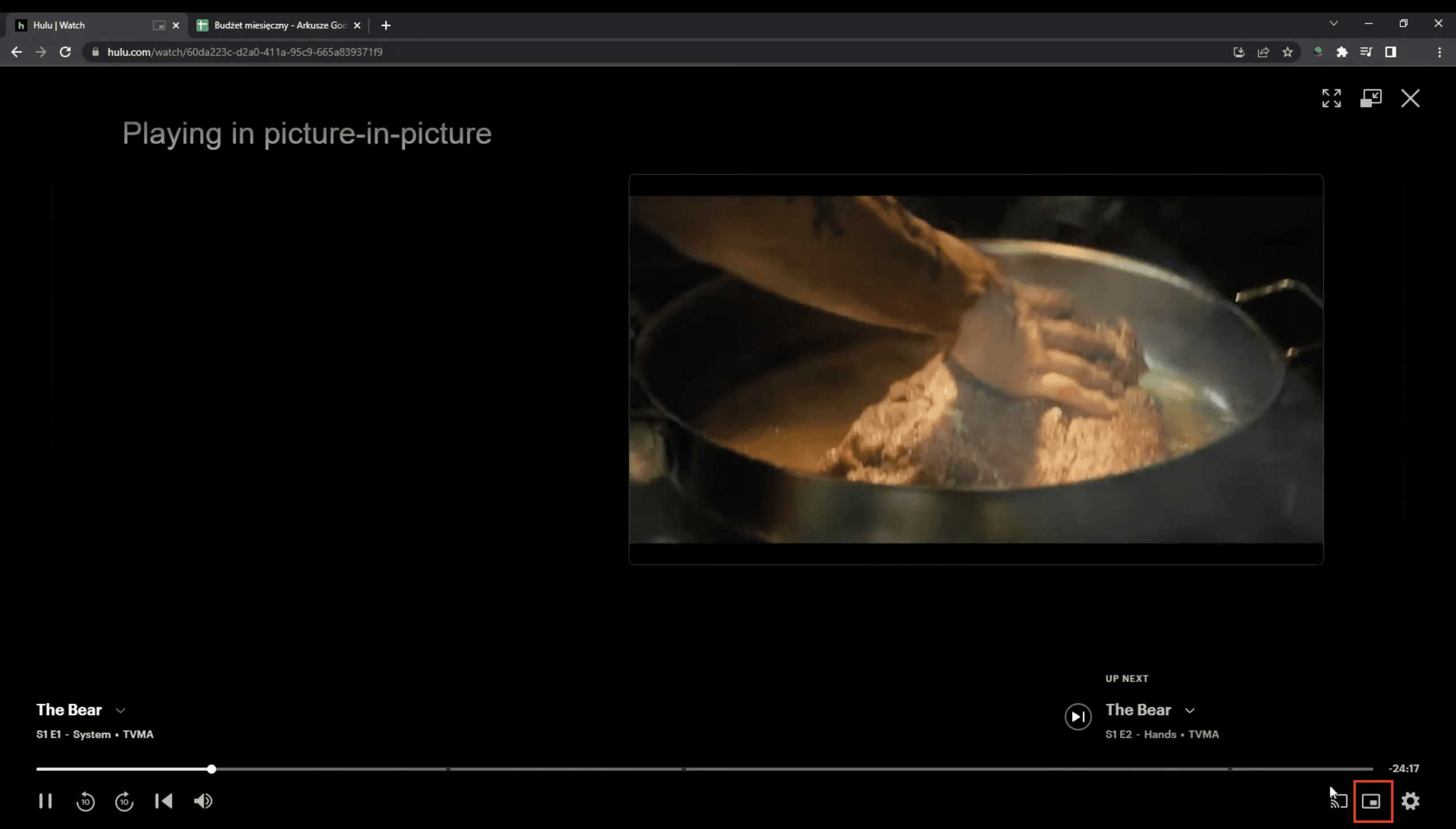
Option 2: Keyboard shortcut
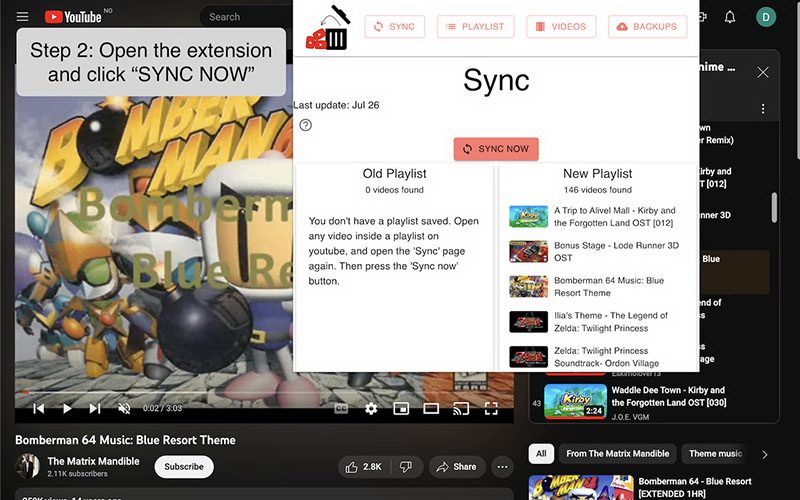
In fact, browsers like Google Chrome, Microsoft Edge, Mozilla Firefox, and Safari have native PiP buttons for a seamless viewing experience. However, it is usually hidden when streaming on Hulu. You just have to force it to appear using a keyboard shortcut. Take Firefox as an example:
- On macOS: cmd + shift + option + ].
- On Windows/Linux: Ctrl + Shift + ].
Press the combination, and the underlying video will open in the Picture-in-Picture player window that stays on top of all tasks.
Those who prefer watching movies and shows on even bigger screens may wonder how to get Hulu picture-in-picture on TV. Unfortunately, Hulu does not support Picture-in-Picture mode for Smart TV platforms.
Part 2: Get Hulu Picture in Picture on Android Phone & iPhone
Unlike the PC version, where you might need to force the feature, the Hulu mobile version makes it much easier to stream in picture-in-picture mode. Make sure your phone is updated (iOS 14+ or Android 8+), where the native PiP support was introduced. Then all you need to do is toggle it on in your phone’s settings.
- On iPhone/iPad: Go to Settings > General > Picture in Picture. Ensure it is toggled ON.
- On Android: Go to Settings > General > Special app access > Picture-in-picture. Select the Hulu App and then enable the Allow picture-in-picture toggle.
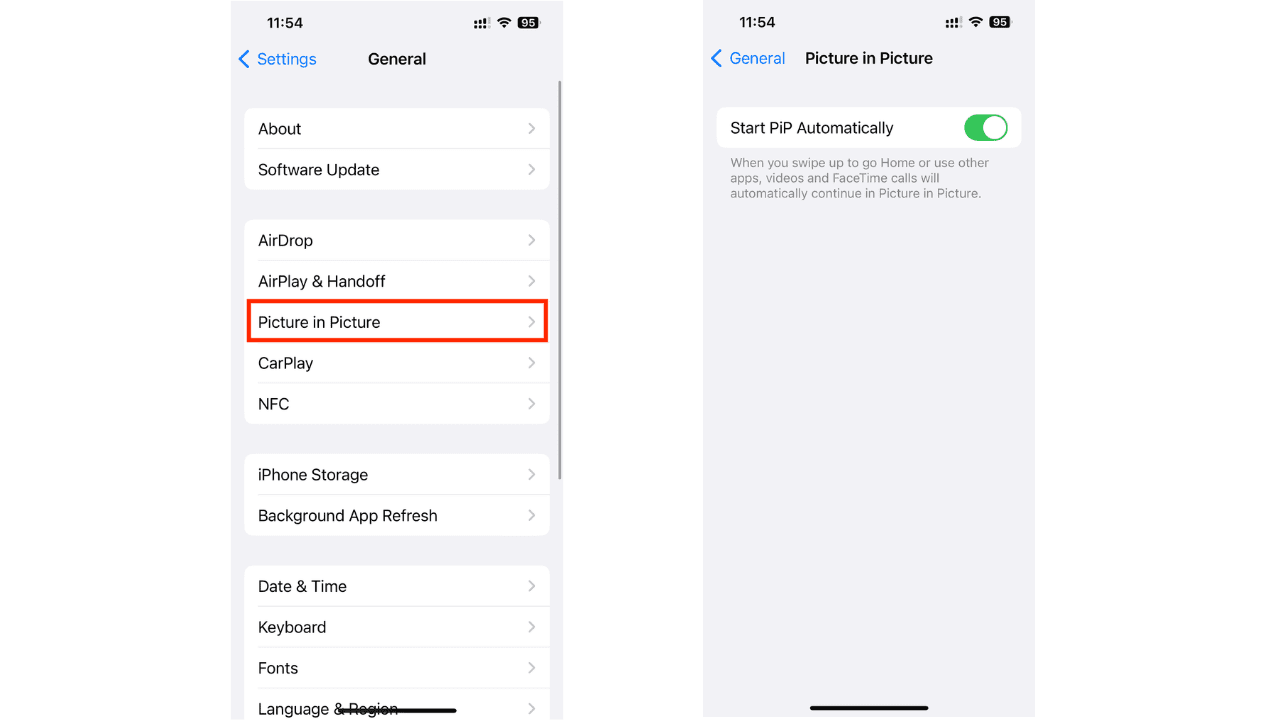
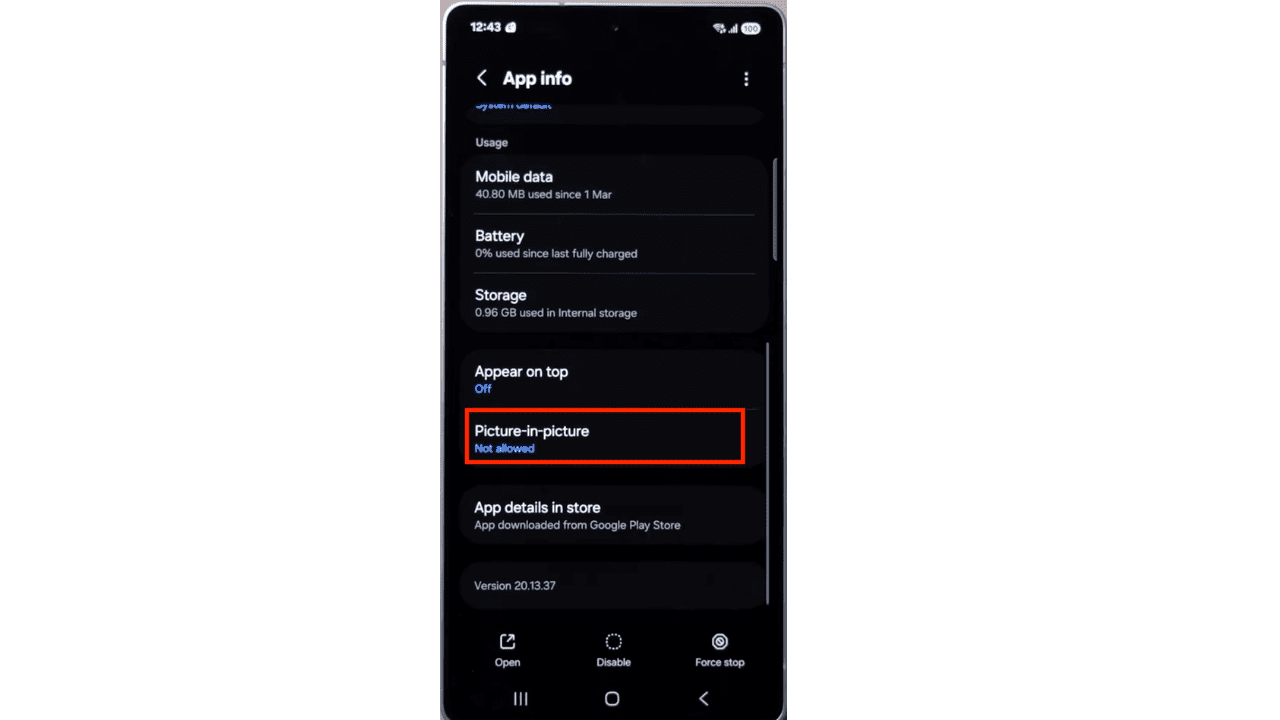
To use PiP on the Hulu App, you don’t need to look for a button or icon. While your video is playing, simply swipe up from the bottom of your screen, and it continues playing in a floating window. Now you can enjoy watching Hulu and texting your friends or scrolling on social media at the same time.
Part 3: How to Fix Hulu Picture in Picture Not Working
Helpful as it is, the Hulu PiP feature doesn’t work on all devices: older phones with outdated systems, unsupported browsers, etc. If you ever fail to watch Hulu in PiP mode, follow the troubleshooting steps.
1. Ensure your Phone OS is updated
To use the PiP feature, your phone system must be iOS 14 or later, Android 8 or later. Check for system updates first.
2. Get the latest Hulu App
To get the best features and services, your Hulu App needs to stay up to date. Go to the App Store or Google Play Store and check for Hulu updates.
3. Check PiP Permission
To enable Hulu Picture in Picture, you need to first turn on Picture in Picture in your mobile device’s settings.
4. Clear Hulu App cache
Cached data can cause issues with the Hulu App. It is no harm to clear the cache from time to time.
Since Apple devices don’t have a clear cache option, the only way is to uninstall and reinstall the Hulu App. For Android phones and tablets, follow the steps: Settings > Apps > Hulu > Storage> Clear Cache.
5. Check your browser and get updates
Despite the high support on PiP that both Hulu and web browsers offer, things can go wrong when streaming on computers. For starters, Hulu is compatible with Chrome, Edge, Firefox, and Safari only. If you’re using another web browser, switch to one of them to access all Hulu features. While these web browsers are designed to update automatically, you may manually check for and trigger updates. This rules out any browser-related problems.
Bonus Tip – How to Watch Hulu Content on Any Player with PiP Mode?
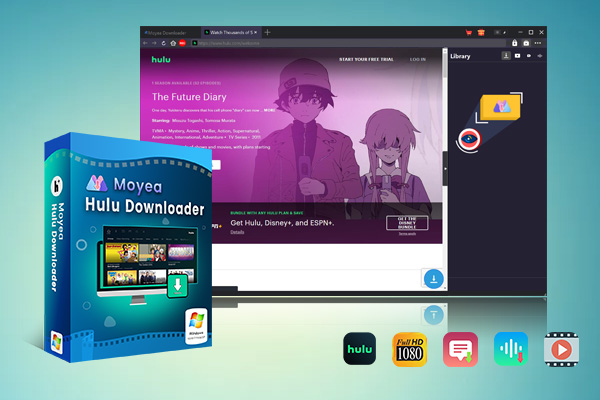
If the Hulu Picture in Picture not working issue still exists after the fixes above, or your device simply does not keep up with today’s streaming requirements, no worries, I have a workaround for you. No matter what device or what player you are using, you can download Hulu content and watch it offline using Moyea Hulu Downloader. You are no longer limited to what your device can do. Better yet, with this tool, you won’t have to wait for annoying interval ads or deal with buffering.

-
- Download Hulu shows and movies to MP4/MKV videos.
- Support to download Hulu episodes of all/certain seasons in batches.
- Pack subtitles into output video file, or save captions as independent SRT/SUP files.
- user-friendly and muitilingual settings.
Conclusion
Multitasking while streaming Hulu is a fantastic way to streamline your workflow. Enabling Hulu picture-in-picture mode is easy; however, it isn’t always reliable, and it has high requirements on the device and system. If you’re looking for a smooth and high quality vewing experience, Moyea Hulu Downloader is the perfect upgrade. With this downloader, you can get Hulu content for stable offline viewing with a native player with PiP support on any device.
 Terms of Use: Moyea is intended solely for personal, educational, and non-commercial archival purposes use. It allows users to save a local copy of videos that they have legally subscribed or purchased. Any commercial utilization, unauthorized redistribution, or online sharing is prohibited. Users assume full responsibility for complying with copyright laws.
Hulu Downloader

 Try for Free
 Try for Free
 Download Hulu videos in up to 1080P resolution
Save Hulu videos as MP4 or MKV files
Download Hulu movies, TV shows, and exclusive originals
Batch download full seasons and multiple episodes at once
Keep original audio tracks and subtitle options available








 English
 日本語
日本語