Share article:


YouTube TV DVR: How It Works and How to Record Live TV

Updated: 2026-03-17
Related to: Streaming Video Recorder, Video Downloader
11 Views
Summary:
Whether or not you have used the DVR feature while using YouTube TV, you can take a look at this article. After reading it, you will have a deep and comprehensive understanding of YouTube TV DVR.
MenuCLOSE
YouTube TV is an online TV streaming platform that enables users to access various channels and live content from any device with internet access. Unlike traditional cable or satellite TV, it does not require a TV box or subscription to a specific cable service, and it supports multi-device access. You can access YouTube TV from computers, smartphones, tablets, and even through streaming devices. YouTube TV offers more than 100 entertainment, news, and sports channels, and its built-in cloud DVR function has attracted countless users. It is precisely because of its powerful content and unique technical advantages that it has stood firm in the streaming era and has already become one of the most popular live TV services in the United States. This article will focus on analyzing its DVR function, telling you how it works and how to use it. At the same time, I will also share other methods about how to record shows on YouTube TV.
Part 1: What Is YouTube TV DVR?
Does YouTube TV have DVR? Just as I mentioned earlier, YouTube TV has DVR, and this feature is one of its core advantages. Because YouTube TV DVR is different from traditional set-top box DVRs that require a hard drive connection, it is a cloud-based digital recording function that allows users to record live TV programs, sports events, and movies, and store them in the cloud for on-demand viewing at any time. To help you better understand it, I will focus on introducing several of its core features:
- Unlimited storage space. You don’t need to worry about insufficient hard drive space, and you can record any number of programs or movies.
- Validity period is 9 months. The recorded programs will be saved in your library for up to 9 months from the date of their broadcast.
- Simultaneous recording. The system supports simultaneous recording of up to three different programs.
- Cross-device synchronization. Whether on a smart TV, mobile phone, tablet or computer, as long as you log in with your account, the progress and content will be fully synchronized.
Part 2: How YouTube TV DVR Works?
So how does YouTube TV DVR work? Don’t worry, I’ll explain it to you in three parts.
1. Stored in the Cloud
Unlike traditional DVRs that store recorded content in the set-top box, YouTube TV DVR uses cloud technology, allowing you to store your favorite programs online and access recorded shows on different devices. These recordings are saved on Google’s cloud servers, rather than on your local device, meaning they do not take up any home network bandwidth or device storage space.
2. Add to Library to Start Recording
Traditional DVR recording is cumbersome and prone to conflicts, whereas YouTube TV DVR only requires a click to add. Moreover, the system’s automatic program organization feature allows you to watch quickly anytime, anywhere.
3. Automatic Recording of Future Events
More importantly, it will also automatically record all future broadcasts of the shows you add to your library. That is to say, every new airing and rerun of the show will be automatically recorded.
Part 3: How to Record Live TV on YouTube TV?
Next, I will list the specific operation steps. The entire process is very simple.
Step 1: Start YouTube TV
Step 2: Open the program content you wish to record.
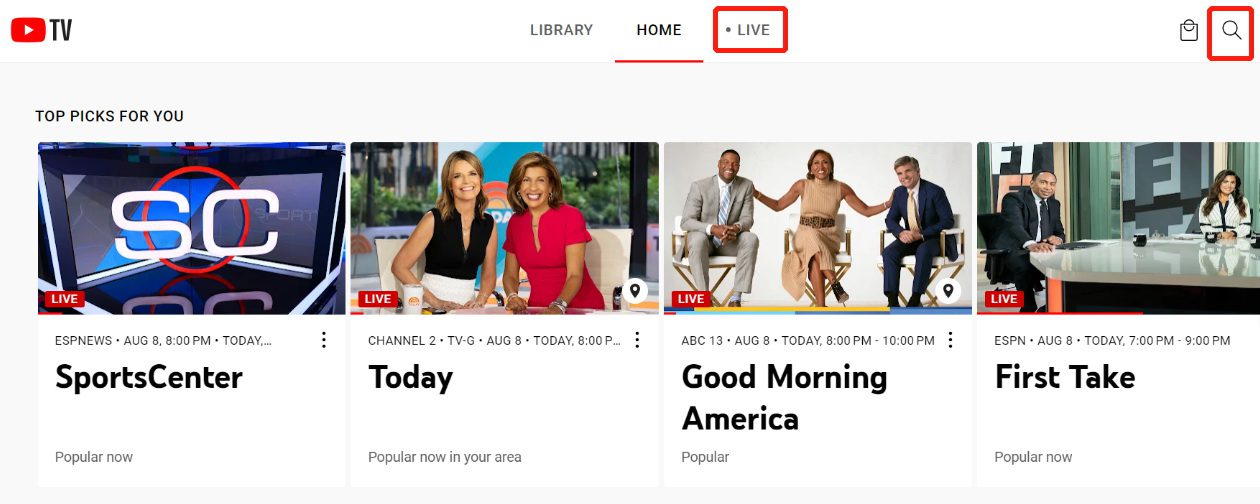
Step 3: Click the plus sign next to the name of the episode to add it to “Library”.
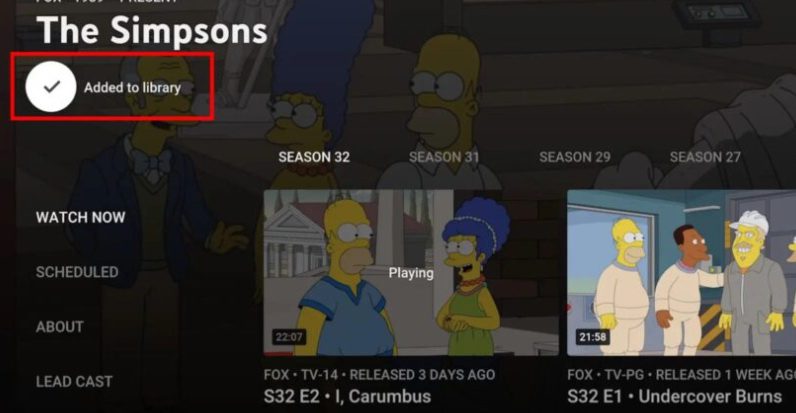
Tips: If you add a live program, the recording will start from the moment you click.
Part 4: How to Manage YouTube TV DVR Recordings?
So after the recording is done, how can we organize these recorded files and make them easily accessible? This becomes the issue we care about. Please continue reading.
How to Find Your Recordings?
You just need to click on the “Library” at the bottom to see content that has been intelligently categorized. You can browse by show name or sort by date to easily find the episodes you want to watch.
How to Remove Shows from Library?
If you want to stop recording a certain show, you can click on the three-dot menu next to the show’s title, and then uncheck the “Added to Library”. This will stop all future recording schedules for the show, but episodes that have already been recorded are usually still retained. All recorded content will be automatically removed from your library 9 months after the show airs, unless you delete it manually.
Tips: If you cannot accept the 9-month validity limitation and want to permanently keep certain content, you might consider using third-party tools. For example, Moyea Streaming Video Recorder can save the recorded content directly to your computer or hard drive. This way, you can permanently archive these shows and even import them to other devices for permanent offline viewing.
FAQs
1. Is YouTube TV DVR really unlimited?
In terms of the number of recordings, yes. You can record any number of programs, with no overall limit on the total.
2. Can you record multiple shows at once?
Yes. YouTube TV supports recording up to three different programs at the same time, and it won’t affect you even if you are watching another channel.
3. Can you download DVR recordings?
Yes, but there are limitations. Although YouTube TV allows downloading recorded content on mobile apps, these downloaded YouTube TV recordings are DRM-protected and usually expire within 48 hours after playback starts, or remain available for 30 days without an internet connection. Therefore, if you want to watch these video files offline permanently and play them on any device without restrictions, you will still need to use a third-party tool like Moyea Video Downloader to record and save the videos as local files.
4.Can family members use DVR separately?
YouTube TV supports adding up to 6 family members, each of whom has their own separate Google account and a completely independent DVR library and viewing history.
5.Does YouTube TV DVR cost extra?
For standard subscription users, the unlimited DVR feature is included in the subscription fee at no additional cost.
 Terms of Use: Moyea is intended solely for personal, educational, and non-commercial archival purposes use. It allows users to save a local copy of videos that they have legally subscribed or purchased. Any commercial utilization, unauthorized redistribution, or online sharing is prohibited. Users assume full responsibility for complying with copyright laws.
Streaming Video Recorder

 Try for Free
 Try for Free
 Record live streams, videos, and clips from 1000+ websites.
Record DRM-protected streaming videos.
Save recordings as MP4 or MKV files.
Record videos in up to 4K resolution.
Record videos at up to 5× speed.
Skip commercials during recording.
Related

5 Best LinkedIn Video Downloaders to Download LinkedIn Videos

SaveFrom.net Still Banned in the US: What Are the Alternatives?
How to Watch Deleted YouTube Videos?

Twitch VOD: What It Is and How It Works
Full Review of Savethevideo: Is Savethevideo Safe?

Is Crunchyroll Free? How to Watch Anime Without Paying


 English
 日本語
日本語