Last updated on 2025-12-19, by
How to Get Rid of Disney+ Download Limits
Summary:
In this post, I will give details on Disney+ download limits and how you can bypass those limits.
Outline
Like many other streaming platforms, Disney+ also sets some download limits, which can make users feel restricted. No matter the limited download device counts, downloadable video counts, or other limits, users want more than that. The problem is how to get rid of Disney+ download limits? Follow me to learn some practical ways in this post.
Understanding Disney+ Download Limits
The Disney+ download limit involves many sides, from the subscriptions to the devices you use. I will give detailed explanations on these limits so that you can know the boundaries.
1. Subscription limit
This is the most important factor to consider. Different Disney+ plans offer different perks (including the download features), which will impact your experience. So before deciding to subscribe to Disney+, make sure you choose the right subscription. Below is the table that shows which plan supports the download feature.
|
Plan Name |
Services |
Download Feature |
Price (Starting 10/21/2025) |
|
Disney+, Hulu Bundle |
Disney+ (With Ads), Hulu (With Ads) |
No |
$12.99/month |
|
Disney+, Hulu, ESPN Select Bundle |
Disney+ (With Ads), Hulu (With Ads), ESPN Select (With Ads) |
No |
$19.99/month |
|
Disney+, Hulu, ESPN Select Bundle Premium |
Disney+ (No Ads), Hulu (No Ads), ESPN Select (With Ads) |
Yes |
$29.99/month |
|
Disney+ Premium, Hulu, ESPN Select Bundle Legacy |
Disney+ (No Ads), Hulu (With Ads), ESPN Select (With Ads) |
Yes |
$24.99/month |
|
Disney+, Hulu, HBO Max Bundle (With Ads) |
Disney+ (With Ads), Hulu (With Ads), HBO Max Basic with Ads |
No |
$19.99/month |
|
Disney+, Hulu, HBO Max Bundle (No Ads) |
Disney+ Premium (No Ads), Hulu Premium (No Ads), HBO Max Standard (No Ads) |
Yes |
$32.99/month |
|
Disney+ |
Disney+ (With Ads) |
No |
$11.99/month |
|
Disney+ Premium |
Disney+ (No Ads) |
Yes |
$18.99/month or $189.99/year |
Important Note:
- As of October 21, 2026, Disney+ has increased its prices on certain subscriptions. The Disney+ ad-supported service has increased its price by $2 and now costs $11.99 per month. The Disney+ Premium subscription has increased by $3 and now costs $18.99 per month.
2. Device limit
Although you can log in to Disney+ on many devices, such as TV, phone, and game console, there are differences between downloading and streaming devices
| Feature |
Device Limit |
Supported Device Types |
Core Logic |
|
Download Offline Content |
10 Devices |
Mobile phones and tablets (App only) |
As long as the device is authorized, it can store offline videos. |
|
Concurrent Online Streaming |
4 Devices |
All platforms (TV, Computer, Mobile, etc.) |
Any device connected to the internet while playing counts toward the 4-screen limit. |
You can log into your account on 10 devices to download the movies and shows you want. For example, you are in a household of 10, 5 grown-ups and 5 children. Each one of them has a phone or a tablet. It’s ok to download Disney+ video on all 10 devices when going on a trip to watch. But, if you want to download from 11th devices, you need to sign out of one of your previous devices.
3. Title limit per device/account
Besides the device limits, the titles that you download are also limited. You can only download 25 titles within your account. This limits targets to your account, not a single device. For example, if your iPad has downloaded 15 episodes already, then you can download 10 more on your phone. If you want to download new content that exceeds 25, you need to delete the old one.
4. Expiration limit
The downloaded videos on your phone don’t mean you can have them forever. There are expiration dates from the day you download them:
30-day expiration: As long as your account is active, the downloads can be kept for 30 days offline.
48-hour watching limits: Once you hit the play button, the countdown begins. You only have 48 hours to finish the video. The video will expire after 48 hours, no matter if you finish or not.
Content is not available: If a movie is taken download from Disney+, even if you have downloaded it in your app offline, it will disappear from your list.
5. Quality & Format limit
Due to the DRM, the format of the videos that you downloaded on your phone is not MP4. It is the encrypted format of Disney+, and you can only watch the videos within the app. You cannot transfer these videos to your USB or other devices. Also, the resolution of the videos is limited. The mobile downloading supports up to 1080P. Even if you subscribed Premium plan, which supports 4K, the downloads cannot be 4K.
How to Bypass Disney Plus Download Limits
For heavy users and families with a large number of people, the download limits of Disney+ may be a big problem. To help you download your favorite Marvel or Star Wars, etc., without constant interruptions, I collected 4 useful methods. Here is how you can get around the Disney+ download limits.
1. Manage device registrations
Since there are 10 device limits, if you change your phone, tablet often, or share one account with your family, the 10 is easily reached. The official has a way out for this problem. You can delete the device from your account, and there is another option: Log out on all devices (Reset). This is good for you when the account is logged on to too many devices, and some of them can be found. Here is how.
Step 1: Go to Disney+ and log in to your account.
Step 2: Click on your Profile and select Account.
Step 3: Find Manage devices and choose which device you need to remove.
Step 4: If you want to remove all the devices, click Log out of all devices.
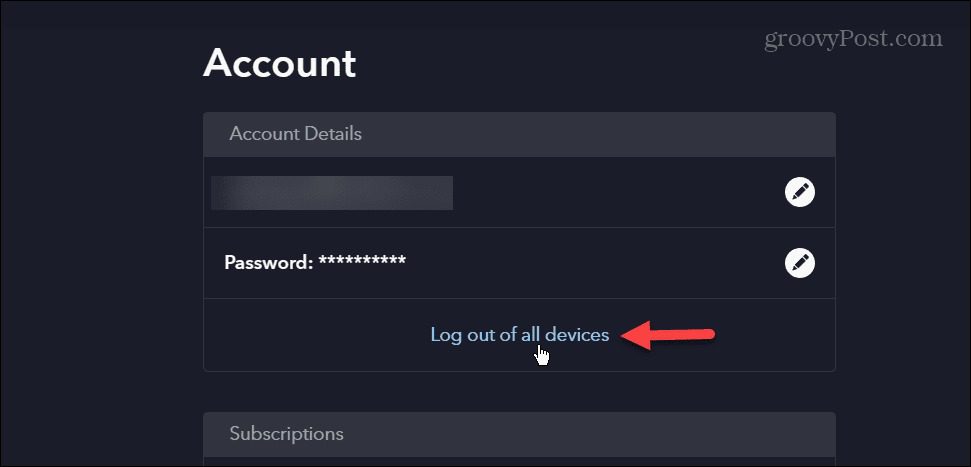
Note:
- Once you are logged out, the downloads are deleted automatically.
2. Regularly renew downloaded content
To avoid the downloaded videos you cannot watch after expiration, you need to log in regularly at least 30 days once a time, and remember to finish watching the videos within 48 hours. Once you find that the video has expired, you can redownload it as long as you are an active subscriber.
3. Delete watched or expired titles
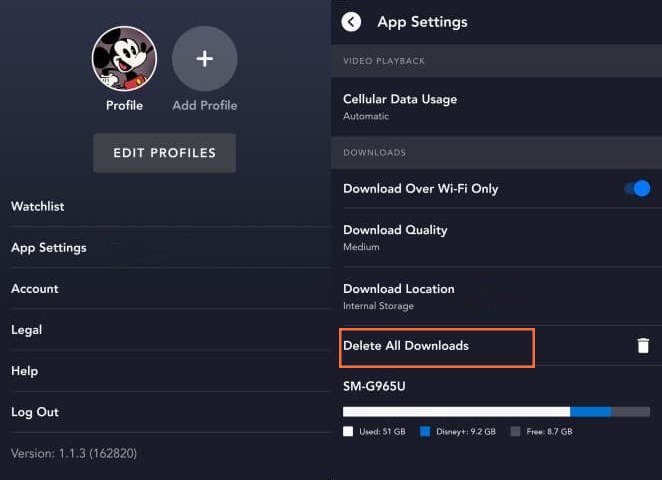
Because the 25 titles are for all devices and the number is not sufficient, it is a good habit you delete the unnecessary titles often. When you finish watching one video, go to the Downloads and delete this one immediately in case you forget. Also, for those expired videos that you don’t plan to download again, you should delete them as well, since they occupy the download slots. If you don’t want to delete videos one by one, you can go to Profile > App settings and tap Delete all downloads. This is a very effective method that lets you delete downloads at once.
4. Use Moyea Disney Plus Downloader
While the official ways offer you temporary fixes, you are always stuck in the Disney+ download limits. The videos will finally expire, the devices are always limited, a 25-title limit lets you lose so much enjoyment during a long trip, and you don’t always want to download and delete. To truly bypass Disney+ download limits forever, the only way is to use third-party downloaders. One of the best Disney+ downloaders is Moyea Disney Plus Downloader, which gives you a true Disney+ downloading experience.
It allows you to directly download Disney+ shows and movies in HD quality to your computer and convert the video format to MP4/MKV for compatibility with different devices. You have options to select the subtitles and audio tracks for authentic watching, and the best part is, the ads are removed during the downloading process, and you can keep the videos as long as you want. No expiration and on any devices. This is a perfect solution for you to bypass all the Disney+ download limits at once.
FAQs
1. How do I change the download video quality?
Go to your profile picture > App Settings. Under the Downloads section, select Video Quality (or Download Quality) to Standard, Medium, or High based on your needs.
2. Why isn’t Disney allowing me to download?
You may subscribe to the wrong plan that doesn’t support the download feature. Also, only mobile devices like phones and tablets can download videos from Disney+. If you use a TV or a computer, there is no download button.
3. Does the downloaded video exist after I cancel my Disney+ subscription?
No. Once you cancel your Disney+ subscription, and the billing cycle ends, all your downloads will be deleted or cannot be played. If you want to keep the downloads longer after your cancellation, you can use Moyea Disney Plus Downloader to download and save videos.
Conclusion
If you want to break the cycle of downloading, watching, and deleting completely, then the quickest way to actually own a Disney+ movie/TV show is by using Moyea Disney Plus Downloader. However, whether you are using Moyea Disney Plus Downloader or the app for Disney+ directly, I hope these tips help you clear out those restrictions so you can get back to stress-free binge-watching, at home, or on your trip.
-

Netflix Not Working on Roku? Solve It NowCassie J./2026-03-27
-
3 Proven Ways to Watch Netflix Without AdsCassie J./2026-03-25
-
Apowersoft Streaming Video Recorder Review: Features, Pricing, and AlternativesSunny Wen/2026-03-24
-
Best Amazon Prime Video Recorders: Record with the BestPatrick Murray/2026-03-19
-
How to Download Amazon Prime Videos to iPhone/iPadPatrick Murray/2026-03-18
-
YouTube TV DVR: How It Works and How to Record Live TVSunny Wen/2026-03-17
-
How to Record Twitch Streams? All Methods ExplainedPatrick Murray/2026-03-17
-
Download PBS Videos Easily: From Public Clips to Passport ShowsPatrick Murray/2026-03-17
-
How to Mute or Unmute Someone on InstagramLeia Liu/2026-03-11
-
YT Saver Review 2026: Is It Safe, Legit, and Worth Buying?Leia Liu/2026-03-10








-
Top 5 Udemy Downloaders to Download Udemy Courses on PCPatrick Murray/2025-07-03
-
Best 9 Anime Download Sites to Download Anime [Free & Paid]Patrick Murray/2024-07-12
-
4 Best DRM MPD Downloaders in 2026Leia Liu/2025-05-29
-
HBO Max with Ads VS. No Ads: What Are the DifferencesLumi/2025-05-13
-
6 Best M3U8 Downloaders to Download M3U8 PlaylistsLumi/2025-05-22
-
[2024] How to Download DRM-Protected M3U8 VideosLumi/2024-10-29
-
How to Stream Prime Video on Nintendo Switch?Patrick Murray/2024-09-14
-
How to Activate Tubi on Different Devices? [LG, FireStick, Roku, PS5…]Cassie J./2024-09-24
-
[2026 Latest Review] Best Amazon Prime Video DownloadersPatrick Murray/2025-05-16
-
How to Download an MPD Video with DRMLeia Liu/2024-09-20









 English
 日本語
日本語