Last updated on 2025-12-17, by
How to Watch Disney Plus With Friends Anywhere
Summary:
Do you want to watch Disney Plus with your friends? Do you want to know how to watch Disney Plus with your friends anytime, anywhere? I will tell you in detail 4 ways to help you and your friends watch Disney Plus together.
Outline
Disney Plus boasts a vast library of popular shows and movies, attracting a large number of young people. However, when watching exciting Disney Plus videos alone, do you ever feel lonely and wish you could watch with friends? When you see great Disney Plus content, do you ever want to share those wonderful moments with your friends and discuss the amazing storylines? Unfortunately, in September 2023, Disney Plus shut down its group watch feature, GroupWatch. Now, if you want to watch Disney Plus with your friends, you need to find other ways. Fortunately, I noticed this issue and wrote this tutorial. Next, I will detail four methods to help you and your friends watch Disney Plus together in real time.
Method 1: Hosting a Watch Party with Teleparty
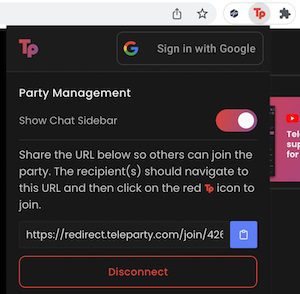
Do you want to host a Disney Plus watch party? With the help of Teleparty, you can now invite your friends. Teleparty is a popular browser extension, primarily compatible with Chrome and Edge. You and your friends need to install the Teleparty application in your browsers and then join a Teleparty group together. After joining the group, you can send text messages, emojis, and GIFs. Follow these steps to enjoy Disney Plus videos together:
Step 1: Install Teleparty on your computer’s browser. Ask your friends to do the same. Then, register and log in to your Teleparty account. Finally, restart your browser. You need to ensure Teleparty is always running.
Step 2: Use your browser to visit the Disney Plus homepage and play the Disney Plus video you want to watch with your friends. Then, click the Teleparty icon in the upper right corner of your browser and click the "Start the Party" button.
Step 3: Teleparty will automatically generate a link. Copy this link and share it with your friends. This allows you to invite your friends to join the Disney Plus watch party.
After completing the above steps, you can watch Disney Plus with your friends and also send various messages within the Teleparty group.
Method 2: Using Device Screen Share
Besides joining Teleparty groups, we can also consider using screen sharing to watch Disney Plus with friends. Here, we’ll need Discord. Discord is essentially a gaming social platform, often used for game streaming. Therefore, Discord allows us to share our screens. We can play Disney Plus on our computer and then use Discord to share our screen with friends. With Discord’s help, we can watch Disney Plus together. To achieve this, you need to follow these steps:
Step 1: Install the Discord application on your computer. Then, register and log in to your Discord account. Use your computer’s browser to access Disney Plus and play the Disney Plus video you want to share and watch with your friends.
Step 2: Run the Discord application. Then, click "User Settings." This will take you to the "Application Settings" interface. Then, find the "Voice & Video" tab and click it. Finally, click the "Screen Sharing" button and agree to install it.
Step 3: In the "Activity Settings" interface, click "Registered Games." Then, add your browser to Discord.
Step 4: Click the "Live" button in Discord to start sharing your screen. Then, invite your friends to watch your live stream on Discord. This way, you and your friends can watch Disney Plus together.

Method 3: Downloading and Sharing Offline
While Teleparty or Discord make it easy to share and watch Disney Plus videos with friends, these methods all require a Disney Plus subscription. Disney Plus is a subscription-based online streaming service. You must subscribe to one of the Disney Plus plans to watch all the shows and movies on Disney Plus. Therefore, if you stop subscribing to Disney Plus, you can no longer use Teleparty or Discord to share and watch Disney Plus videos with friends.
To avoid this and to enjoy watching Disney Plus videos with friends, I think hosting an offline Disney Plus video watch party would be much more fun. We can download the Disney Plus videos to our computers in advance and then invite friends over. We can use a larger screen to watch Disney Plus videos offline together. Therefore, we need the help of the best Disney Plus video downloader.
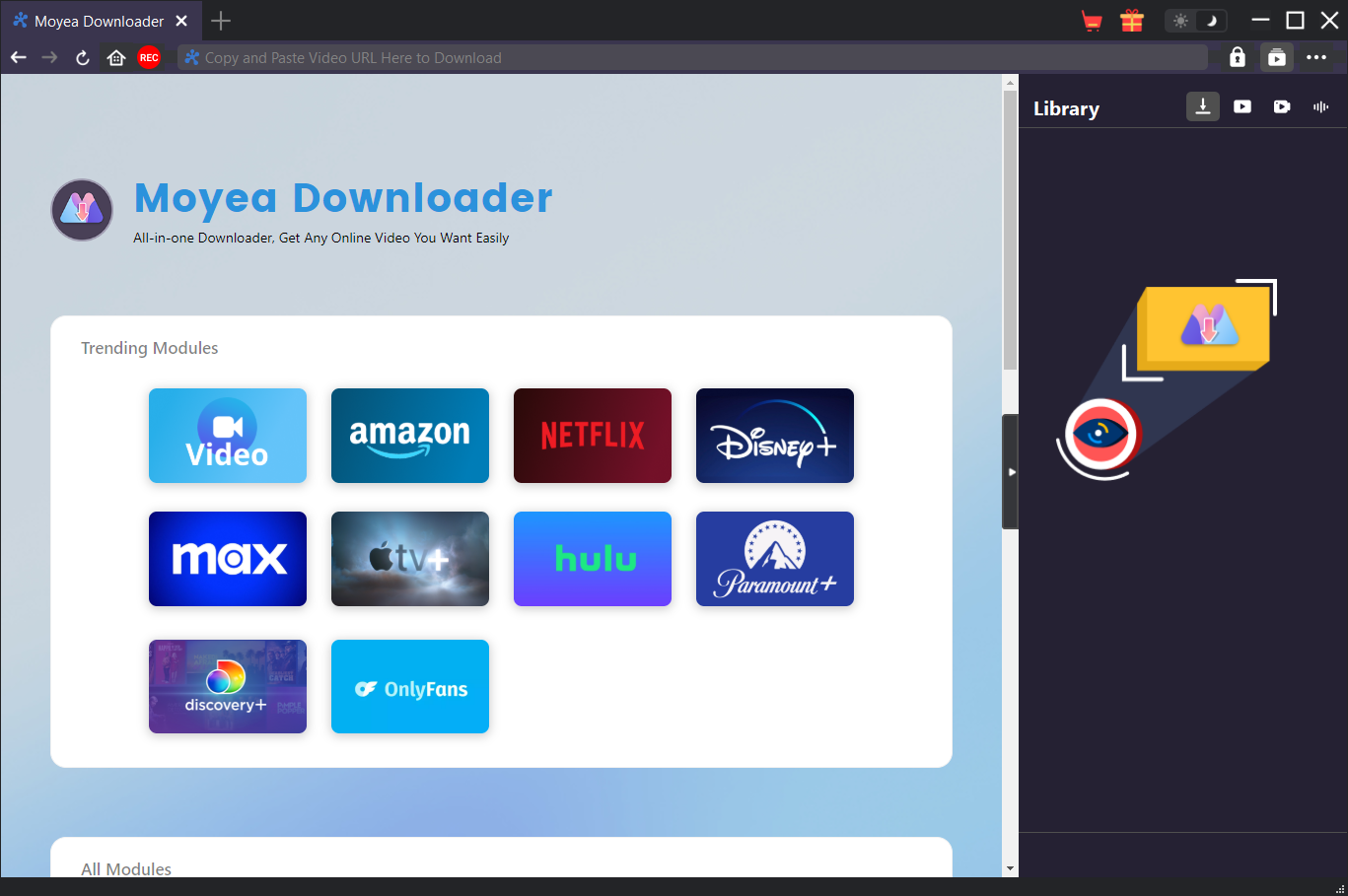
For higher-quality offline viewing of Disney Plus videos, I recommend Moyea Disney Plus Downloader. Moyea Disney Plus Downloader is known for its high-quality and efficient Disney Plus video downloads. On one hand, the Disney Plus videos downloaded by Moyea Disney Plus Downloader are all in very high quality, at least 720p. On the other hand, Moyea Disney Plus Downloader has a batch download function. It can download multiple Disney Plus videos at high speed simultaneously. This allows you to watch an entire Disney Plus episode offline at once.
Method 4: Using Zoom or FaceTime
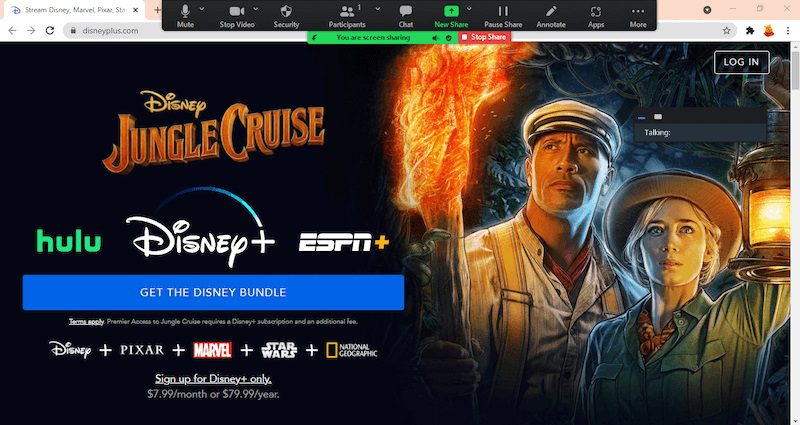
Zoom and FaceTime are commonly used for work because their online meeting features are very convenient. When using Zoom or FaceTime for video conferencing, we can choose to share our computer screen. In other words, we can use Zoom or FaceTime’s online meeting features to invite friends to join, and then use screen sharing to share the Disney Plus video that is playing. This way, we can share and watch Disney Plus videos with our friends. Here are all the steps to use Zoom for video conferencing and share Disney Plus videos:
Step 1: Install the Zoom application on your computer. Also, ask your friends to install the Zoom application on their computers. Then, within the Zoom application, register and log in to your Zoom account.
Step 2: Use your computer’s browser to access Disney Plus and find the Disney Plus video you want to watch with your friends. Then, play it.
Step 3: Return to the Zoom application. Start Zoom’s online meeting feature and invite your friends to join the meeting. Click the "Share Screen" option in Zoom. Then, select the browser window that is playing the Disney Plus video. Don’t forget to turn on Zoom’s audio feature so you and your friends can discuss the Disney Plus video content together.
FAQs
With the four methods I’ve provided, you can easily watch Disney Plus with your friends. However, please note that you might still encounter some issues while watching Disney Plus with friends. Of course, I’ve also thoughtfully compiled some related questions and solutions for you. You can read the following in detail:
1. What if someone’s device experiences buffering or poor picture quality when watching Disney Plus with friends?
You can ask your friend to close unnecessary background programs or restart their playback device. Then, you can also ask your friend to check their device’s network connection and try connecting to a more stable network.
2. What if some people want to fast-forward to the climax while others want to savor the details when watching Disney Plus together offline, leading to disagreements?
Before holding a Disney Plus viewing party, you can first survey everyone’s preferred movie genres and choose one that most people are interested in to reduce disagreements during the viewing.
3. What if excessive browser cache prevents Teleparty from working properly when watching Disney Plus synced with friends using a computer browser via Teleparty?
You can open your browser settings and clear the cache and cookies. Alternatively, you can choose to reinstall Teleparty.
Conclusion
How to watch Disney Plus with friends? You can find the answer in this tutorial. Can you watch Disney Plus with friends? You can easily do so by using Teleparty or CleverGet Disney Plus Downloader. However, whatever tool you use, I hope you and your friends enjoy watching Disney Plus together and create precious and unforgettable memories.
-

Netflix Not Working on Roku? Solve It NowCassie J./2026-03-27
-
3 Proven Ways to Watch Netflix Without AdsCassie J./2026-03-25
-
Apowersoft Streaming Video Recorder Review: Features, Pricing, and AlternativesSunny Wen/2026-03-24
-
Best Amazon Prime Video Recorders: Record with the BestPatrick Murray/2026-03-19
-
How to Download Amazon Prime Videos to iPhone/iPadPatrick Murray/2026-03-18
-
YouTube TV DVR: How It Works and How to Record Live TVSunny Wen/2026-03-17
-
How to Record Twitch Streams? All Methods ExplainedPatrick Murray/2026-03-17
-
Download PBS Videos Easily: From Public Clips to Passport ShowsPatrick Murray/2026-03-17
-
How to Mute or Unmute Someone on InstagramLeia Liu/2026-03-11
-
YT Saver Review 2026: Is It Safe, Legit, and Worth Buying?Leia Liu/2026-03-10









-
Top 5 Udemy Downloaders to Download Udemy Courses on PCPatrick Murray/2025-07-03
-
Best 9 Anime Download Sites to Download Anime [Free & Paid]Patrick Murray/2024-07-12
-
4 Best DRM MPD Downloaders in 2026Leia Liu/2025-05-29
-
HBO Max with Ads VS. No Ads: What Are the DifferencesLumi/2025-05-13
-
6 Best M3U8 Downloaders to Download M3U8 PlaylistsLumi/2025-05-22
-
[2024] How to Download DRM-Protected M3U8 VideosLumi/2024-10-29
-
How to Stream Prime Video on Nintendo Switch?Patrick Murray/2024-09-14
-
How to Activate Tubi on Different Devices? [LG, FireStick, Roku, PS5…]Cassie J./2024-09-24
-
[2026 Latest Review] Best Amazon Prime Video DownloadersPatrick Murray/2025-05-16
-
How to Download an MPD Video with DRMLeia Liu/2024-09-20










 English
 日本語
日本語