Last updated on 2026-01-14, by
How to Delete Your Facebook Profile
Summary:
If you want to give up using Facebook, this article provides with step-by-step instructions on both browser and phone.
Outline
Facebook posts sometimes are overwhelming, aren’t they? Sometimes I have the feeling that I want to escape everything on Facebook. I need to leave. Maybe it’s time to delete the profiles on Facebook. If you have the same feeling to do so for any reason, I give step-by-step instructions in this post for you to follow.
Deactivation vs. Permanent Deletion: What’s the Difference?
Before you rush to the steps, you should know there are actually two ways to leave Facebook. One is "Activation," and the other is "Deletion." These are two different ways that you should not choose wrong.
1. Activation (I need to take a break)
Think that you need to leave Facebook for a break, not permanently. Your profiles and any other data will be hidden from others, and Facebook will keep all your information. You can come back anytime as you want.
2. Deletion (I need to leave for good)
This is an option that you leave Facebook for good (you have 30 days to regret though). If you choose to delete your profiles on Facebook, anything on your account will be deleted. The most important thing is, you will never get back your pictures and posts if you regret them in the future.
Things to Do Before You Delete Your Facebook Profile
If you still decide to delete your Facebook profiles, some important things you must be aware of. Because once you do this, there is little chance of going back. Spending a few minutes to prepare now will save you a lot of trouble later.
1. Back Up Your Facebook Data
Even if you’re ready to leave this platform, you don’t want to lose years of memories. The good thing is that Facebook allows you to download your data directly from the platform, which includes your posts and history. However, Facebook only allows you to download your own videos. If you want to download some family shares or cherish reels before deleting your account, this is limited.
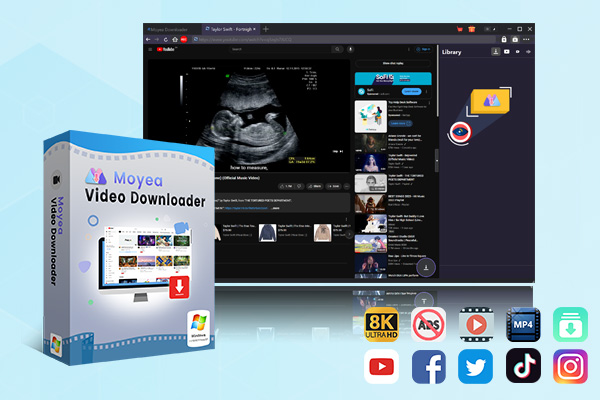
If you want to download Facebook reels without any limitations, download them in bulk with lossless quality, you can use some third-party Facebook downloaders. One of the best Facebook downloaders is Moyea Video Downloader. It allows you to download videos from over 1000 sites, including Facebook, in up to 8K resolution, with even ads removed during the downloading process. This is the simplest way to download your Facebook videos, ensuring that your clips won’t be lost just because you’re leaving the platform.

-
Moyea Video Downloader
– Enable users to download online videos/live streams from 1000+ sites easily at high speed.
– Download 8K video and 320 kbps audio without quality loss.
– Download TV series episodes of all/certain seasons at once.
– Save downloaded online videos to MP4/MKV/WEBM format.
2. Unlink Facebook From Other Apps
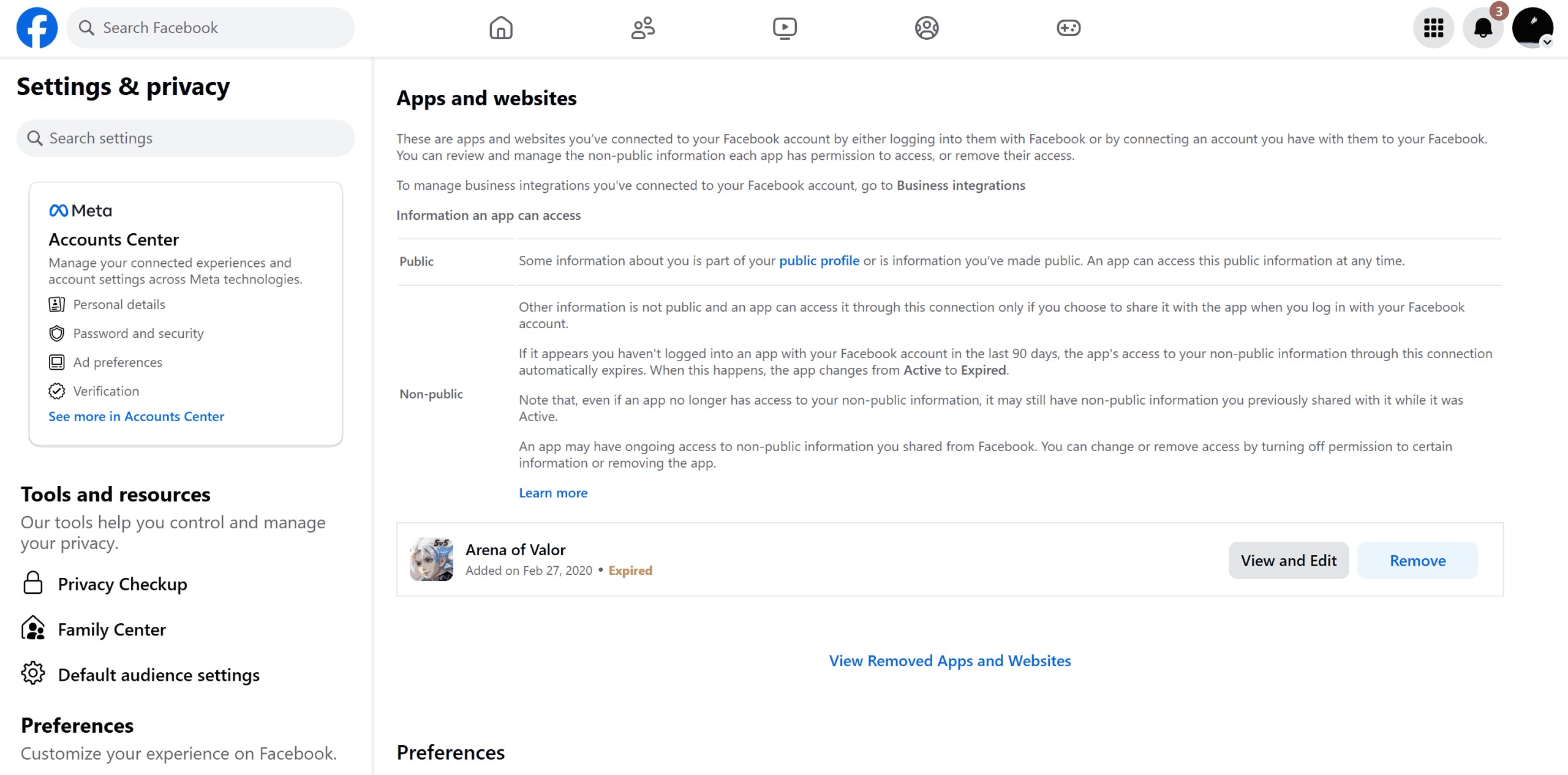
Most people have used the" Log in with Facebook" button for many years when logging in to other platforms. It is convenient, however, not so safe if you leave Facebook without unlinking these services in advance. You probably will encounter that you cannot log in to your Spotify, Instagram, Pinterest, etc. So before deleting your Facebook profiles, take some time to make sure you do the following things.
Step 1: Go to Settings & Privacy > Accounts Center > Apps and websites with accounts to see which apps are tied to your profile.
Step 2: You can remove the apps and websites that are tied to your Facebook account. Or, go to these apps and change the login method to a unique email and use the password to log in.
Step 3: Make sure all your subscriptions and game processes are migrated to the new logins successfully before deletion.
3. Review Your Messenger & Social Contacts
The last thing you need to do is to tell your friends that you are going to delete your Facebook profiles. Once you delete it, your Messenger chat histories and group activities will disappear. To avoid leaving your friends in the dark or losing important connections, do a quick "social cleanup".
Step 1: Save important contacts that you need. If you only contact someone on Facebook, you must ask them for their phone number, email, WhatsApp, or any other contact methods before deletion.
Step 2: For your unknown followers, you can post a final status update that you will leave the platform. This prevents people from thinking you’ve blocked them or deactivated them because of something they said.
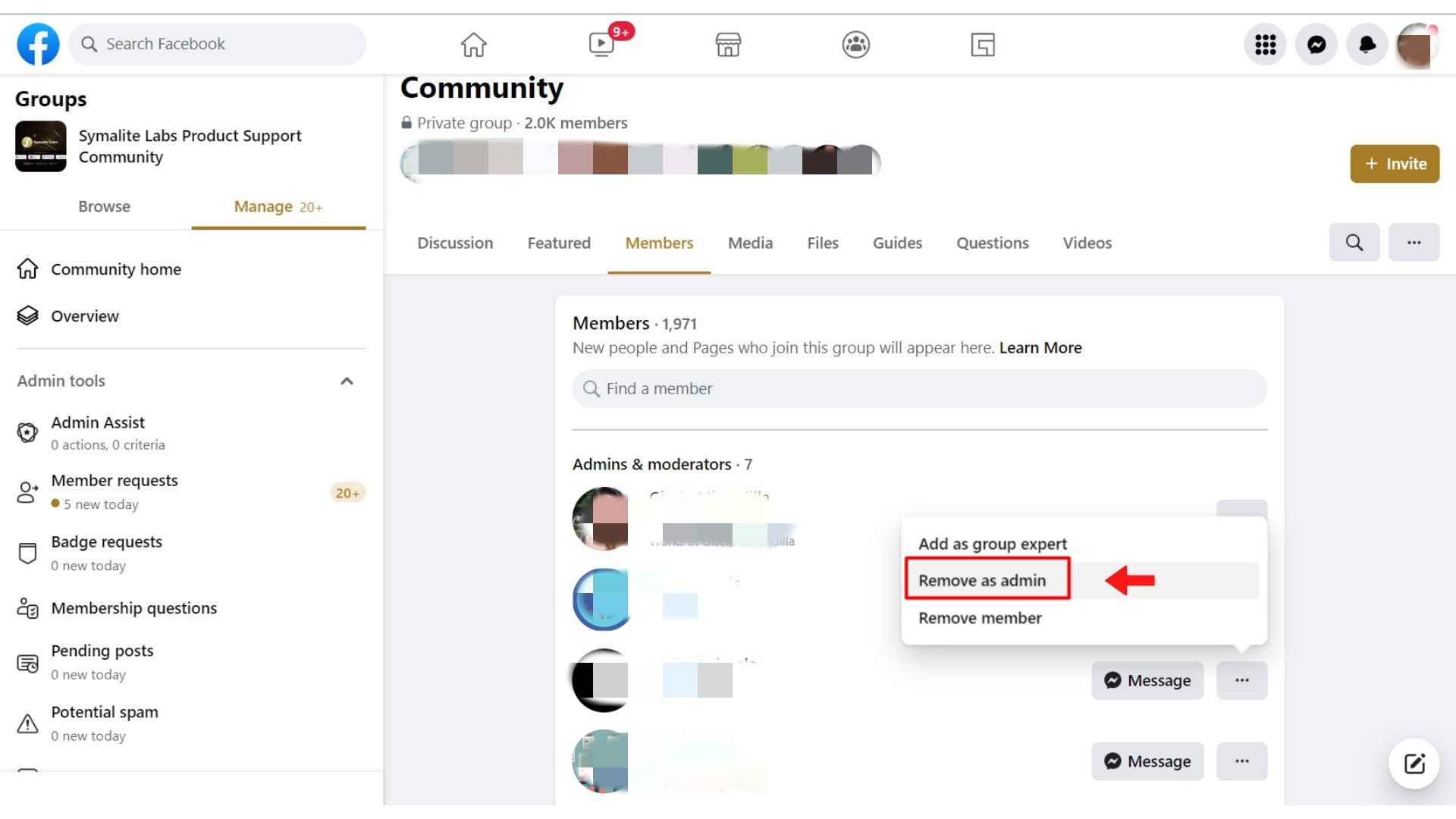
Step 3: If you are the only admin of a Facebook group or business page, before deleting, you need to grant the leadership to others. Go to the Page/Group Settings and appoint a trusted person as the new one.
How to Delete Facebook Profile Via Web Browser
Once you are done preparations and you are ready to take the steps. The whole process is simple. Let’s take a look at how you can delete your Facebook profiles on a browser first.
Step 1: Open your Facebook account on a computer and click on the profile picture that you need to delete.
Step 2: Choose Settings & privacy, and then click Settings.
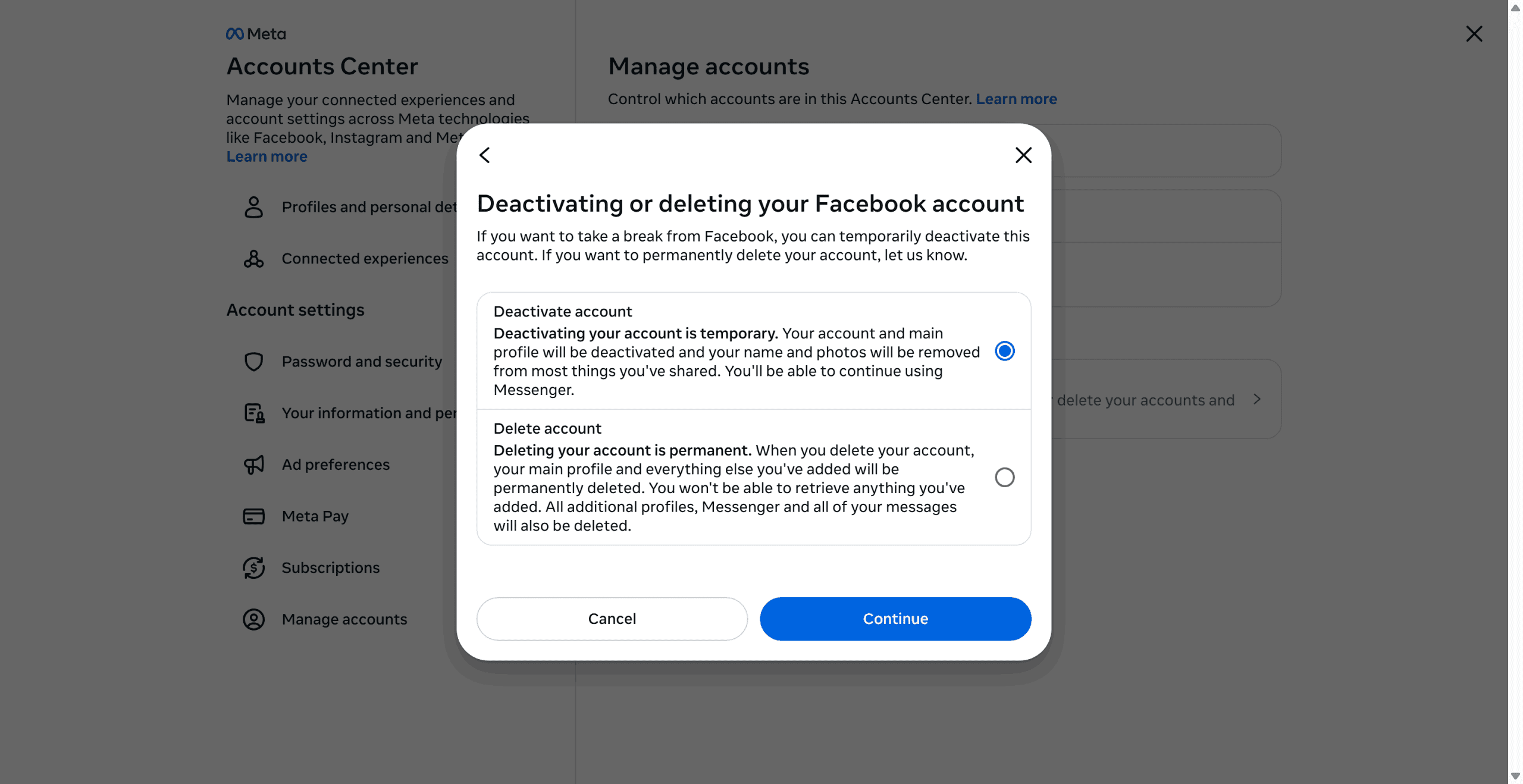
Step 2: On the left panel, click on the Accounts Center > Manage accounts.
Step 3: Click on Account ownership and control > Activation and Deletion.
Step 4: Click on your profile picture in the list.
Step 5: Choose delete account and then click on continue.
Step 6: Enter your password and follow the instructions.
How to Delete Facebook Profile Via Mobile App
If you prefer to delete your Facebook profile on your phone, the steps are the same. Here are the steps.
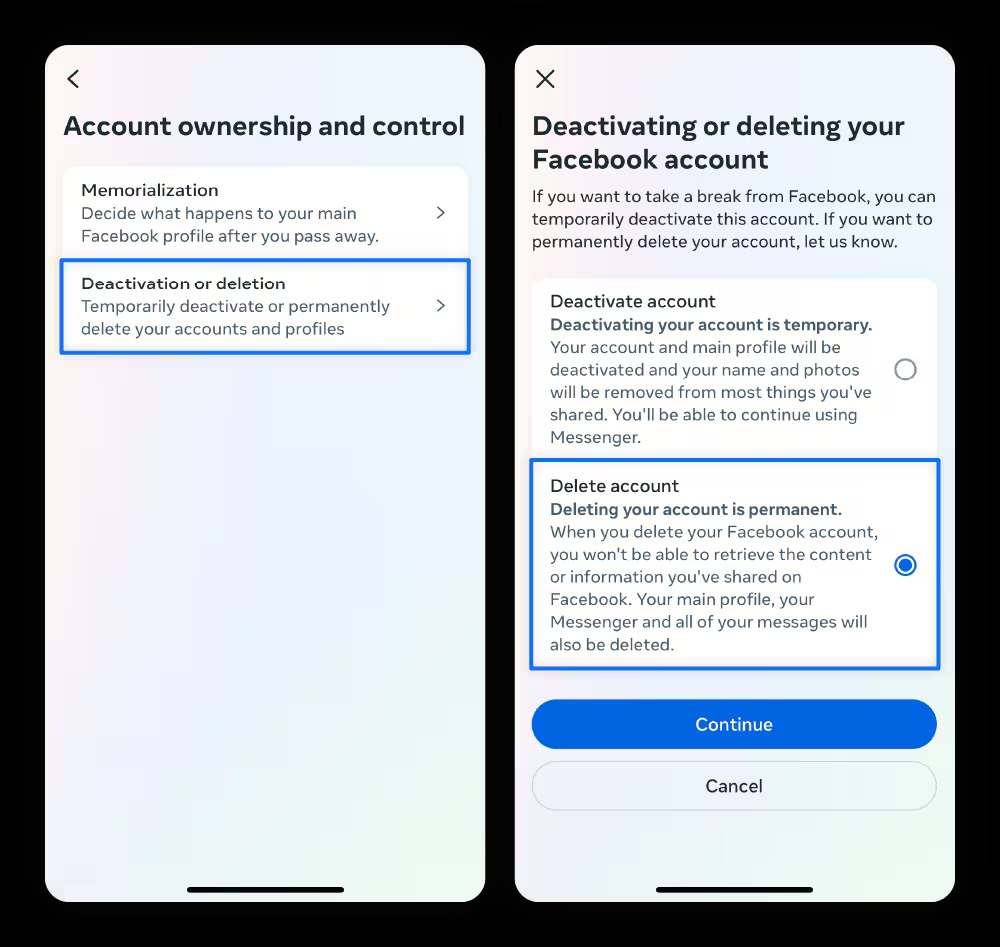
Step 1: Open the Facebook app and tap on the three lines at the bottom right.
Step 2: Tap the gear icon (Settings), scroll down to find Settings & Privacy, and select Settings.
Step 3: Tap Accounts Center > Manage accounts.
Step 4: Tap Account ownership and control > Activation and Deletion.
Step 5: Choose your profile, then choose delete account.
Step 6: Enter your password and follow the instructions.
How to Cancel Deletion if You Change Your Mind
If you change your mind, Facebook offers 30 30-day grace period. During this time, your data will be kept. If you want to cancel the deletion, just log in to your account and choose "Cancel Deletion". This will restore your data.
What Happens After Deletion
Once the 30-day grace period expires, your date will be gone for good. This means your profile, photo, photos, and videos will be removed from Facebook’s server, and they are irreversible.
FAQs
1. How do I deactivate my Facebook account?
If you prefer to deactivate your Facebook account, you can follow the steps in the article, but do not choose Deletion. Just choose to deactivate in the last step.
2. Why can’t I delete my Facebook account?
Usually, when you forget your password or your account has any security issues, this situation happens. Clear your browser cache or update your app to the latest version and create a new password. Then try to delete again.
3. Can I keep using Messenger without a Facebook account?
No. If you delete your Facebook profile, you cannot use Messenger. If you deactivate your Facebook account, your Messenger is still active, and its history is kept.
Conclusion
Deleting your Facebook profile can be a huge leap toward restoring your digital privacy and mental space. If you’ve found yourself feeling overwhelmed by social media or perhaps just want to transition to other platforms, deleting your Facebook account is also a good way. But take some preparation in case you regret. Use Moyea Video Downloader to download your Facebook reels, you ensure that you can leave on your own terms without losing years of memories.
-
Twitch VOD: What It Is and How It WorksSunny Wen/2026-04-24
-
Full Review of Savethevideo: Is Savethevideo Safe?Patrick Murray/2026-04-21
-
Fix Guide: Prime Video Download Not WorkingPatrick Murray/2026-04-21
-
Is Crunchyroll Free? How to Watch Anime Without PayingSunny Wen/2026-04-20
-
StreamFab Netflix Downloader Review: Features, Pros & ConsCassie J./2026-03-31
-
5 Hulu Family Sharing Tips for Smooth ViewingCassie J./2026-03-30
-
Netflix Not Working on Roku? Solve It NowCassie J./2026-03-27
-
3 Proven Ways to Watch Netflix Without AdsCassie J./2026-03-25
-
Apowersoft Streaming Video Recorder Review: Features, Pricing, and AlternativesSunny Wen/2026-03-24
-
Best Amazon Prime Video Recorders: Record with the BestPatrick Murray/2026-03-19









-
Top 5 Udemy Downloaders to Download Udemy Courses on PCPatrick Murray/2025-07-03
-
Best 9 Anime Download Sites to Download Anime [Free & Paid]Patrick Murray/2024-07-12
-
4 Best DRM MPD Downloaders in 2026Leia Liu/2025-05-29
-
HBO Max with Ads VS. No Ads: What Are the DifferencesLumi/2025-05-13
-
6 Best M3U8 Downloaders to Download M3U8 PlaylistsLumi/2025-05-22
-
[2024] How to Download DRM-Protected M3U8 VideosLumi/2024-10-29
-
How to Stream Prime Video on Nintendo Switch?Patrick Murray/2024-09-14
-
How to Activate Tubi on Different Devices? [LG, FireStick, Roku, PS5…]Cassie J./2024-09-24
-
[2026 Latest Review] Best Amazon Prime Video DownloadersPatrick Murray/2025-05-16
-
How to Download an MPD Video with DRMLeia Liu/2024-09-20









Related

Twitch VOD: What It Is and How It Works
Full Review of Savethevideo: Is Savethevideo Safe?

Is Crunchyroll Free? How to Watch Anime Without Paying

YouTube TV DVR: How It Works and How to Record Live TV

Download PBS Videos Easily: From Public Clips to Passport Shows
How to Mute or Unmute Someone on Instagram


 English
 日本語
日本語