Last updated on 2026-01-22, by
How to Record Your Favorite Shows on YouTube TV
Summary:
In this article, I will introduce using cloud DVR and other third-party tools, teach you how to record your favourite shows step by step, and share some tips to solve common problems.
MenuCLOSE
YouTube TV is Google’s live TV service. You can watch more than 100 channels without a set-top box, as long as you have a network. But to be honest, sometimes we are too busy to catch the live broadcast. Like, the NFL championship game doesn’t start until midnight? Or is it a play only updated on weekends? Then you will know the significance of recording on YouTube TV.
This is why many users are looking for how to record programs on YouTube TV. Some people want to save the whole TV series, while others just want to know how to record the live program of YouTube TV so that they can watch it later and don’t have to rush. So at the beginning, everyone will naturally ask a simple question: Can you record programs on YouTube TV?
Part 1: Can You Record on YouTube TV?
The answer is: yes! YouTube TV comes with a DVR function in the cloud, which allows you to record many programs and then save them in your personal media library. Basically, this system saves your recordings on Google’s server, not on your device, so you don’t have to worry about running out of storage space. This cloud DVR is very powerful-it can record multiple channels at the same time, even the whole sports league or the whole season. Unlike traditional DVRs, you can watch your recordings on any device that logs in to your account. In a word, YouTube TV’s DVR makes recording easy, but there are some things you’d better know before relying on it completely.
Part 2: How to Record a Show on YouTube TV?
There are two main ways to record content: the official DVR and third-party tools. Here’s how each works.
Method 1: Using YouTube TV DVR
It is the easiest way to record programs with the DVR that comes with YouTube TV. The steps are as follows:
1. Open the YouTube TV app or website and log in.
2. Find the program or live broadcast you want to record. You can use the search bar or go directly to that channel to find it.
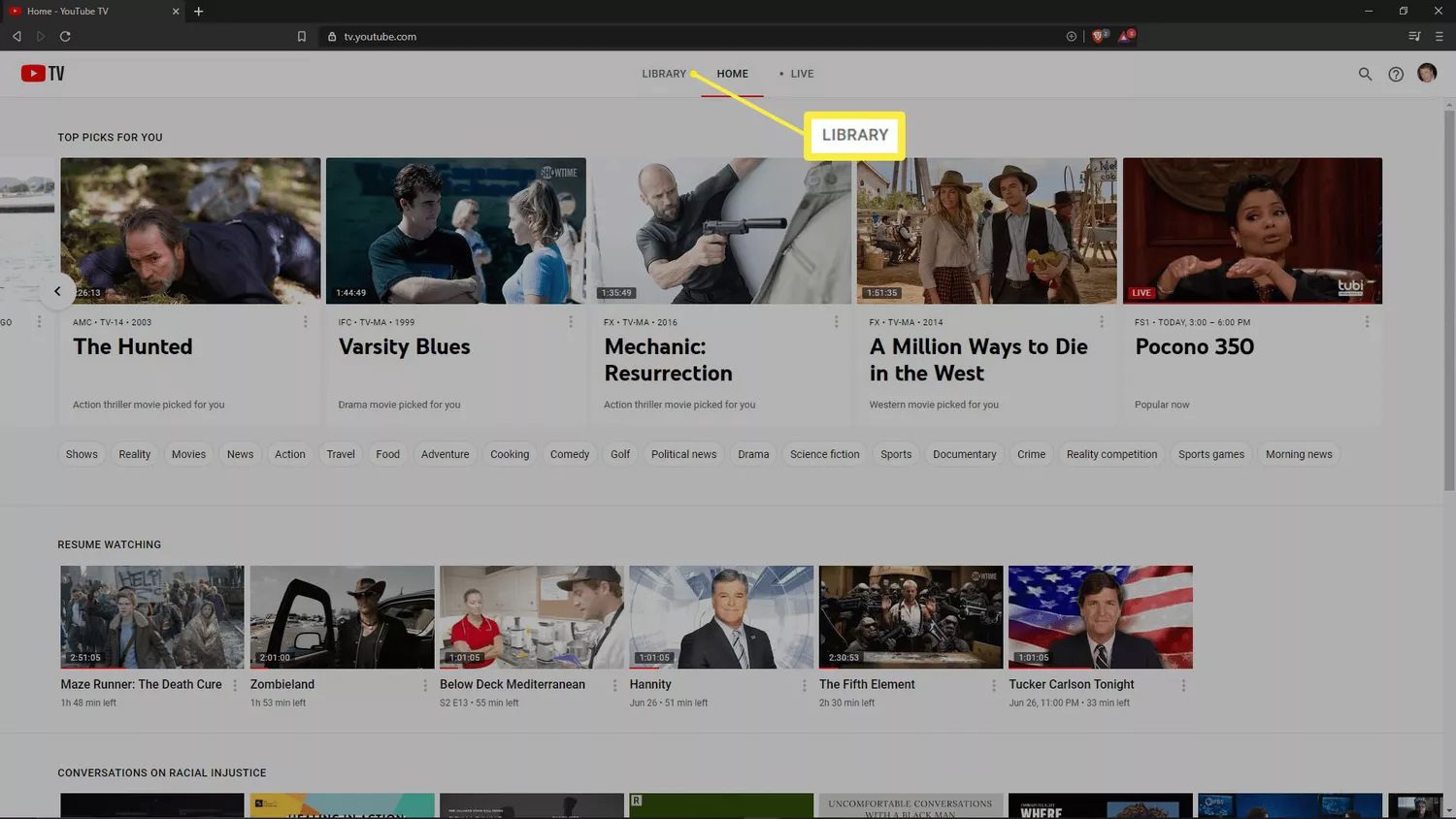
3. Click the “+” icon next to the program (Add to Library). In this way, the program will be stored in your database, and the system will automatically record it, including the number of new episodes broadcast now and in the future.
4. Check your recordings. Click on the Library tab, and you can see all the recorded programs, and you can watch them at any time.
Pros:
- Super simple, just a few taps and you’re recording.
- Can record multiple channels simultaneously.
- Stored in the cloud, no storage worries.
Cons:
- YouTube TV retention period: only 9 months.
- You need an internet connection to watch.
- Canceling your subscription immediately stops all DVR access.
- Some live content may be restricted due to region or licensing.
Method 2: Using Third-Party Software
If you want to save the video for a long time or watch it offline, you can use third-party software to help. Here I recommend Moyea Streaming Video Recorder.
It can record almost all online videos, including those with DRM protection. You can save the recorded video in high-definition MP4 or MKV format, and you can also record it at 5 times speed, skip the advertisements, and watch it offline anytime, anywhere. The guide is as follows:
1. Download and install Moyea Streaming Video Recorder.
2. Set recording parameters. Choose format (MP4/MKV), resolution, frame rate, and audio settings.
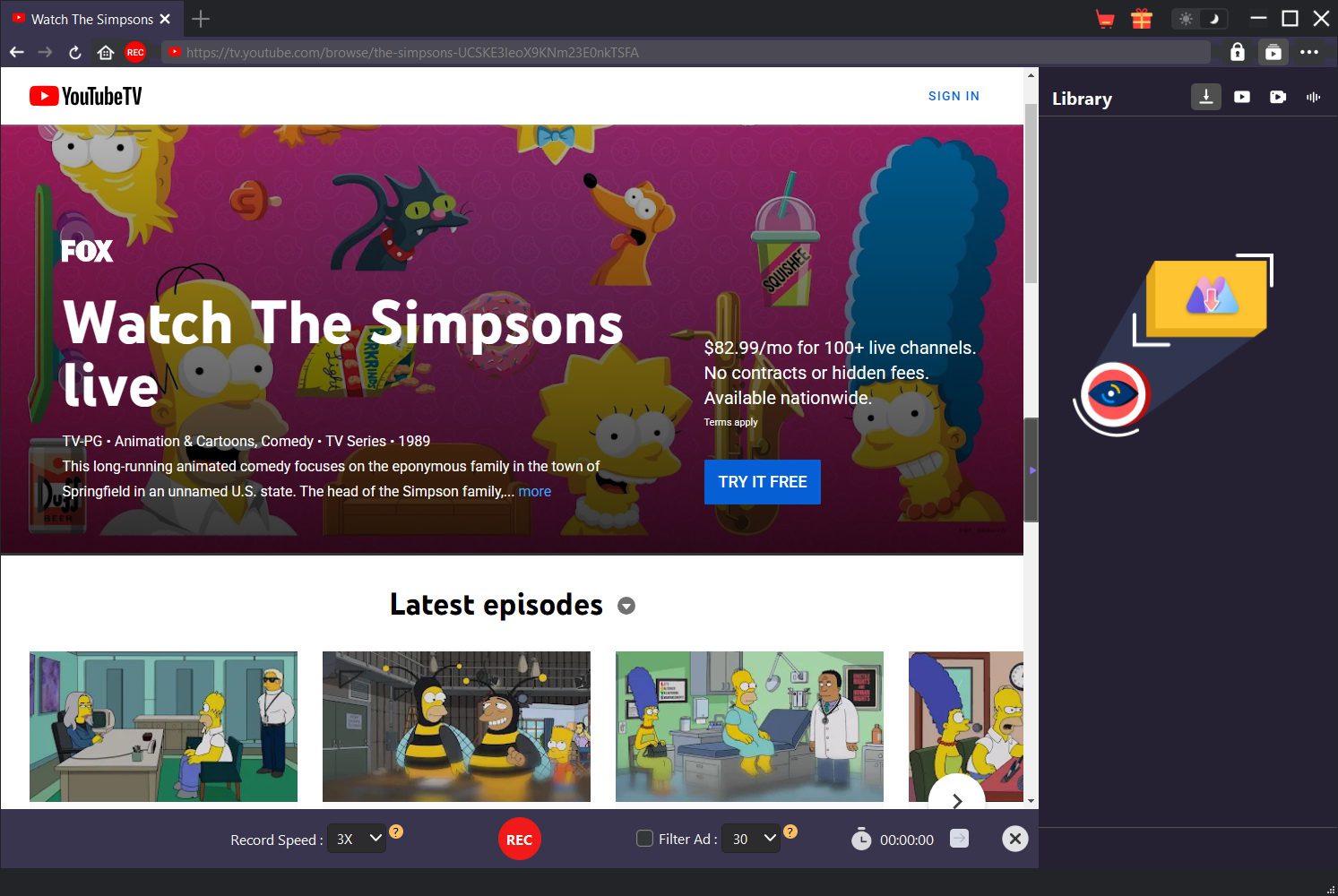
3. Open YouTube TV in Moyea’s own browser, and then play the program or live broadcast you want to record.
4. Click the red “REC” button to start recording. This software will record both pictures and sounds.
5. Stop recording when done. The video will be saved in Moyea’s Library and can be exported or played at any time.
Pros:
- You can record live and on-demand content, even DRM-protected videos.
- Videos are saved locally on your computer. You can watch outside the app.
- Recordings can be played offline.
Cons:
- It’s paid software with a free trial.
- It will take up computer resources.
Simply put, Moyea’s tools allow us to record YouTube videos and bypass some restrictions of YouTube TV DVR. If you only use it occasionally, the official DVR will be enough; But if you want to keep it for a long time or watch it offline, then Moyea is a better choice.
Part 3: Common Issues & Troubleshooting
|
Issue |
Possible Cause |
Solution |
|
Unable to record a specific show |
Channel is region-restricted or subject to copyright |
Check your location and channel access; if needed, use Moyea tools |
|
Recording stops mid-show |
Live broadcast went over expected time; network interruptions |
For sports, YouTube TV automatically extends 30 minutes; check connection and retry if needed |
|
Poor video or audio quality |
Low bandwidth or recording settings |
Use wired or strong Wi-Fi; in Moyea, select higher resolution or offline download |
|
Recorded episode not showing in library |
Metadata mismatch or episode not aired yet |
Check “Extras” section; ensure show is fully aired |
|
Recordings lost after subscription cancel |
DVR access stops immediately |
Keep subscription active; download key content locally before canceling |
These methods can solve most common problems, but usually the problem is either YouTube TV itself or the settings of third-party software. Check the network, subscription status, or software configuration, and it will be done soon.
Part 4: Conclusion
Simply put, YouTube TV’s cloud DVR is particularly convenient to use-just add the program to your database, and it will be recorded automatically. It is suitable for recording anything casually, but remember the 9-month retention period and online playback requirement. If you want to save it for a long time or watch it offline, Moyea Streaming Video Recorder and Moyea Video Downloader are great tools-they can record YouTube videos locally for as long as they want, and they can also adjust the picture quality themselves.
-

Twitch VOD: What It Is and How It WorksSunny Wen/2026-04-24
-
Full Review of Savethevideo: Is Savethevideo Safe?Patrick Murray/2026-04-21
-
Fix Guide: Prime Video Download Not WorkingPatrick Murray/2026-04-21
-
Is Crunchyroll Free? How to Watch Anime Without PayingSunny Wen/2026-04-20
-
StreamFab Netflix Downloader Review: Features, Pros & ConsCassie J./2026-03-31
-
5 Hulu Family Sharing Tips for Smooth ViewingCassie J./2026-03-30
-
Netflix Not Working on Roku? Solve It NowCassie J./2026-03-27
-
3 Proven Ways to Watch Netflix Without AdsCassie J./2026-03-25
-
Apowersoft Streaming Video Recorder Review: Features, Pricing, and AlternativesSunny Wen/2026-03-24
-
Best Amazon Prime Video Recorders: Record with the BestPatrick Murray/2026-03-19







-
Top 5 Udemy Downloaders to Download Udemy Courses on PCPatrick Murray/2025-07-03
-
Best 9 Anime Download Sites to Download Anime [Free & Paid]Patrick Murray/2024-07-12
-
4 Best DRM MPD Downloaders in 2026Leia Liu/2025-05-29
-
HBO Max with Ads VS. No Ads: What Are the DifferencesLumi/2025-05-13
-
6 Best M3U8 Downloaders to Download M3U8 PlaylistsLumi/2025-05-22
-
[2024] How to Download DRM-Protected M3U8 VideosLumi/2024-10-29
-
How to Stream Prime Video on Nintendo Switch?Patrick Murray/2024-09-14
-
How to Activate Tubi on Different Devices? [LG, FireStick, Roku, PS5…]Cassie J./2024-09-24
-
[2026 Latest Review] Best Amazon Prime Video DownloadersPatrick Murray/2025-05-16
-
How to Download an MPD Video with DRMLeia Liu/2024-09-20




Related
Twitch VOD: What It Is and How It Works
Full Review of Savethevideo: Is Savethevideo Safe?

Is Crunchyroll Free? How to Watch Anime Without Paying
YouTube TV DVR: How It Works and How to Record Live TV
Download PBS Videos Easily: From Public Clips to Passport Shows
How to Mute or Unmute Someone on Instagram


 English
 日本語
日本語