Last updated on 2026-01-22, by
Easy Guide: How to Burn Amazon Videos to DVDs?
Summary:
Want to burn Amazon movie DVDs? This guide covers the most effective methods. Learn how to download Prime videos with Moyea Amazon Downloader and burn them to DVD using Leawo Blu-ray Creator.
Today, many people want to burn Amazon videos to DVDs. As for me, burning Amazon videos to DVDs allows me to preserve them as my personal collection. I can also share them with my friends and family offline without internet connections. Want to make your own Amazon movie DVDs just like I do? I will walk you through the exact steps, including the tools I use, detailed instructions, and helpful tips to make the process easy!
OutlineCLOSE
1. Can You Burn Amazon Prime Video Movies to DVD?
Short answer: No, you can not burn them to DVDs without a dedicated tool. The videos and movies on Amazon can not be directly converted to DVDs. They are encrypted with DRM (digital rights management), a technique designed to prevent copying and redistribution.
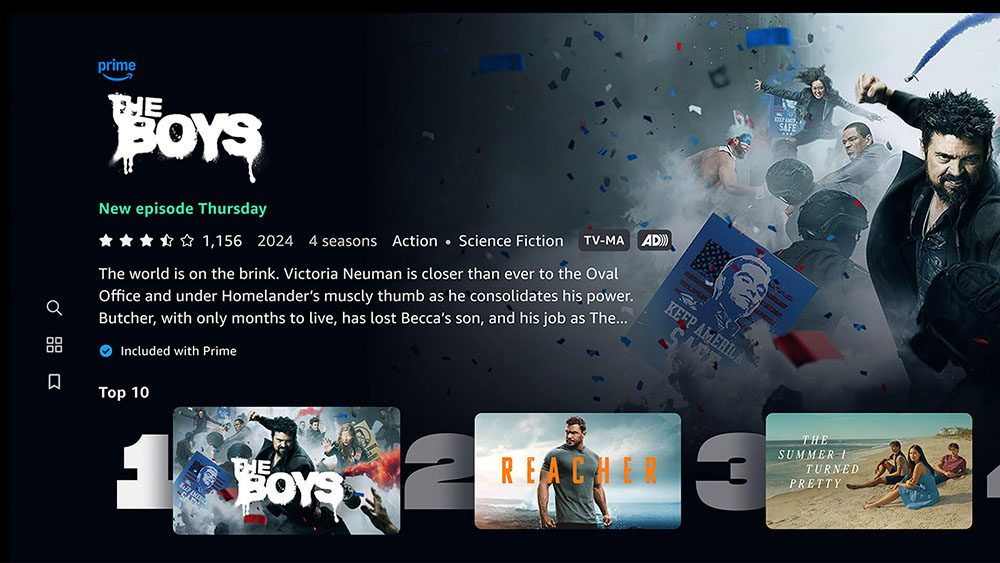
Yet, I found a practical workaround, that is, download videos in a compatible format like MP4 or MKV and then burn Amazon video to DVD with software. This approach lets me keep my favorite Amazon movies for offline playback. More importantly, it doesn’t violate Amazon’s license terms as long as the DVDs are created strictly for personal use and are not shared or sold.
2. How to Burn Amazon Prime Video to DVD
For the first step, Moyea Amazon Downloader is a reliable choice. From my experience, it can handle high-quality downloads up to 1080p HD while preserving original audio tracks and subtitles. You can use it to download Amazon videos to MP4/MKV for later burning.

-
Batch download Amazon Prime Video movies and full or selected seasons of shows at up to 1080p resolution with preferred subtitles and audio tracks. Download Amazon Prime videos as MP4 or MKV file for offline viewing without expiration, and remove ads for offline ad-free watching.
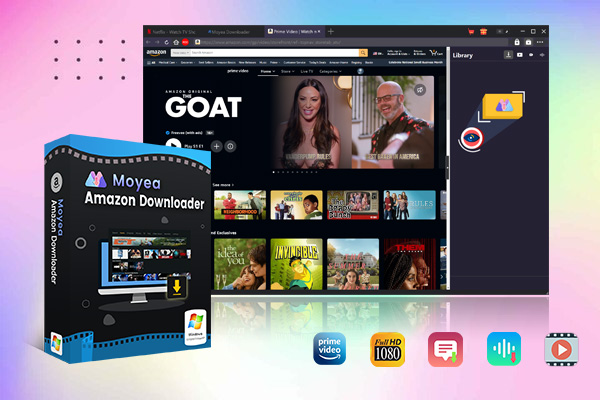
What I appreciate most are features such as batch downloading for TV episodes and flexible output settings for resolution and format. With successful DRM removal and an intuitive interface, Moyea Amazon Downloader is suitable for users who want to archive streaming content quickly and easily.
How to use Moyea Amazon Downloader
- Step 1: I installed Moyea Amazon Downloader and set the output folder in the Settings menu. This step is crucial for locating the downloaded files later.
- Step 2: Moyea Amazon Downloader won’t store your credentials, so feel free to log in with your account here. Then I searched for the video I wanted to burn onto a DVD.
- Step 3: After opening the actual playback page, click the Play to let Moyea analyze the streaming video.
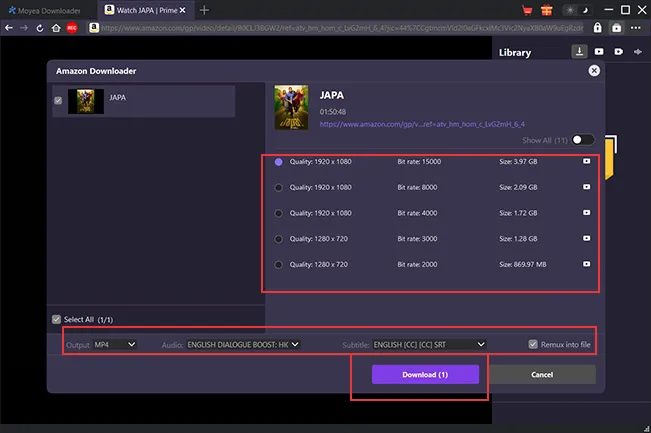
- Step 4: Then just click the Download arrow to reveal the download options.
- Step 5: I then start the download with the provided options. I can also monitor its progress through the side-panel dashboard. When the process finishes, I can find my DRM-free MP4 or MKV files in the designated folder.
With my Amazon Prime videos downloaded in a compatible format, now it’s time to move on to DVD burning for long-term storage. Here, I use Leawo DVD Creator, a comprehensive and reliable solution for burning videos and photos to professional-quality DVDs.
This powerful DVD burning software supports more than 180 input formats. I can burn Amazon movies to DVD 5, DVD 9 discs, DVD folders, and ISO files. I also like its rich features, for instance, built-in video editing tools, the photo slideshow creator, and over 40 customizable DVD menu templates. Combined with processing speeds up to 6x faster, it’s a user-friendly program that makes creating Amazon movie DVDs straightforward and much easier than you expected!
How to burn Amazon video to DVD?
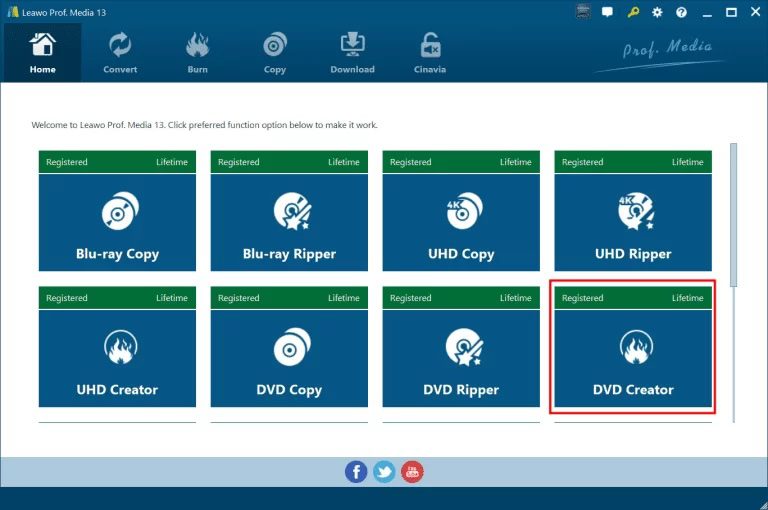
Step 1. I downloaded and installed Leawo DVD Creator from the official Leawo website. If you are a new user, make sure to choose the version that matches your OS. After launching the software, I enter the DVD Creator module to get started.
Step 2. I import my downloaded Amazon Prime videos here. Just click Add Video or simply drag and drop the files (MP4, MKV, etc.) into the interface, and that’s it. They will appear in the content library for preview.
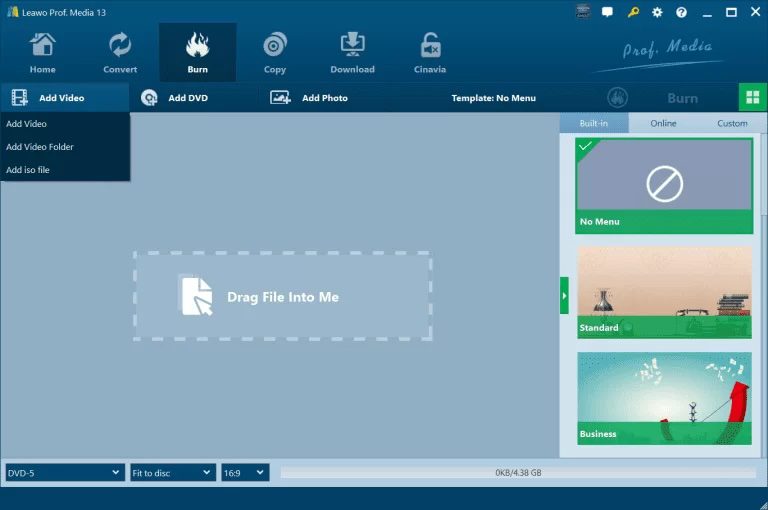
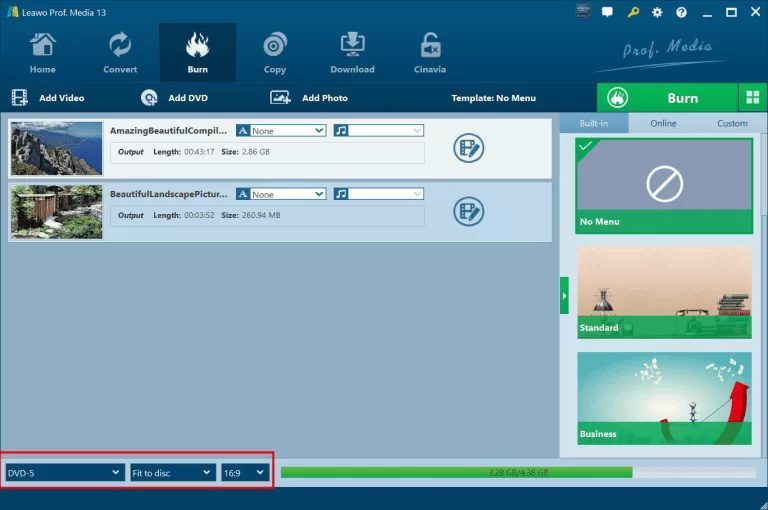
Step 3. To customize the DVD, I select the disc type (DVD-5 or DVD-9), set the aspect ratio to 4:3 or 16:9(pick as you see fit), and enable Fit to Disc for balanced quality. I also choose the audio track and subtitle based on my preference. There are also over 40 menu templates to personalize the DVD layout if you need more customizations.
Step 4. I click the Burn button on the sidebar to open the burning settings. Here’s what you need to do in detail: I set a disc label first, then I choose to burn to a DVD, DVD folder, or ISO file(you can choose any type here based on your needs). Since I want to burn videos into physical DVDS, I insert a blank disc and start the burning process instantly.
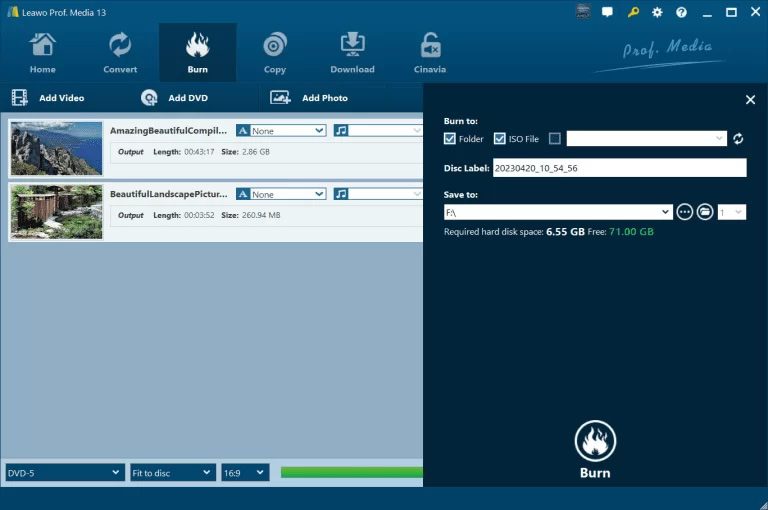
That’s all! After that, I can just sit around and wait for the burning to be done soon!
3. FAQs
Whether purchased Amazon content can be burned?
Yes, purchased Amazon content can be burned to DVD, but it must be downloaded first with tools like Moyea Amazon Downloader. After that, you can follow the same steps outlined above to burn it to DVDs. However, please note that this process is intended strictly for personal use. Burning Amazon content for redistribution, sharing, or resale still violates Amazon’s terms of service and applicable copyright laws.
Why do high-resolution videos lose quality when burned to standard DVDs?
Standard DVDs only support SD resolution (720×480 pixels), so burning high-resolution Amazon videos(HD/4K) requires downscaling and re-encoding them into the MPEG-2 format. During this conversion, some image detail will be lost, which results in softer visuals or compression artifacts. To reduce quality loss, it’s best to start with 1080p downloads and use reliable burning software like Leawo DVD Creator.
Can I Burn Amazon Prime Videos to a Blu-ray Disc?
Yes, Amazon Prime videos can also be burned to Blu-ray discs for better quality retention. The workflow is basically the same when using Leawo Blu-ray Creator. You can still follow similar steps: import video files, choose aspect ratios/audio/subtitles, add menus and customizations, and burn videos to a blank Blu-ray disc.
-
Twitch VOD: What It Is and How It WorksSunny Wen/2026-04-24
-
Full Review of Savethevideo: Is Savethevideo Safe?Patrick Murray/2026-04-21
-
Fix Guide: Prime Video Download Not WorkingPatrick Murray/2026-04-21
-
Is Crunchyroll Free? How to Watch Anime Without PayingSunny Wen/2026-04-20
-
StreamFab Netflix Downloader Review: Features, Pros & ConsCassie J./2026-03-31
-
5 Hulu Family Sharing Tips for Smooth ViewingCassie J./2026-03-30
-
Netflix Not Working on Roku? Solve It NowCassie J./2026-03-27
-
3 Proven Ways to Watch Netflix Without AdsCassie J./2026-03-25
-
Apowersoft Streaming Video Recorder Review: Features, Pricing, and AlternativesSunny Wen/2026-03-24
-
Best Amazon Prime Video Recorders: Record with the BestPatrick Murray/2026-03-19






-
Top 5 Udemy Downloaders to Download Udemy Courses on PCPatrick Murray/2025-07-03
-
Best 9 Anime Download Sites to Download Anime [Free & Paid]Patrick Murray/2024-07-12
-
4 Best DRM MPD Downloaders in 2026Leia Liu/2025-05-29
-
HBO Max with Ads VS. No Ads: What Are the DifferencesLumi/2025-05-13
-
6 Best M3U8 Downloaders to Download M3U8 PlaylistsLumi/2025-05-22
-
[2024] How to Download DRM-Protected M3U8 VideosLumi/2024-10-29
-
How to Stream Prime Video on Nintendo Switch?Patrick Murray/2024-09-14
-
How to Activate Tubi on Different Devices? [LG, FireStick, Roku, PS5…]Cassie J./2024-09-24
-
[2026 Latest Review] Best Amazon Prime Video DownloadersPatrick Murray/2025-05-16
-
How to Download an MPD Video with DRMLeia Liu/2024-09-20





Related
Fix Guide: Prime Video Download Not Working
Best Amazon Prime Video Recorders: Record with the Best
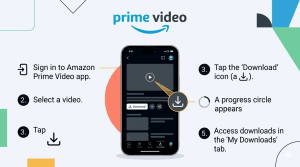
How to Download Amazon Prime Videos to iPhone/iPad
Where Are Prime Video Downloads Stored on PC/Mobile?

How to Contact Amazon Prime Video Customer Service for Help/Support?
Quick Guide: How Long Do Prime Video Downloads Last?


 English
 日本語
日本語