Last updated on 2026-01-22, by
How to Log out of Netflix on TV? Easy But Secure Methods Here
Summary:
- Signing out of Netflix on TV or other streaming devices could protect your privacy and let you freely log into new devices. If you are looking for steps on how to log out of Netflix on TV, this guide will help. You can learn multiple solutions to sign out of Netflix on TV.
“How to sign out of Netflix on hotel TV? In my trip I logged into the hotel TV with my Netflix account last Saturday but forgot to log out. Is there any way to sign out of Netflix on TV remotely?” Many people might come into the same situation. Don’t worry, it is not complicated to learn how to sign out of Netflix on TV remotely, even you have signed Netflix account in on hotel TV. This guide will show you the detailed steps on how to do that.
Quick AccessCLOSE
How to Log out of Netflix on TV?
If you still keep access to the smart TV, it would be quite simple and easy to sign out of Netflix on TV. However, it should be noted that the operations vary upon smart TVs you have. Follow the below guide to learn how to log out of Netflix on TV of various types.
1. Use the Netflix App Menu (Most Smart TVs)
As long as your smart TV gets a Netflix app, it is simple to log out of Netflix on TV. Most smart TVs share the same Netflix sign-out operations, as showed below:
Step 1. Kick off the Netflix app on your smart TV.
Step 2. Open the left sidebar menu by using your remote.
Step 3. Then, open the “Settings” or “Get Help” option.
Step 4. Choose to press the “Sign Out” option.
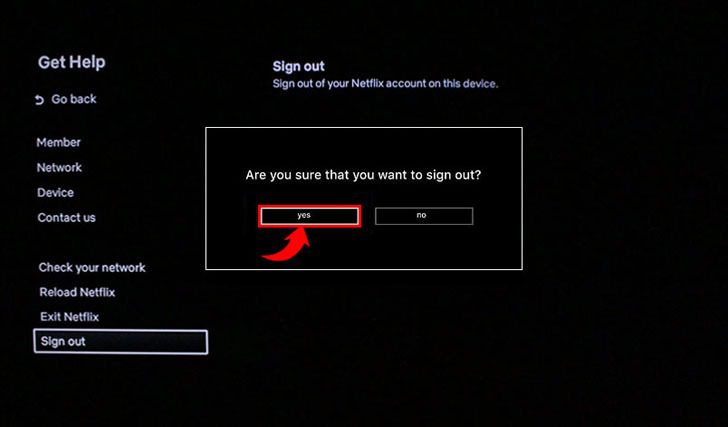
Step 5. Then, confirm your sign-out operation by clicking the Yes button.
The above guide should work with most smart TVs, including Samsung, LG, Sony, TCL, Hisense, Roku TV, Amazon, Apple, etc.
2. What If the Sign-Out Option Is Missing?
There are cases in which you will find no sign-out option on your TV, especially some older TV models or outdated TV software. In such case, you could follow the below solutions to see if you can sign out of Netflix on TV directly or indirectly:
Step 1. Reset Netflix app: On your TV, open the “Settings > Apps > Netflix > Clear Data (or Reset)” option to clear Netflix data or reset Netflix. This will help log out of your Netflix account from your TV.
Step 2. Uninstall and then re-install Netflix app: Try to firstly uninstall Netflix app and then reinstall it on your TV to erase the Netflix account login information and get your Netflix account signed out.
Step 3. Call out the hidden Netflix menu by making use of your remote to press the “Sign Out” or “Deactivate” option: Press the navigation buttons quickly in the order “Up > Up > Down > Down > Left > Right > Left > Right > Up > Up > Up > Up”.
Step 4. Log out Netflix account from a specific TV or device on browser or other devices (such as iPhone, iPad, etc.), or change your Netflix account password, which will be described in detail in the below part.
How to Log Out of Netflix on TV Remotely?
If you can’t get access to the TV right now, for example, the hotel TV, you could also log out of Netflix on TV remotely. You could try to log out Netflix from all devices on your browser or devices in hand right now.
1. Sign Out of Netflix on All Devices
On a browser, you can easily sign out Netflix from all devices on the official Netflix website. Follow the below guide to learn how to log out of Netflix on TV and other devices on in one go:
Step 1. Open the Netflix.com website and then log in with your Netflix account.
Step 2. Select the admin profile if you get multiple profiles.
Step 3. Click the “Profile” icon on the top-right corner and then choose “Account” option.
Step 4. Open the “Security & Privacy” section.
Step 5. Click the “Sign out of all devices” option.
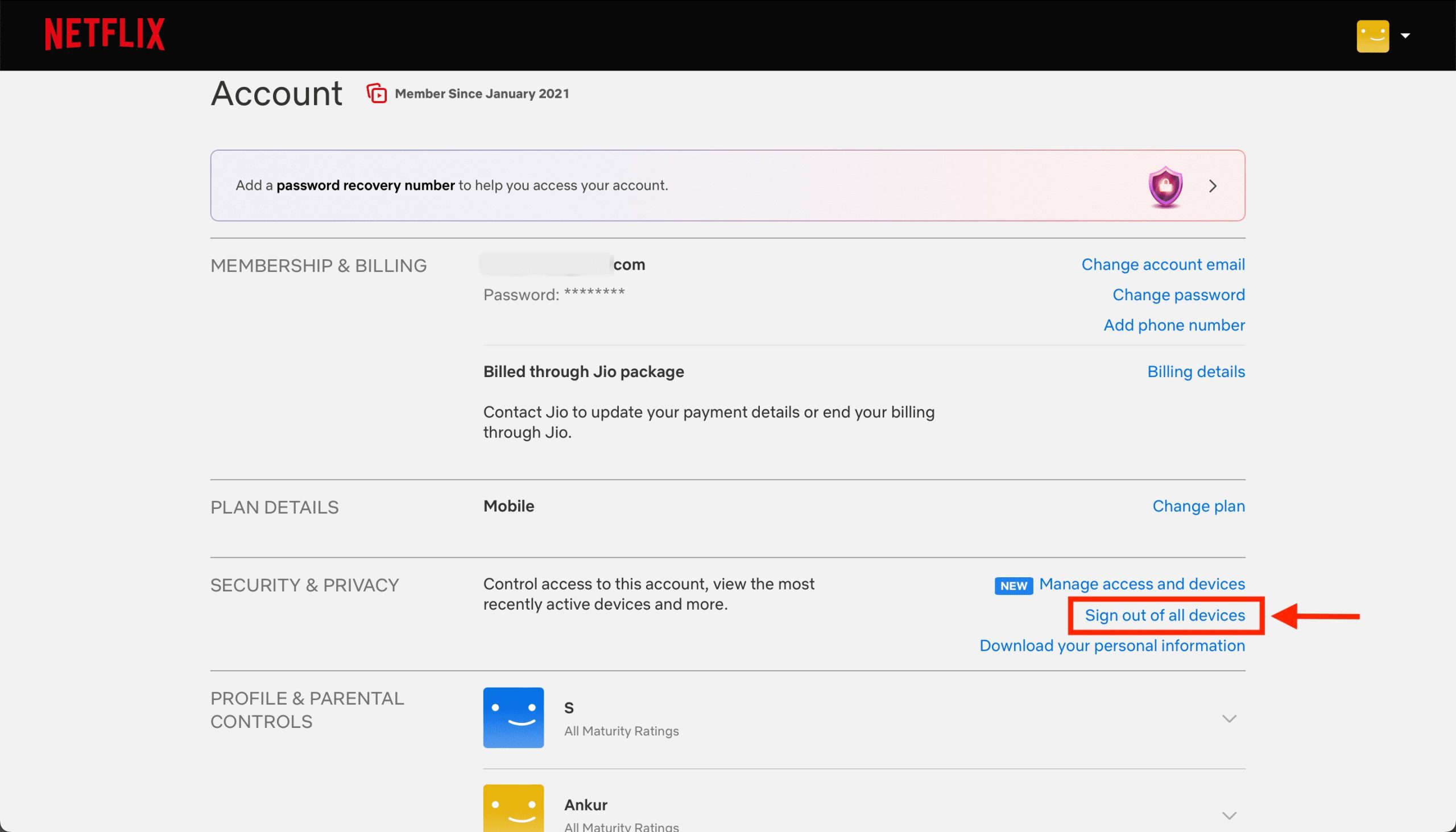
Step 6. Confirm the log-out operation on the follow-up screen.
In this way, you can log out of Netflix account from all devices, including your TV, tablets, smartphones, streaming devices, etc.
If you are trying to log out of Netflix account on all devices with your mobile device like iPhone, you could do the below things:
Step 1. Open the Netflix app on your iPhone and log in.
Step 2. Select your profile to enter the official Netflix streaming interface.
Step 3. Open “My Netflix” tab to press the menu icon.
Step 4. Choose “Account” option.
Step 5. Scroll down to open “Security & Privacy” option.
Step 6. Press the “Sign out of all devices” option and then confirm.
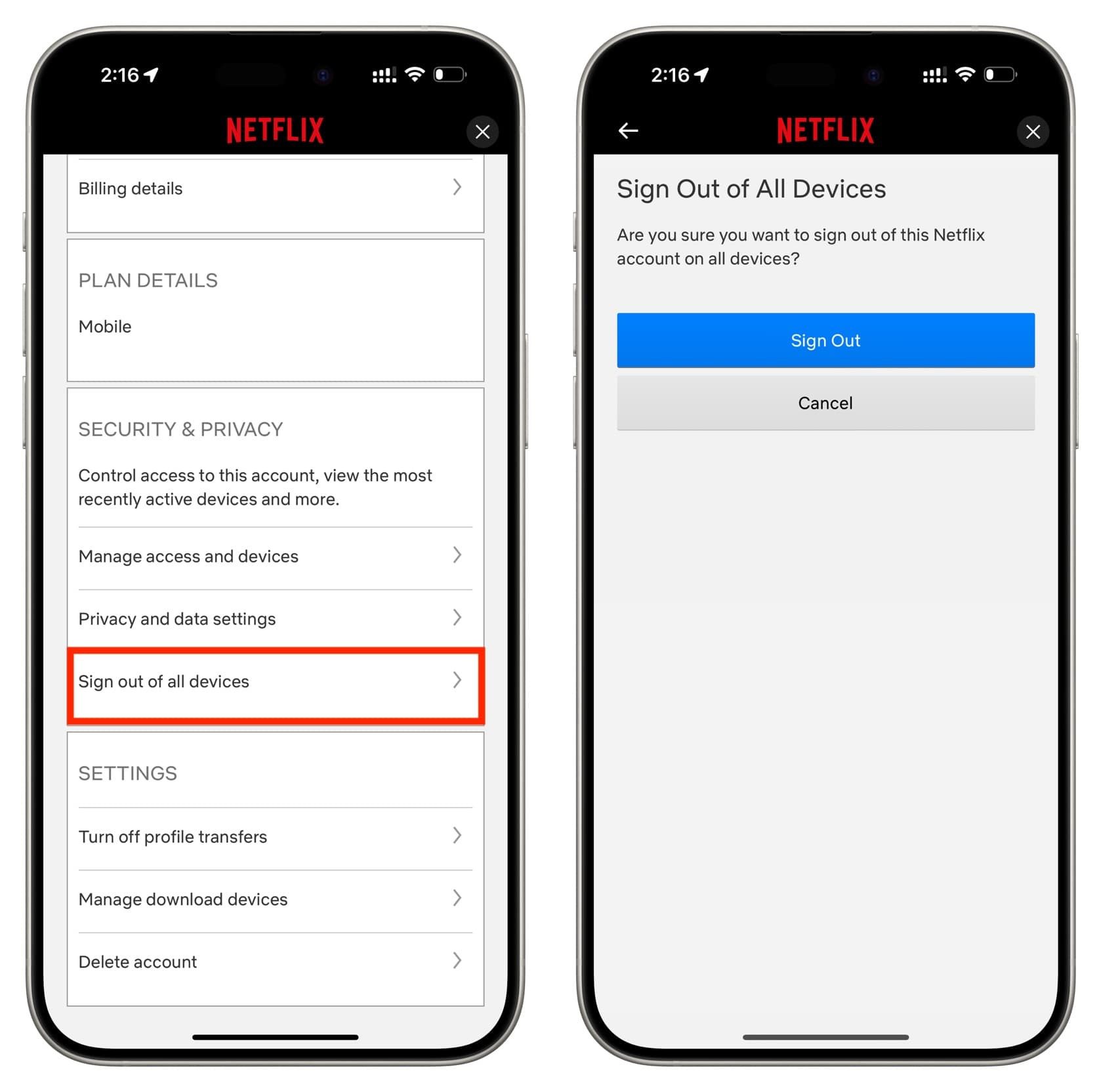
Step 7. Or, you could also open the “Manage Access and Devices” option to check all logged in devices and manage login status for specific device.
2. Change Your Netflix Password
Alternatively, you could also try to change your Netflix account password to force sign-out on all devices, since password change will require re-login. You can change Netflix account password on Netflix official website or mobile devices. The below guide shows you how to change password of Netflix on official website:
Step 1. Open Netflix.com website and log in with your account.
Step 2. Click the profile icon on the top-right corner and then choose “Account” option on the drop-down menu.
Step 3. Click the “Change password” option, and then enter current password and new password.
Step 4. Confirm your new password and check the “Sign out of all devices” option.
Step 5. Click the “Save” button to activate password change.
How to Check Which TVs Are Logged In?
On your Netflix.com website, you could easily figure out which devices you have logged in with your Netflix account. The “Active Devices” tab on Netflix.com will show you a list of all devices currently or recently you have signed in with. Follow the below steps to learn how to check which TVs or devices are logged in with your Netflix account.
Step 1. Open Netflix.com website on a browser.
Step 2. Sign in with your account information.
Step 3. Click the profile icon at the top-right corner and then choose “Account” option.
Step 4. Scroll down to the “Security & Privacy” tab.
Step 5. Open the “Mange access and devices” option to view all devices you have logged in with your Netflix account.
FAQs
1. Do I really need to log out of Netflix on my TV?
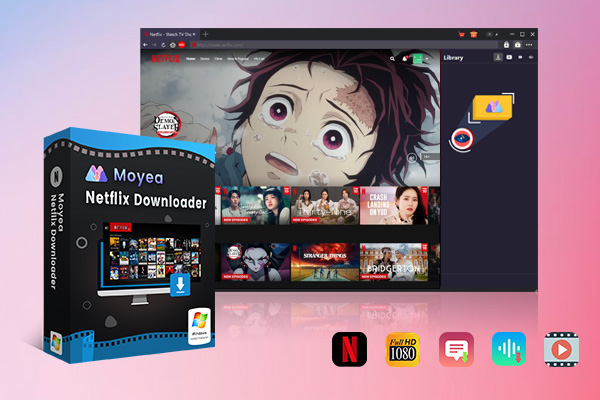
It’s critical security practice if you are not the only user of the TV. For public TV or hotel TV, it’s better you choose to cast Netflix to TV instead of direct logging in. You could make use of Netflix download feature or 3rd-party Netflix video download tools like Moyea Netflix Downloader to download and then cast Netflix to TV.

-
Professional Netflix downloader to download Netflix movies and TV shows at up to 1080P and save multiple subtitles and audio tracks as needed.
- Download Netflix video to MP4/MKV files.
- Batch download Netflix episodes of all/certain seasons.
- Remove ads in your downloads.
2. Is signing out the same as uninstalling Netflix?
Uninstalling removes the app and signs you out, but it’s not required.
3. Will signing out delete my profiles or watch history?
No. Profiles and watch history stay saved in your Netflix account.
4. Why can’t I find the Sign Out option?
Some TV versions hide it. Use Get Help, Clear Data, or remove the app.
Conclusion
Now, you must have learned how to log out of Netflix on TV, even when you get no direct access to the target TV. For the security of your Netflix account, it is highly recommended you don’t log in Netflix account on public TV or hotel TV. Watching Netflix on your mobile devices, or casting Netflix to hotel TV would be a better choice.
-
Twitch VOD: What It Is and How It WorksSunny Wen/2026-04-24
-
Full Review of Savethevideo: Is Savethevideo Safe?Patrick Murray/2026-04-21
-
Fix Guide: Prime Video Download Not WorkingPatrick Murray/2026-04-21
-
Is Crunchyroll Free? How to Watch Anime Without PayingSunny Wen/2026-04-20
-
StreamFab Netflix Downloader Review: Features, Pros & ConsCassie J./2026-03-31
-
5 Hulu Family Sharing Tips for Smooth ViewingCassie J./2026-03-30
-
Netflix Not Working on Roku? Solve It NowCassie J./2026-03-27
-
3 Proven Ways to Watch Netflix Without AdsCassie J./2026-03-25
-
Apowersoft Streaming Video Recorder Review: Features, Pricing, and AlternativesSunny Wen/2026-03-24
-
Best Amazon Prime Video Recorders: Record with the BestPatrick Murray/2026-03-19









-
Top 5 Udemy Downloaders to Download Udemy Courses on PCPatrick Murray/2025-07-03
-
Best 9 Anime Download Sites to Download Anime [Free & Paid]Patrick Murray/2024-07-12
-
4 Best DRM MPD Downloaders in 2026Leia Liu/2025-05-29
-
HBO Max with Ads VS. No Ads: What Are the DifferencesLumi/2025-05-13
-
6 Best M3U8 Downloaders to Download M3U8 PlaylistsLumi/2025-05-22
-
[2024] How to Download DRM-Protected M3U8 VideosLumi/2024-10-29
-
How to Stream Prime Video on Nintendo Switch?Patrick Murray/2024-09-14
-
How to Activate Tubi on Different Devices? [LG, FireStick, Roku, PS5…]Cassie J./2024-09-24
-
[2026 Latest Review] Best Amazon Prime Video DownloadersPatrick Murray/2025-05-16
-
How to Download an MPD Video with DRMLeia Liu/2024-09-20














 English
 日本語
日本語