Last updated on 2026-01-29, by
Why Paramount Plus Downloads Fail & How to Fix
Summary:
This post helps to solve the Paramount Plus downloads not working issues by providing step-by-step fixes and useful tips.
Outline
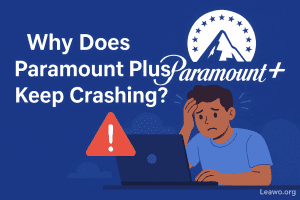
Nothing is more frustrating than eagerly preparing a trip, only to find out that Paramount Plus downloads are not working. No matter whether it is the download freezing or the error message problem, the Paramount Plus not downloading issues severely impact your offline watching plan on the road. If you are encountering any related issues, read this post with clear steps to fix Paramount Plus downloads failing problems.
Understanding Paramount Plus Download Features
Before stepping into the fixes, there are certain limitations of the Paramount Plus download feature. Sometimes, you may think that problems are caused by the apps or by your side, but it may be that you are limited in downloading.
Here are the primary download limitations you should check:
Premium Subscription Required: The download feature of Paramount Plus is a privilege only for Paramount Plus with SHOWTIME perk ($13.99 per month), which means you can only download when you subscribe to the plan. Meanwhile, if your subscription expires, you cannot download either.
The 25-Item Cap: You can only download up to 25 titles on all your logged-in devices. If you try to download a 26th title, the download will fail.
Content Expiration: You can keep the downloads for up to 30 days, and once you begin to watch, you only get 48 hours to finish. After the expiration time, you cannot access the downloads, but you can download them again.
Licensing Restrictions: Not all the movies and series can be downloaded. If you cannot see a download button next to the title, it’s likely due to licensing agreements that you cannot download it, rather than an app glitch.
Device Compatibility: Downloads can only be watched within the app, on the iOS/Android system. You cannot download the desired titles on PC or Mac from Paramount Plus. So, it’s impossible for you to watch downloaded videos on other devices.

Common Reasons Downloads Are Not Working
If you have checked your subscription and everything works fine, but the Paramount Plus download still doesn’t work, there are some other reasons to think about.
Connection Issues: An internet connection is important for downloading anything. The ideal speed should not be lower than 4Mbps and if the speed is too slow, the download may just stop. Also, “WIFI Only” is a hidden culprit, especially when you use your phone’s Paramount Plus app to download. If you have settled for download when WIFI Only and don’t have the WIFI connection, you cannot download at all.
VPN and Regional Roadblocks: Due to DRM and licensing agreements, some titles are limited to certain regions. When your VPN is active, the app may detect a region mismatch. If you try to download the video at the wrong IP address, the app often flags VPN traffic as "suspicious" and kills the download stream entirely
Storage Issue: One high-quality video is about 500MB – 2GB on a phone. If your device storage only left for less than the size of the video, the app may start to download but fail when detect there is not enough space to place the file.
Corrupted Download Files: Sometimes, the download gets stuck in mid-process because the signal was interrupted for a moment. This leaves a corrupted file fragment in your storage that prevents you from downloading that specific episode again.
Corrupted App Cache: Accumulated cache files may lead to corruption in the app, thus preventing successful downloading.
Outdated Operating System: There is another situation where you probably cannot see the download button, besides licensing restrictions, that is use outdated system. According to the official, if you have iOS 16 or higher and Android 7.0 or above, you won’t see the download button.
Server Outages: There is a chance that the cause is not from your side. If the Paramount Plus server is experiencing a spike in traffic or has an outage, your download just won’t succeed.
How to Fix Paramount Plus Downloads Not Working
Now, let’s get into the fixes to get your Paramount Plus download working. Follow the steps below. You can take the steps according to the causes, or you can just take them one by one until it works.
Check Paramount Plus Server Status
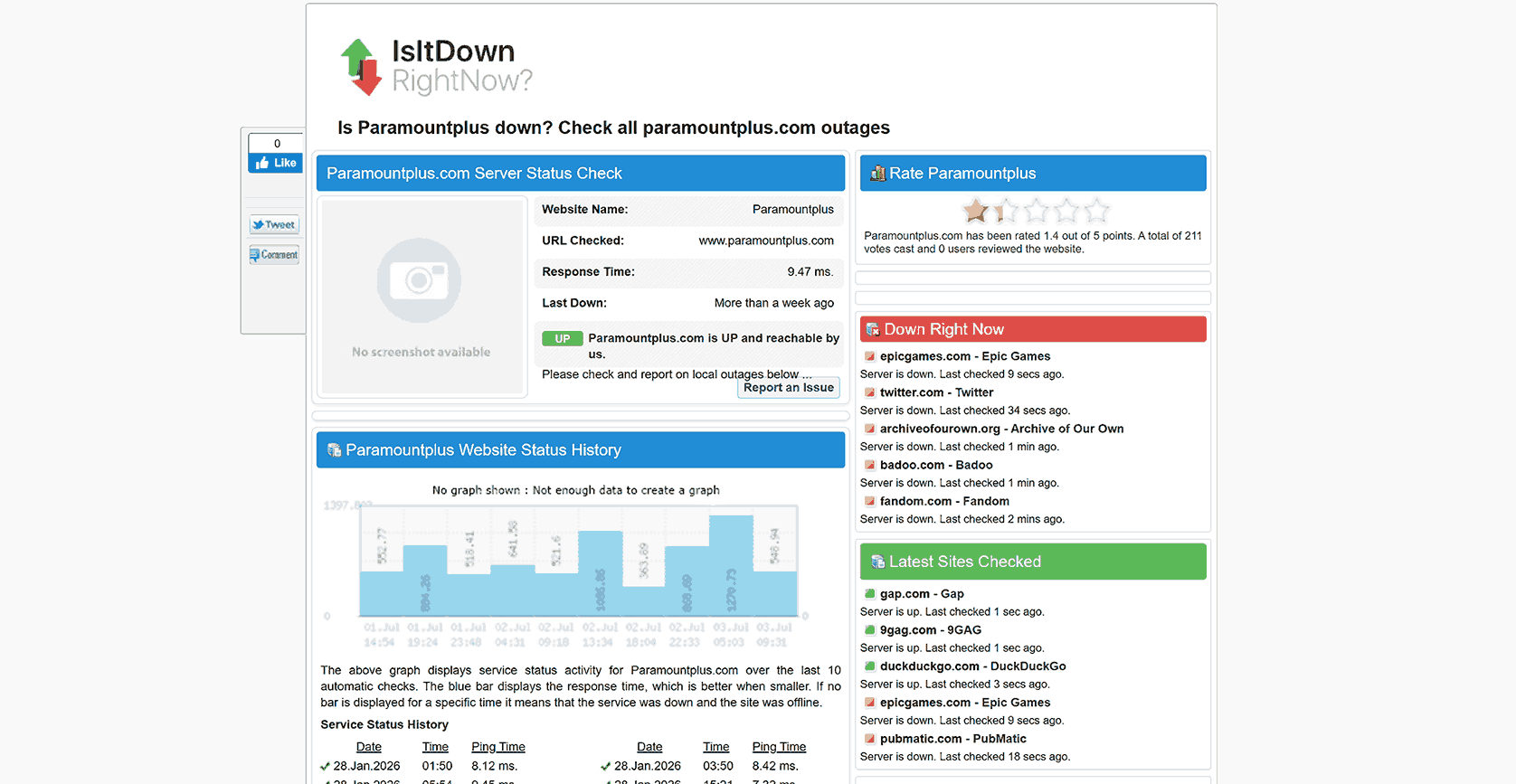
Step 1: Before dealing with your device, check if the problem is on the server side. Visit isitdownrightnow.
Step 2: Copy and paste Paramount Plus’s website on it and check the status.
Step 3: You can see the up/down on the website, and it’s red if it has an outrage.
Step 4: If it is a server error, you can wait until it gets normal.
Check Your Connection
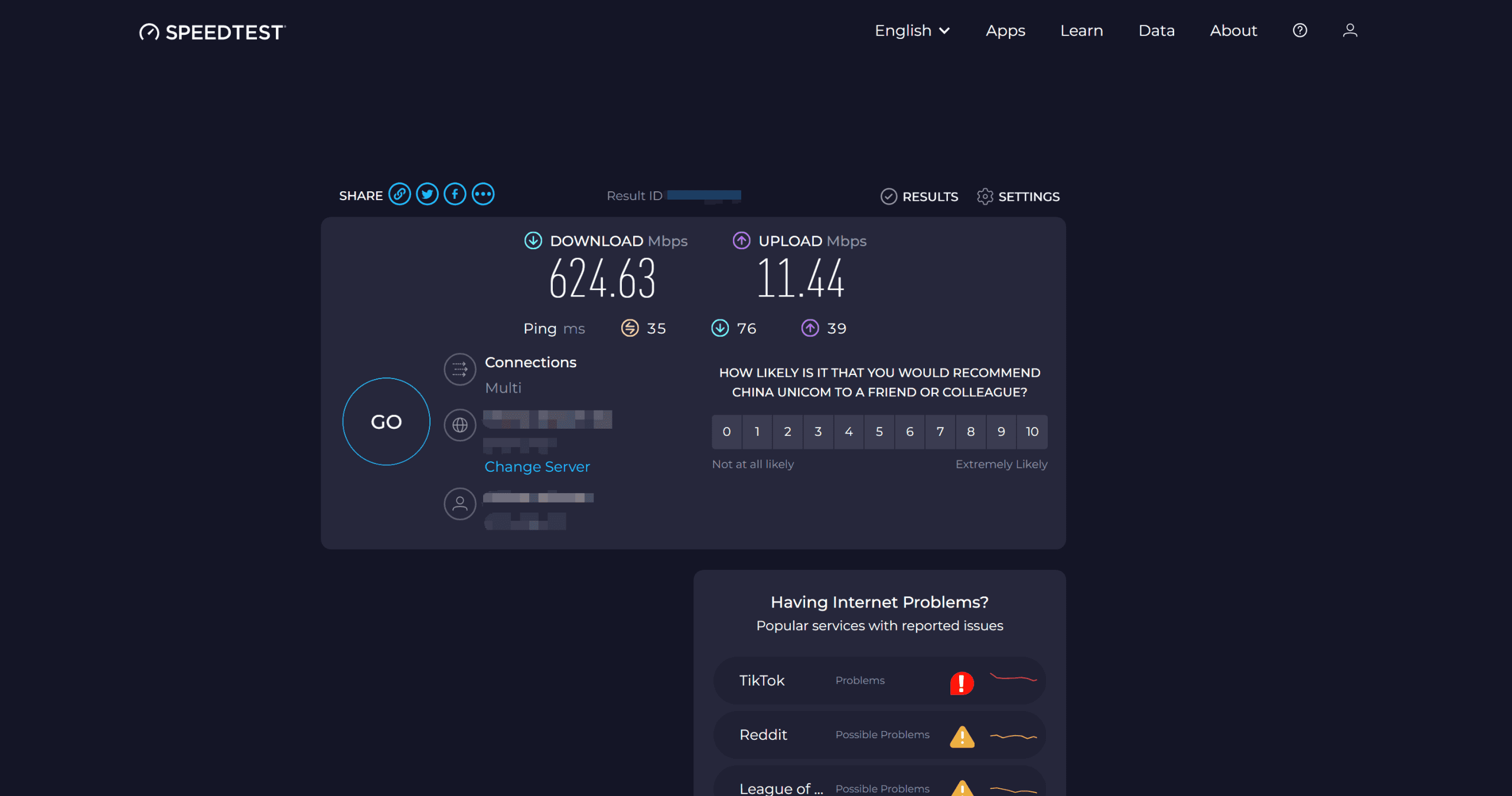
Step 1: Visits site like Speedtest.net on your device’s browser to see if your internet speed is too slow.
Step 2: If your bandwidth is enough, but too slow, you can turn on the Airplane Mode to download with WIFI, or restart your router. If your bandwidth is inadequate, just level it up.
Step 3: Also, go to your Paramount app settings, find Download on WIFI Only, and switch to Download on Both WIFI and Data.
Delete the Download Queue
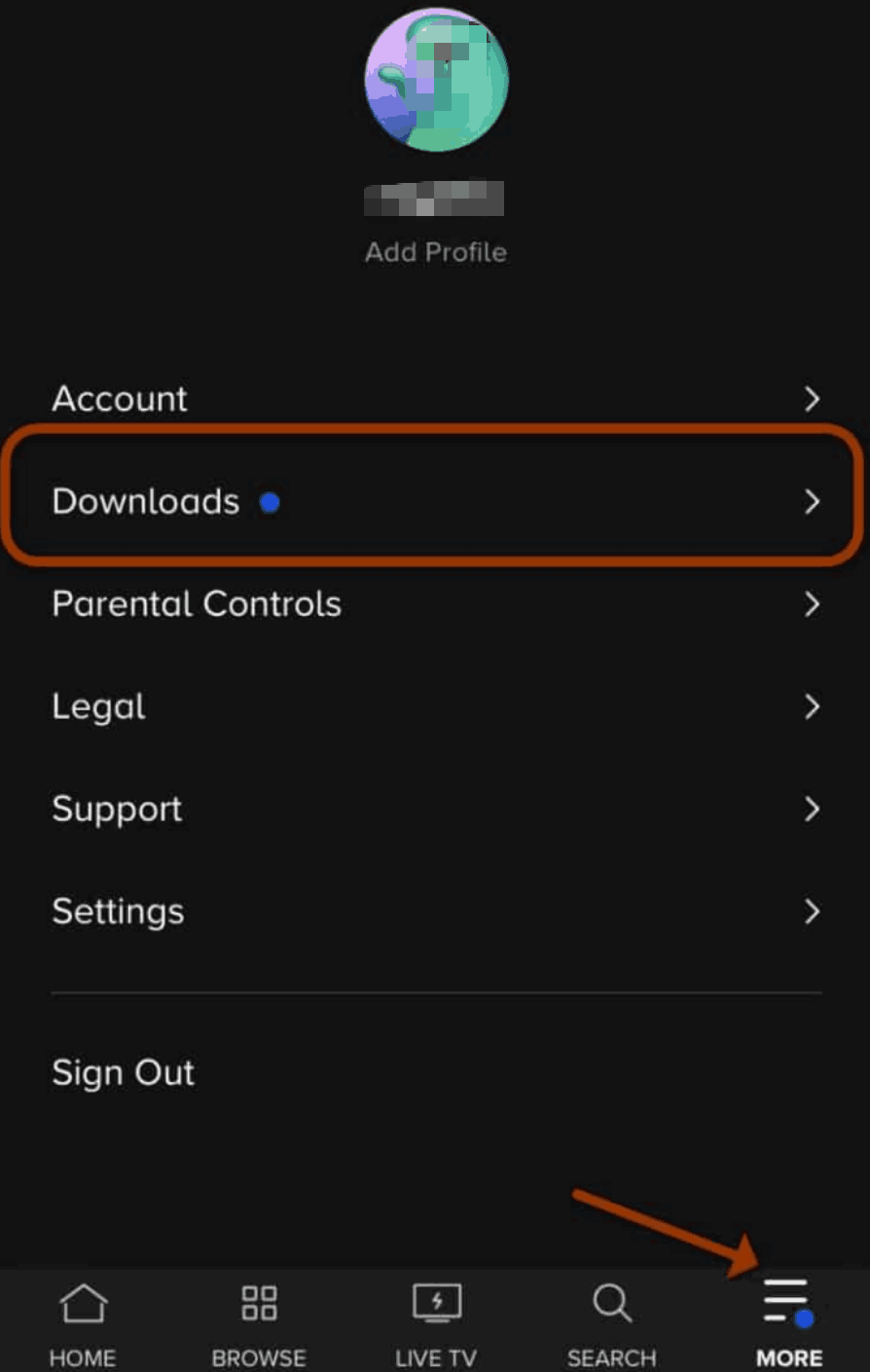
Step 1: Open your Paramount Plus app. Go to the Downloads section.
Step 2: Tap the edit button at the top (or swipe left on the title).
Step 3: Remove the problematic file entirely.
Step 4: Then, download the file again.
Release Your Storage
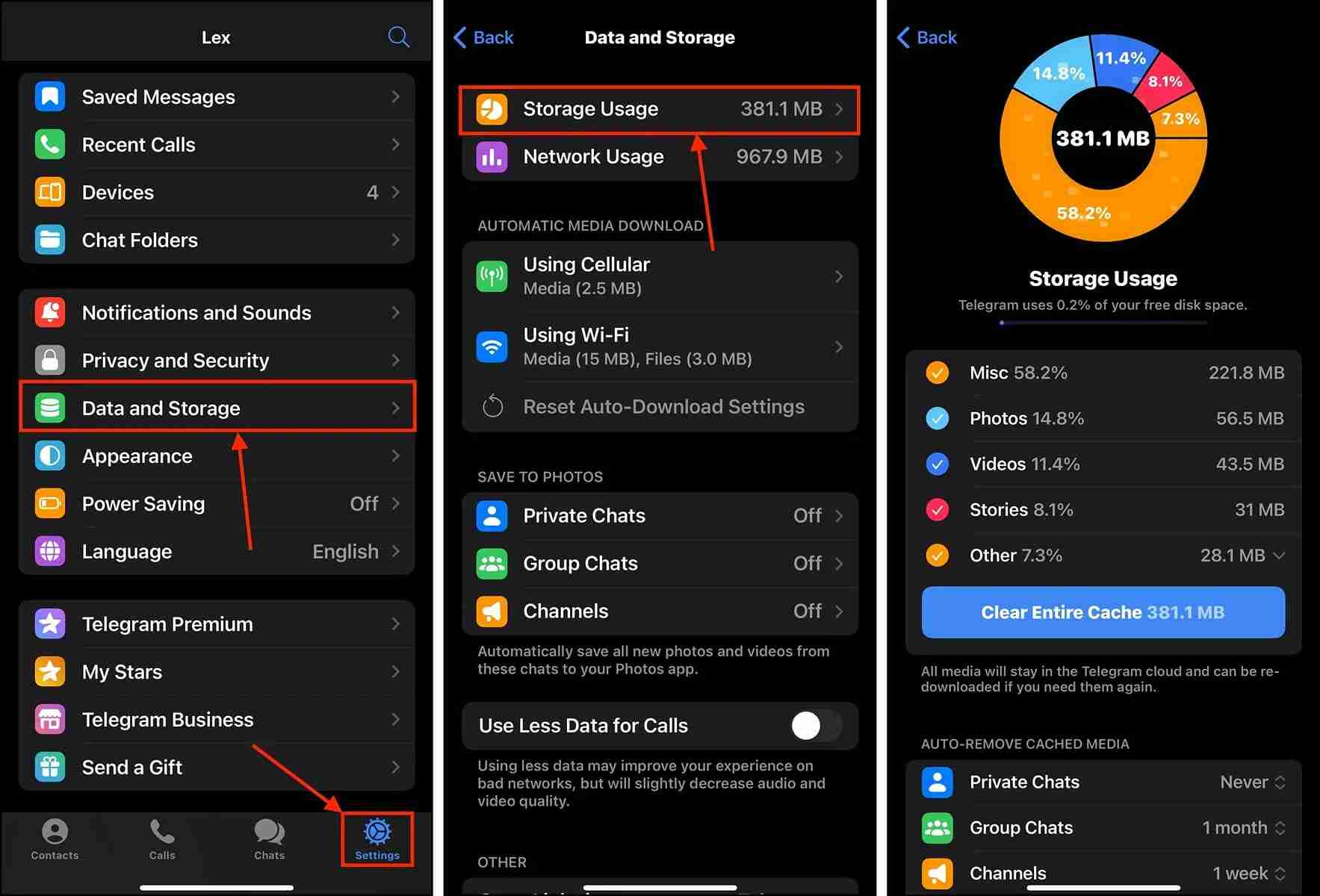
Step 1: Ensure you have at least 5GB of space to store your downloaded videos.
Step 2: Go to your Settings > Data and Storage (for iPhone: General > Storage) to check the space usage.
Step 3: If the space is not enough, delete useless data, such as old downloads, unused apps, and large photos/videos in your gallery, to make room for the new Paramount Plus downloads.
Clear Cache Files
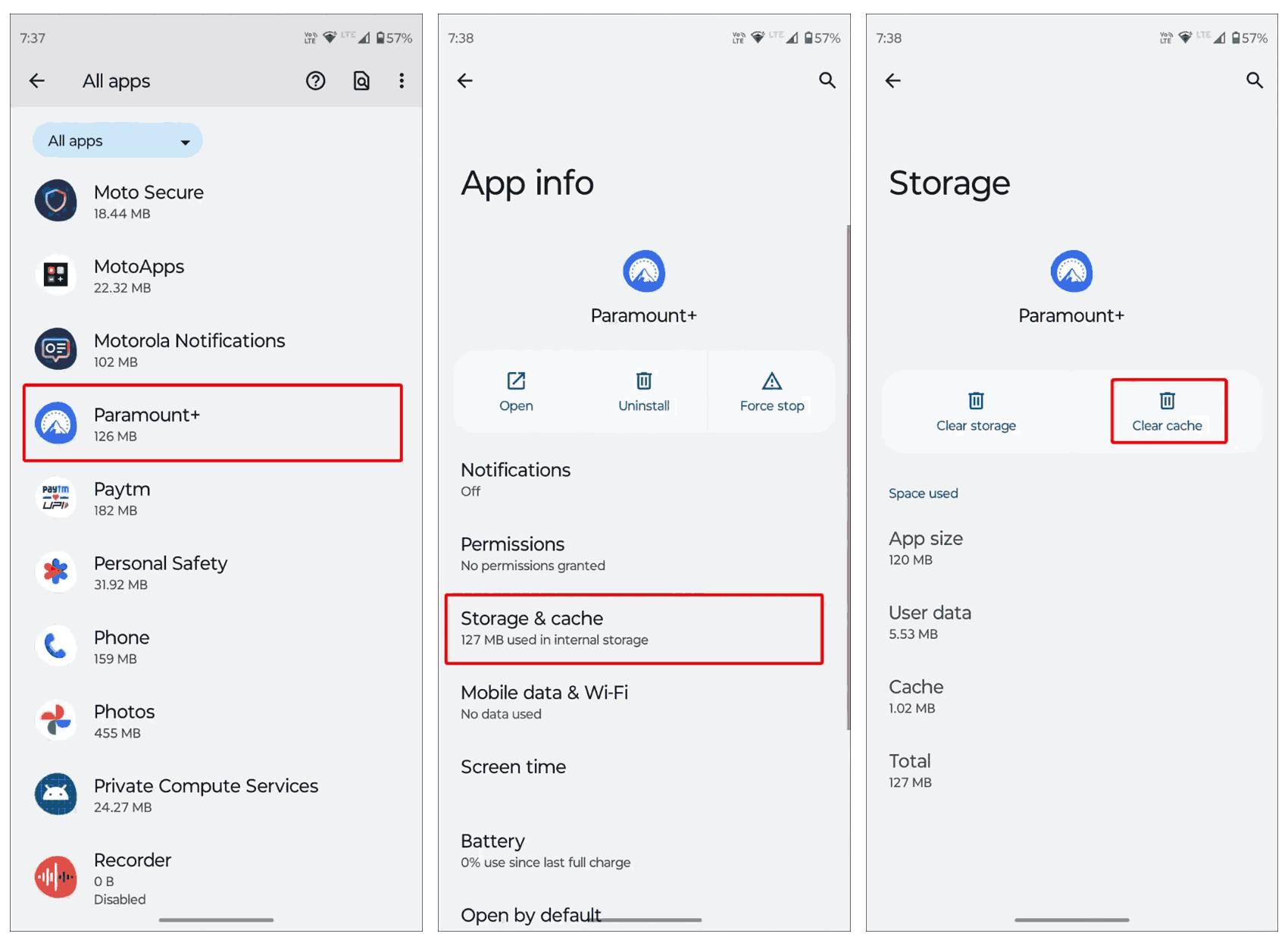
Step 1: On your Android phone, go into Settings > Apps > find Paramount Plus > Storage & Cache > Clear Cache.
Step 2: For iOS devices, since iOS doesn’t have the cache clear feature, the best way is to delete the app and install it again.
Other Methods
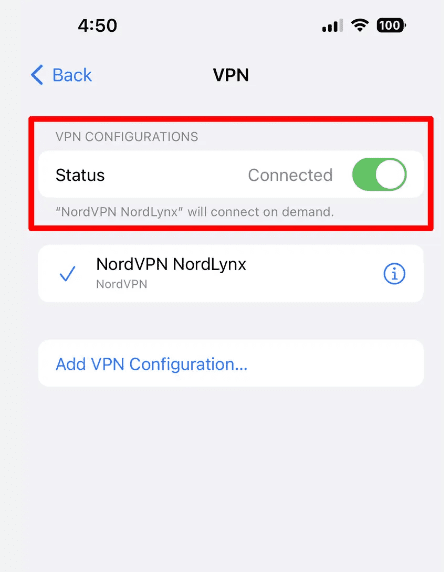
Disable VPNs and Ad-blockers: Turn off any of your VPNs and ad blockers you are using.
Re-authenticate Your Account: Sign out of the Paramount app and sign back in to refresh your subscription status.
Reinstall the App: Just delete the Paramount Plus app and reinstall it.
Perform a System Refresh: Check and see if there are any new updates for your phone. Also, if your device is too old, maybe a new one is better.
Additional Tips & Best Practices
To get the most out of the downloading experience, you need to go beyond mere fix steps. Here are more tips for you to have a smoother downloading process.
1. Understand Common Error Codes
Sometimes, you can determine the cause based on the error codes on the screen when there are any error codes show up. For instance, error codes 3002, 3005, and 6006 mean the connection issues that require you to restart the modem and refresh your network. For more information, you can check Paramount Plus’ error code page to see the meaning of other codes.
2. Schedule Downloads Early
Never download the videos on the day. Usually, you can download the Paramount Plus videos at least 24 hours in advance, and aim to finish your downloads early to confirm that your files are complete and fine.
3. Optimize Video Quality
If you have no time or a lack of storage, go to the Paramount Plus app and switch Download Video Quality to Standard. This setup will reduce the downloaded file size and speed up the download process (although it may sacrifice a little video quality).
4. Download with the Third-Party Paramount Plus Downloader
Even if you have done all the things, sometimes things are not always perfect because of the download limitations that Paramount Plus sets. So, to tackle the download limitation, including the DRM protection, the 25-title limit, storage expiration, and device limits, using a third-party Paramount Plus video downloader is the best way.
One of the best Paramount Plus downloaders is Moyea Paramount Plus Downloader. With this tool, you can bypass DRM and download movies on Paramount Plus in MP4/MKV formats for up to 1080P quality. I have used this tool many times, and I quite like the feature that I can even save the original audio tracks and subtitles, while ads are removed during downloading. I think this is more convenient than the Paramount Plus app because I can watch the downloads on any device I like. So, you can give it a try to have a more flexible downloading and watching experience.
FAQs
1. Will my downloads work if I travel to another country?
That depends. If you go to a country or a region where Paramount Plus is not available, the app will detect the location and block your content because it lacks the licensing agreements. For this, you can use the Moyea Paramount Plus Downloader to download the videos to your phone, so the local files cannot be detected by the app.
2. Why did my downloaded movies disappear or expire?
You only have 30 days to keep the unwatched files or 48 to finish watching, after that the time the downloads will expire. Also, when you switch the device, the downloads will disappear and not show in the new device because of DRM.
3. Can I move my downloads to an SD card to save space?
No. The official Paramount Plus app does not officially support downloading to your SD card out of safety reason. Because of DRM, the downloaded files are encrypted and cannot be transferred.
Conclusion
Paramount Plus is now a very popular platform to watch movies and series. But the persistent downloading glitches are frustrating users. By following the methods in this post, I think most of your problems will be solved. If you are tired of the none stop fixes and the download limitations, I recommend that you use Moyea Paramount Plus Downloader to get rid of any problems and have an ultimate downloading solution.
-

How to Use Hulu Picture-in-Picture Mode on Any Supported Device?Patrick Murray/2026-04-29
-
How to Watch Deleted YouTube Videos?Patrick Murray/2026-04-29
-
Twitch VOD: What It Is and How It WorksSunny Wen/2026-04-24
-
Full Review of Savethevideo: Is Savethevideo Safe?Patrick Murray/2026-04-21
-
Fix Guide: Prime Video Download Not WorkingPatrick Murray/2026-04-21
-
Is Crunchyroll Free? How to Watch Anime Without PayingSunny Wen/2026-04-20
-
StreamFab Netflix Downloader Review: Features, Pros & ConsCassie J./2026-03-31
-
5 Hulu Family Sharing Tips for Smooth ViewingCassie J./2026-03-30
-
Netflix Not Working on Roku? Solve It NowCassie J./2026-03-27
-
3 Proven Ways to Watch Netflix Without AdsCassie J./2026-03-25








-
Top 5 Udemy Downloaders to Download Udemy Courses on PCPatrick Murray/2025-07-03
-
Best 9 Anime Download Sites to Download Anime [Free & Paid]Patrick Murray/2024-07-12
-
4 Best DRM MPD Downloaders in 2026Leia Liu/2025-05-29
-
HBO Max with Ads VS. No Ads: What Are the DifferencesLumi/2025-05-13
-
6 Best M3U8 Downloaders to Download M3U8 PlaylistsLumi/2025-05-22
-
[2024] How to Download DRM-Protected M3U8 VideosLumi/2024-10-29
-
How to Stream Prime Video on Nintendo Switch?Patrick Murray/2024-09-14
-
How to Activate Tubi on Different Devices? [LG, FireStick, Roku, PS5…]Cassie J./2024-09-24
-
[2026 Latest Review] Best Amazon Prime Video DownloadersPatrick Murray/2025-05-16
-
How to Download an MPD Video with DRMLeia Liu/2024-09-20











 English
 日本語
日本語