Last updated on 2026-03-27, by
Netflix Not Working on Roku? Solve It Now
What This Guide Covers:
- If Netflix is not working on your Roku, it might be crashing, buffering, showing a black screen, or the audio might be off. In this guide, I would like to show you some real fixes for Netflix not working on Roku that actually work.
Sometimes people meet various errors or issues of Netflix not working on Roku TV, like constant crashing, buffering, black screen, etc. These issues could quickly ruin a movie night. After troubleshooting multiple Roku devices over time, I’ve learned exactly what causes these problems and more importantly how to fix them. This guide will show you what I have done to fix Netflix not working on Roku TV issues.
Quick AccessCLOSE
Netflix Keeps Crashing on Roku TV
Among all Netflix streaming issues on Roku TV, one of the most common issues I’ve encountered is Netflix keeps crashing on Roku TV. Whenever I start Netflix app on Roku TV, the app either closes randomly or refuses to load entirely.
From my personal experience, I have summarized the below causes for this issue: outdated Netflix app, outdated Roku system software, corrupted Netflix cache or temporary data, or low device memory, especially on older Roku TVs.
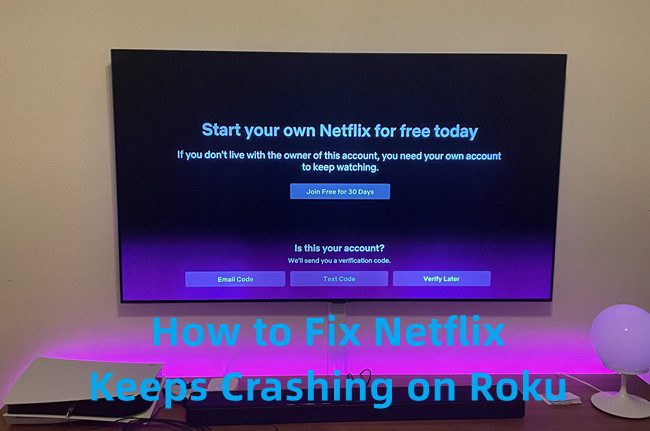
Therefore, upon these potential causes of Netflix keeping crashing, I have tried the below fixes:
Solution 1: Update Netflix app on Roku
On Roku Home page, choose and highlight Netflix app, press the Star (*) button on remote controller, and then choose "Check for updates" option. Once an update is available, update it.
Solution 2: Update Roku software to the latest version
On Roku Home page, open the "Settings" app and then choose "System > System update > Check Now" to check for available update. Once an update is available, update it.
Solution 3: Clear cache of Roku TV
The Netflix cache clearing feature is a hidden feature on Roku. I have tried multiple times to make it work smoothly. Follow these steps on how to clear Netflix cache on Roku TV: Go to the Roku TV Home screen, on remote controller, press Home 5 times, Up 1 time, Rewind 2 times, and then Fast Forward 2 times. Roku TV will then restart, during which cache will be cleared. This hidden Roku TV reset clears all cache and often fixes crashes instantly for all apps.
Solution 4: Reinstall Netflix
Sometimes even there is no Netflix app update available, reinstalling Netflix app could help solve many issues. It’s just like resetting Netflix on Roku TV. Then how to reset Netflix on Roku? To uninstall Netflix on Roku TV, go to the Home screen, highlight Netflix, press the Star (*) button on remote controller, and then select "Remove channel" option. To re-install Netflix on Roku TV, open the Streaming Store, find Netflix and then click "Add channel". It is highly recommended you restart Roku TV after uninstalling Netflix on Roku to clear cache.
Netflix Keeps Buffering or Freezing
Another issue I, and most of you, no matter which streaming service you are using, frequently met was endless video buffering. This has been one of the most commonly seen problems in online streaming, especially when your network connection is poor.
According to my own experience, the below solutions might fix the Netflix keeps buffering or freezing issue on Roku TV and other devices.
Solution 1: Check internet network connection speed
Streaming different Netflix content requires different network speed. Netflix recommend 3 Mbps for SD video streaming, 5Mbps for HD video streaming and 25Mbps for 4K video streaming. Therefore, you can run a speed test to check your internet connection speed and then set corresponding quality for Netflix video streaming.
Solution 2: Lower down streaming quality
The lower video quality you set, the smoother the video streaming becomes. On your Netflix Account, open the "Playback Settings > Reduce quality" option, or directly choose streaming quality on the playback screen to lower down streaming quality.
Solution 3: Restart router
Restart your router to fix the router issue. This simply helped me fix video buffering.
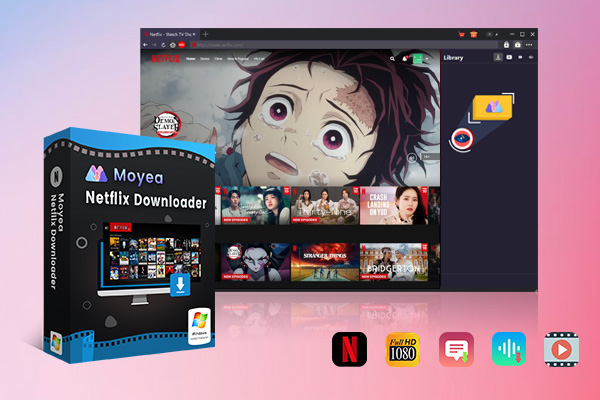
By trying the above solutions, you should have been able to fix the Netflix keeps buffering or freezing issue on Roku TV and other devices. Another pro tip to avoid Netflix buffering is to download Netflix videos for offline viewing. I tried a Netflix video downloader namely Moyea Netflix Downloader to download Netflix movies and TV shows to save as standalone MP4 files, which could then be played back on Roku TV and various other devices without any buffering or freezing. It is a wonderful solution if you get a very slow or even no internet.

-
Professional Netflix downloader to download Netflix movies and TV shows at up to 1080P and save multiple subtitles and audio tracks as needed.
- Download Netflix video to MP4/MKV files.
- Batch download Netflix episodes of all/certain seasons.
- Remove ads in your downloads.
Netflix Black Screen or No Video
Another frequently seen issue: Netflix black screen or no video on Roku TV. This happens on all devices actually, and I met with this issue for a few times. There is only sound but no image on my Roku TV. At the very first, I tried restart my Roku TV, Netflix channel, and even checked my Netflix account, but none of them ever worked. This happens most due to: HDMI or HDCP compatibility, incorrect display resolution settings, and TV or Roku handshake problems.
I tested some of the suggestions and found these fixes worked for my Roku TV:
Solutions:
- Check HDMI connection status: Unplug HDMI cable from Roku TV and then reconnect them, or try a different HDMI if other video streams also have no image.
- Change the display resolution: Change the display resolution to Auto by opening "Settings > Display Type > Auto detect".
- Power off and then on: I tried to power off Roku, TV, and unplug cables, waited for a few minutes, and then turn everything back on. I have no clue about this but sometimes it did work.
- Check HDCP compatibility: HDCP is important for streaming protections. Some older TVs or devices might not support newer streaming protections. (Note: It is an online suggestion, since my devices have no HDCP compatibility issue, therefore I didn’t try this.)
Netflix Audio Not Working on Roku
In such case, you will see video image but there is no sound while streaming Netflix on Roku TV. Honestly, I haven’t come across this issue. Therefore, all these potential causes and feasible fixes are based on Netflix official and online feedback from various platforms. The possible causes of Netflix no sound issue might be: audio format mismatch, incorrect audio settings on Roku, or improper speaker system settings.
To fix the Netflix audio not working on Roku issue, I would like to suggest you first check whether it is on the Netflix side. Some Netflix videos might have audio issue. You can try to stream the Netflix video that has no sound on Roku on other devices like your smartphone to see if the sound streams normally. If the sound works on your smartphone, you might try the below fixes:
Solutions:
- Check volume and mute options: Adjust the volume controller and disable the mute option first. Many people miss this fix actually, though it is quite basic and obvious.
- Test other apps: Try to stream other streaming services on Roku TV like YouTube or Hulu to see if the sound works. If sound is missing, it might be your hardware issue.
- Change audio settings on Roku: Open the "Settings > Audio > HDMI > Set to PCM Stereo" to see if Netflix sound goes normally.
- Restart Roku and TV: This might help fix some temporary glitches so as to make sound work normally.
- Unplug speaker and then reconnect: Unplug the speaker from Roku and TV and then reconnect, or even switch to a new speaker.
Common Netflix Error Codes on Roku
Besides the above issues, sometimes you might come across Netflix error codes on Roku TV. Here I have collected 2 most commonly seen Netflix error codes and their fixes.
Network Errors NW-2-5
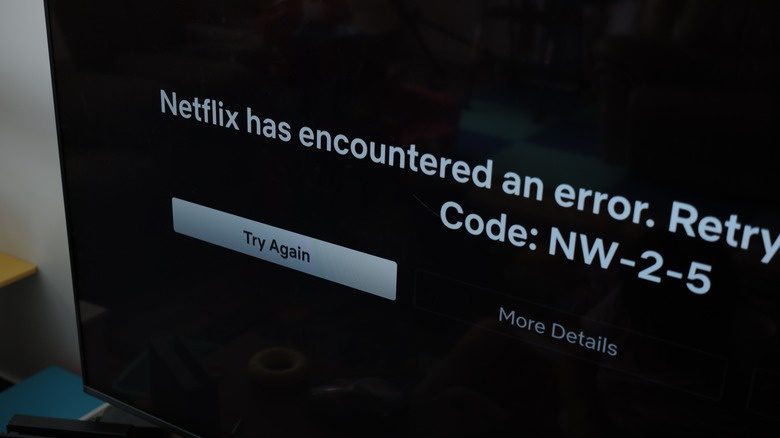
When you come across the "Code: NW-2-5" error, what does it mean? This code error shows you that your Roku can’t connect to Netflix server. There might be internet connection issue (slow or even no internet connection). Therefore, you could try to:
Solutions:
- Restart router.
- Check internet connection status.
- Reset network settings on Roku.
- Disconnect any other device that is in the same WiFi network.
- Improve your bandwidth.
- Move your Roku TV to WiFi as near as possible.
Cache/Data Error UI-800-3
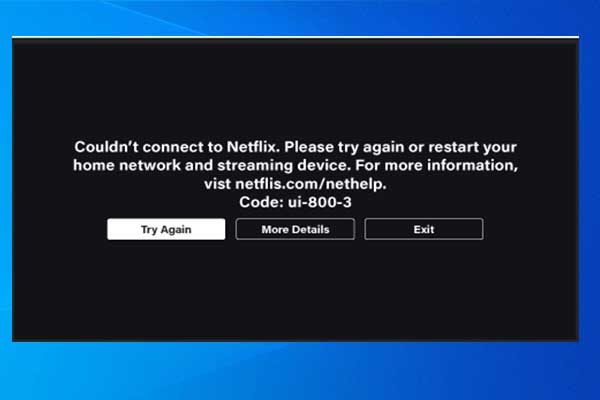
There are various UI-800-3 error codes you might come across, respectively:
- UI-800-3: Netflix app issue.
- UI-800-3 (205040): Netflix app cache issue.
- UI-800-3 (10018): Netflix app cache issue.
- UI-800-3 (307006): Potential hardware issue.
Since it is mostly about Netflix app and its cache, the fixes are straightforward. You could try the below solutions:
Solutions:
- Restart your Roku TV.
- Quit and then re-log into Netflix app.
- Clear Netflix app cache or app data.
- Uninstall and then re-install Netflix app.
- Reset your Roku TV.
When Netflix Works Elsewhere but Not on Roku
There are times Netflix works smoothly on other devices but not on Roku. If you ever come across this issue like me, you need to know that this happens mostly due to the device side. From my own experience, I have summarized the possible causes for this issue:
- Device-specific bugs.
- Outdated Roku firmware.
- Device compatibility issue.
- Account or regional restrictions.
- Roku system glitches.
In such case, the below fixes might work:
Solutions:
- Update the Roku firmware to the latest in "Settings > System > System update".
- Check account limitations to see if it is about region restrictions or you have been streaming Netflix on too many devices. Log out Netflix accounts from other devices.
- Quit and then re-log into Netflix to fix playback issue.
- Factory reset Roku in "Settings > System > Advanced system settings > Factory reset". This should be the last resort.
- Switch to newer Roku.
Conclusion
It could be incredibly frustrating to deal with why is "Netflix not working on my Roku TV" issue. But the good news is that most of these issues are fixable. For my personal experience, the most commonly used fixes are:
Common Fixes:
- Restart Netflix app and Roku.
- Clearing app cache.
- Update Netflix app and Roku firmware to the latest.
- Log out Netflix and then log back in.
- Reinstall Netflix app.
- Check network connection.
These fixes work, whether you are trying to fix Netflix keeps crashing on Roku TV issue, buffering issue, image or sound missing issues, error codes, etc. Of course, if you have tried all these solutions but the problem still exists, you can try to contact the supports of both Netflix and Roku, or just download Netflix videos with 3rd-party Netflix video downloader tools to watch Netflix videos offline without limit.
-
Netflix Not Working on Roku? Solve It NowCassie J./2026-03-27
-
3 Proven Ways to Watch Netflix Without AdsCassie J./2026-03-25
-
Apowersoft Streaming Video Recorder Review: Features, Pricing, and AlternativesSunny Wen/2026-03-24
-
Best Amazon Prime Video Recorders: Record with the BestPatrick Murray/2026-03-19
-
How to Download Amazon Prime Videos to iPhone/iPadPatrick Murray/2026-03-18
-
YouTube TV DVR: How It Works and How to Record Live TVSunny Wen/2026-03-17
-
How to Record Twitch Streams? All Methods ExplainedPatrick Murray/2026-03-17
-
Download PBS Videos Easily: From Public Clips to Passport ShowsPatrick Murray/2026-03-17
-
How to Mute or Unmute Someone on InstagramLeia Liu/2026-03-11
-
YT Saver Review 2026: Is It Safe, Legit, and Worth Buying?Leia Liu/2026-03-10





-
Top 5 Udemy Downloaders to Download Udemy Courses on PCPatrick Murray/2025-07-03
-
Best 9 Anime Download Sites to Download Anime [Free & Paid]Patrick Murray/2024-07-12
-
4 Best DRM MPD Downloaders in 2026Leia Liu/2025-05-29
-
HBO Max with Ads VS. No Ads: What Are the DifferencesLumi/2025-05-13
-
6 Best M3U8 Downloaders to Download M3U8 PlaylistsLumi/2025-05-22
-
[2024] How to Download DRM-Protected M3U8 VideosLumi/2024-10-29
-
How to Stream Prime Video on Nintendo Switch?Patrick Murray/2024-09-14
-
How to Activate Tubi on Different Devices? [LG, FireStick, Roku, PS5…]Cassie J./2024-09-24
-
[2026 Latest Review] Best Amazon Prime Video DownloadersPatrick Murray/2025-05-16
-
How to Download an MPD Video with DRMLeia Liu/2024-09-20






Related
3 Proven Ways to Watch Netflix Without Ads
How Netflix Extra Members Change Account Sharing?
How to Log out of Netflix on TV? Easy But Secure Methods Here
Netflix Watch History: Can You Clear or Hide It?
Netflix Cancellation Guide: What Happens Next
How Long Do Netflix Downloads Last on Your Device?


 English
 日本語
日本語