Last updated on 2025-12-25, by
Netflix Cancellation Guide: What Happens Next
Summary:
- Once you want to cancel Netflix subscription, you might find it complicated since the operations are quite different on various devices. This post will show you detailed guide on how to cancel Netflix subscription and what happens after Netflix cancellation.
Though Netflix provides an extensive library of movies and shows, it is costing for regular and continuous subscription. You may want to cancel Netflix subscription for various reasons, like switching to other streaming services like Prime, Disney+, etc., saving cost, etc. What would happen after you cancel Netflix subscription? How to cancel Netflix subscription? If you are wondering about these, this post would be exactly what you need. We will show you how to cancel Netflix on TV, mobile device, browser, and other devices in detail.
Quick AccessCLOSE
What Happens When You Cancel Netflix?
Before you try to cancel Netflix subscription, you might need to figure out what will happen. Will you still be able to access to Netflix? Will your profiles be saved or deleted? What will happen to the Netflix video downloads? We have summarized all the after-cancel things below for you:
Notes:
- No charges again: The very first thing is of course the Netflix subscription fee. There will be no automatic Netflix subscription fee charged since the next Netflix subscription renewal date. You won’t be billed any more.
- You can still access to the Netflix until the expiration date of your billed Netflix subscription plan.
- All your Netflix data, including profiles, watching history, “My List” content, and other settings will be saved for 10 months. Afterwards, your Netflix account information will be permanently deleted.
- You can log into your Netflix account any time within the 10 months to resubscribe Netflix and reactivate your Netflix account. Your billing cycle date will start from the day you rejoin.
- You will not be able to access to all your Netflix video downloads on your mobile Netflix app once your Netflix subscription ends (not from the day you cancel Netflix subscription).
How to Cancel Netflix the Right Way?
Then, how to cancel Netflix on different devices? Are the Netflix cancellation operations the same on different devices? Check the below guide to learn how to cancel Netflix subscription.
1. Cancel Netflix on Web or Mobile App

It is quite simple and straightforward to cancel Netflix subscription on web and mobile Netflix app. They share the similar operations. You could follow the below guide to learn how to cancel Netflix subscription on browser and mobile app in detail:
Step 1: Log into Netflix on your browser or mobile app.
Step 2: Click the user icon on mobile Netflix app, or the drop-down menu at the top-right corner of the screen on Netflix website.
Step 3: Then, click “Account > Membership & Billing” to choose “Cancel Membership” option.
Step 4: Finally, click “Finish Cancellation” button to confirm Netflix subscription cancellation process.
By following the above steps, you could easily cancel Netflix subscription. You could still get access to Netflix until the billing cycle date.
2. Cancel Netflix Billed Through Third Parties
If you start Netflix subscription via 3rd-party services like Apple, Google Play, Amazon, TV, etc., the Netflix subscription cancellation steps would vary upon devices. The below guide would show you the details.
How to cancel Netflix on Smart TV:
Step 1: Open the TV home screen.
Step 2: Open the Netflix app.
Step 3: Right next to your profile name, click the drop-down menu.
Step 4: Open “Account > Membership & Billing > Cancel Membership” options.
Step 5: Confirm Netflix cancellation by clicking the “Finish Cancellation” button.
How to cancel Netflix subscription on Apple (iTunes/App Store):
Step 1: Open your iPhone/iPad’s Settings app.
Step 2: Open your Name and then choose “Subscriptions” option.
Step 3: Scroll down to find Netflix option.
Step 4: Tap the “Cancel Subscription” option and then confirm Netflix subscription cancellation.
How to cancel Netflix on Google Play Store (Android):
Step 1: Kick off the Google Play Store app on your Android devices.
Step 2: Open the Profile option.
Step 3: Find the “Payments & subscriptions” option and then tap “Subscriptions” option.
Step 4: Find Netflix and then click “Cancel subscription” option.
How to cancel Netflix on Amazon:
Step 1: Open Amazon website and log in with your Amazon account.
Step 2: Open the “Accounts & Lists” option to choose “Members & Subscriptions” option.
Step 3: Scroll down to find Netflix and then click “Cancel subscription” option.
How to cancel Netflix subscription on mobile/TV providers:
Step 1: Open your provider’s website or app.
Step 2: Log into it with your account.
Step 3: Find the option that manages your services or add-ons.
Step 4: Follow specific instructions to remove or cancel Netflix bundle.
How to Keep Watching Netflix Content After Cancellation – Practical Solution
As mentioned above, after you cancel Netflix subscription, you are still able to access to Netflix until the billing cycle date. What if you want to watch Netflix movies and shows after Netflix cancellation? Officially, you will have no access to Netflix after Netflix cancellation. But, with 3rd-party Netflix video downloader, you could download Netflix movies and shows right before the billing cycle date and save Netflix movies and shows offline on your computer, so you can watch Netflix videos after Netflix cancellation. Moyea Netflix Downloader is such a user-friendly choice.

-
Professional Netflix downloader to download Netflix movies and TV shows at up to 1080P and save multiple subtitles and audio tracks as needed.
- Download Netflix video to MP4/MKV files.
- Batch download Netflix episodes of all/certain seasons.
- Remove ads in your downloads.
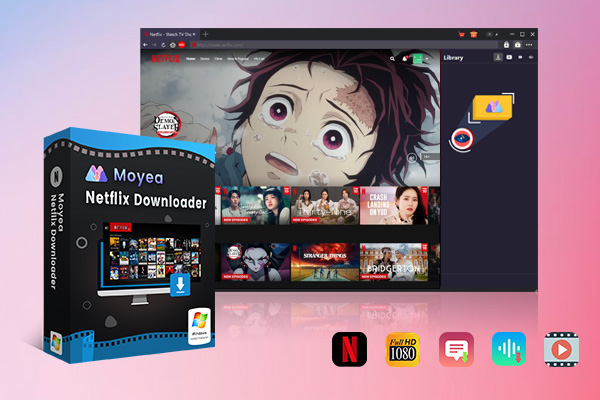
You could follow the below guide to learn how to download Netflix movies and shows with Moyea Netflix Downloader in detail:
Step 1: Download, install and kick off Moyea Downloader on your computer.
Step 2: On the top-right corner, click the “More” drop-down menu and choose “Settings” option.
Step 3: On the “Settings > General” tab, set download directory.
Step 4: Open Netflix website within Moyea Downloader and log in.
Step 5: Play back target Netflix video and click the round icon at the bottom right corner to analyze target Netflix video page.
Step 6: Once the analysis completes, on the pop-up window, choose download options, output format, subtitles, and audio tracks.
Step 7: Finally, click the “Download” button to start downloading Netflix videos.
You then only need to wait for the Netflix video downloads to complete. Once the downloads complete, you will no longer be limited by the Netflix subscription cancellation.
Alternative Option: Pause Netflix Subscription Instead of Canceling
As mentioned above, after you cancel Netflix subscription, all your Netflix account data will be stored on Netflix for 10 months only. After that, all your Netflix data will be deleted. In such case, you could consider pausing Netflix subscription instead of canceling Netflix subscription. Compared to canceling Netflix subscription, pausing Netflix subscription will keep your data and stop automatic charging. Pausing Netflix subscription is especially useful when you are in a short foreign vacation, busy business months or other short breaks from Netflix.

The below guide would show you how to pause Netflix subscription:
Step 1: Open Netflix website on your browser and log in.
Step 2: Open your profile icon and then choose “Account” option.
Step 3: Scroll down to find “Manage Membership” option.
Step 4: Click the red “Cancel Membership” option.
Step 5: On the follow-up window, click the “Pause for a month” option.
Step 6: Confirm the Netflix pause for a month, which will start from the next billing date.
It should be noted that you can pause for up to 3 months in total. You will get notified each month ends. The Netflix pause option is not available on Basic plans or if you pay with gift cars/Direct Debit. And during the pause period, you get no access to Netflix video playback.
FAQs
1. Can I cancel Netflix from TV app?
Yes. Canceling Netflix subscription from TV app is quite similar to that on Netflix website and app.
2. Can I export Netflix watch list?
Yes, though there is no official direct export option of your watchlist. You could use 3rd-party tool to export your Netflix Watch List.
3. Can I restart Netflix account after Netflix cancellation?
Yes. You can restart your Netflix account at any time. However, all your viewing activity and data like recommendations, ratings, account details, etc. will be saved for 24 months only.
Conclusion
This post summarized the operations on how to cancel Netflix subscription on various devices. By following this detailed guide, you should have been able to cancel Netflix successfully. Before canceling your Netflix subscription, make sure you have learned all what will happen afterwards. Saving Netflix videos with 3rd-party Netflix video downloader would be a great choice for watching Netflix videos after cancellation.
-
StreamFab Netflix Downloader Review: Features, Pros & ConsCassie J./2026-03-31
-
5 Hulu Family Sharing Tips for Smooth ViewingCassie J./2026-03-30
-
Netflix Not Working on Roku? Solve It NowCassie J./2026-03-27
-
3 Proven Ways to Watch Netflix Without AdsCassie J./2026-03-25
-
Apowersoft Streaming Video Recorder Review: Features, Pricing, and AlternativesSunny Wen/2026-03-24
-
Best Amazon Prime Video Recorders: Record with the BestPatrick Murray/2026-03-19
-
How to Download Amazon Prime Videos to iPhone/iPadPatrick Murray/2026-03-18
-
YouTube TV DVR: How It Works and How to Record Live TVSunny Wen/2026-03-17
-
How to Record Twitch Streams? All Methods ExplainedPatrick Murray/2026-03-17
-
Download PBS Videos Easily: From Public Clips to Passport ShowsPatrick Murray/2026-03-17








-
Top 5 Udemy Downloaders to Download Udemy Courses on PCPatrick Murray/2025-07-03
-
Best 9 Anime Download Sites to Download Anime [Free & Paid]Patrick Murray/2024-07-12
-
4 Best DRM MPD Downloaders in 2026Leia Liu/2025-05-29
-
HBO Max with Ads VS. No Ads: What Are the DifferencesLumi/2025-05-13
-
6 Best M3U8 Downloaders to Download M3U8 PlaylistsLumi/2025-05-22
-
[2024] How to Download DRM-Protected M3U8 VideosLumi/2024-10-29
-
How to Stream Prime Video on Nintendo Switch?Patrick Murray/2024-09-14
-
How to Activate Tubi on Different Devices? [LG, FireStick, Roku, PS5…]Cassie J./2024-09-24
-
[2026 Latest Review] Best Amazon Prime Video DownloadersPatrick Murray/2025-05-16
-
How to Download an MPD Video with DRMLeia Liu/2024-09-20








Related

StreamFab Netflix Downloader Review: Features, Pros & Cons

Netflix Not Working on Roku? Solve It Now
3 Proven Ways to Watch Netflix Without Ads
How Netflix Extra Members Change Account Sharing?

How to Log out of Netflix on TV? Easy But Secure Methods Here
Netflix Watch History: Can You Clear or Hide It?


 English
 日本語
日本語