Last updated on 2026-01-30, by
How to Delete a Facebook Group on Desktop and Mobile
Summary:
Learn how to delete a Facebook group on desktop and phone with step-by-step instructions in this post, plus how to back up your valuable Facebook videos with Moyea Video Downloader.
Outline
Closing an online group on Facebook is a big decision, but sometimes you cannot avoid doing it because the group has simply run its course. Do you know how to delete a group page on Facebook, if you have to? Different from leaving a group, deleting a certain group requires specific actions to ensure the group is entirely removed. This post gives a thorough guide on how to delete a Facebook group on both desktop and phone.
Who Can Delete a Facebook Group?
If you want to delete a Facebook group, there must be no members in it. So, if you are the creator or the admin of the group (after the creator leaves), you need to remove all the members from the group.
When you are the last one in the group, you get to see the delete group button. Remember, once you delete the group, the data cannot be restored. So, if you don’t want to lose everything, you have an alternative to pause the group, which lets you restart the Facebook group anytime.
|
Permission |
Original Creator |
Group Admin |
Moderator |
|
Remove Members |
Yes |
Yes |
Yes |
|
Delete Group (Creator Present) |
Yes |
No |
No |
|
Delete Group (Creator Left) |
N/A |
Yes |
No |
|
Pause Group |
Yes |
Yes |
No |
What Happens When You Delete a Facebook Group?
Deleting a Facebook group is a permanent action and will lead to losing all the data (and the members won’t get the notify as well). All the posts, photos, videos, and comments will be deleted from Facebook. Different from delete personal account, there is no "30-day recovery" period for you to regret. Your group will no longer be on the search bar. Since there is no going back, backing up this content seems important.
For non-video content like photos, you can just right-click to save them, but for videos, using the best Facebook video downloaders is the most efficient and fastest way to preserve the group’s history and valuable data. For instance, Moyea Video Downloader allows you to download Facebook Reels and other videos in up to 8K lossless quality, in batches. Also, you can download the original audio tracks and subtitles, with ads being removed. This is the simplest way to save everything from tutorials to music videos of your group for offline archive. Using it is easy as well, so everyone can get it with no problems. Just copy and paste the video URL into the downloader, and it will automatically download it for you.

-
Moyea Video Downloader
– Enable users to download online videos/live streams from 1000+ sites easily at high speed.
– Download 8K video and 320 kbps audio without quality loss.
– Download TV series episodes of all/certain seasons at once.
– Save downloaded online videos to MP4/MKV/WEBM format.
How to Delete a Facebook Group on Desktop
After you have prepared your Facebook group backups, you can follow the steps below to delete your Facebook group. You can do it on any browser:
Step 1: Visit facebook.com/groups. Log in and choose the group you want to delete.
Step 2: There is Members section on the left panel. Click More next to each member name.
Step 3: Click the Leave group button to delete each member.
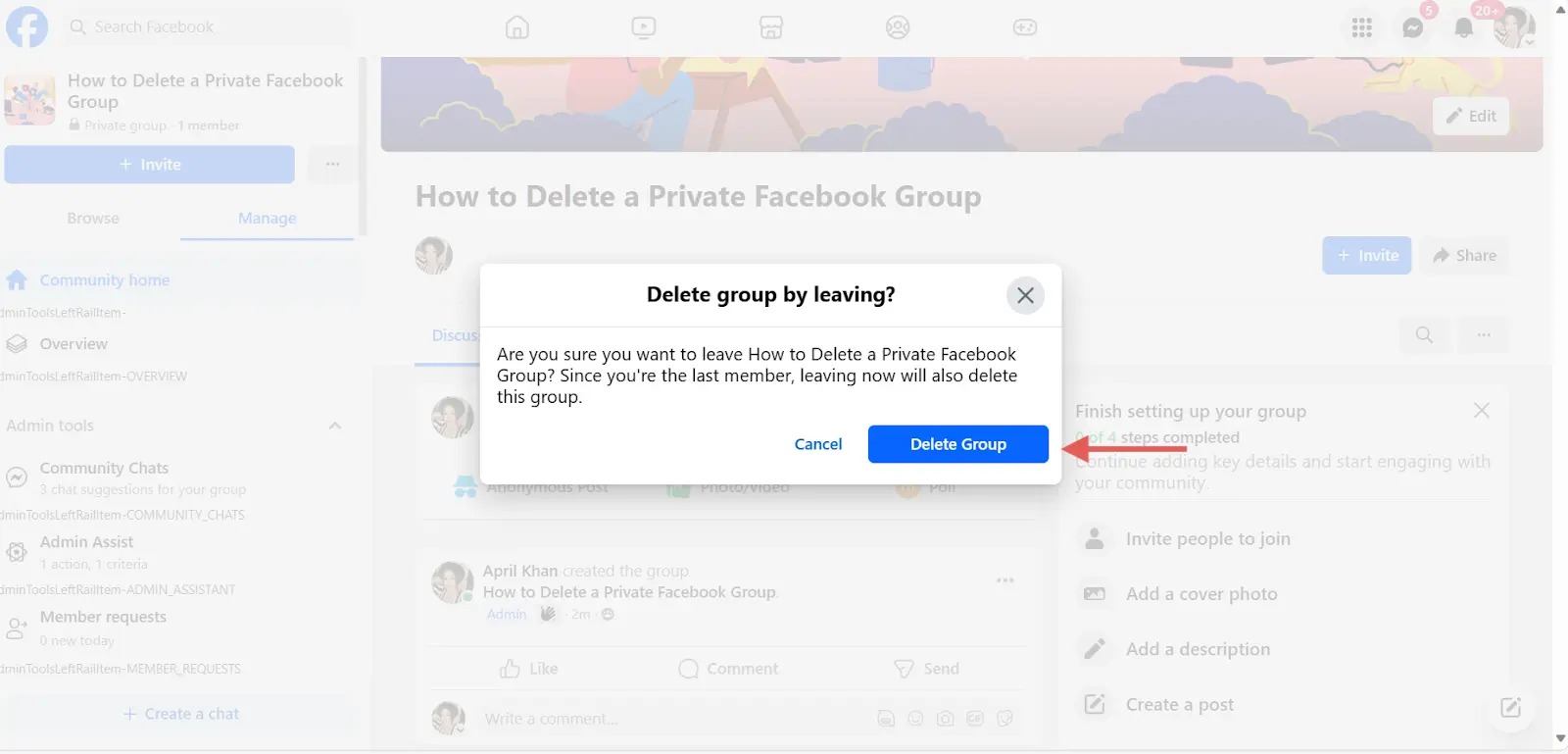
Step 4: When every member is deleted, click the three dots next to your name. Then choose Leave group. You can see a final confirmation box. Confirm and click Delete group to permanently shut it down.
How to Delete a Facebook Group on Mobile (Android & iPhone)
The steps to delete a Facebook group are similar to how you do it on pc. These steps are also easy. Here is how:
Step 1: Open your Facebook app and log in.
Step 2: Tap the three dots at the upper right (the button is at the bottom right if you use an iPhone). In the show-up menu, choose Groups.
Step 3: Choose the Group that you want to delete.
Step 4: Tap the button with start at the upper right (admin tools section).
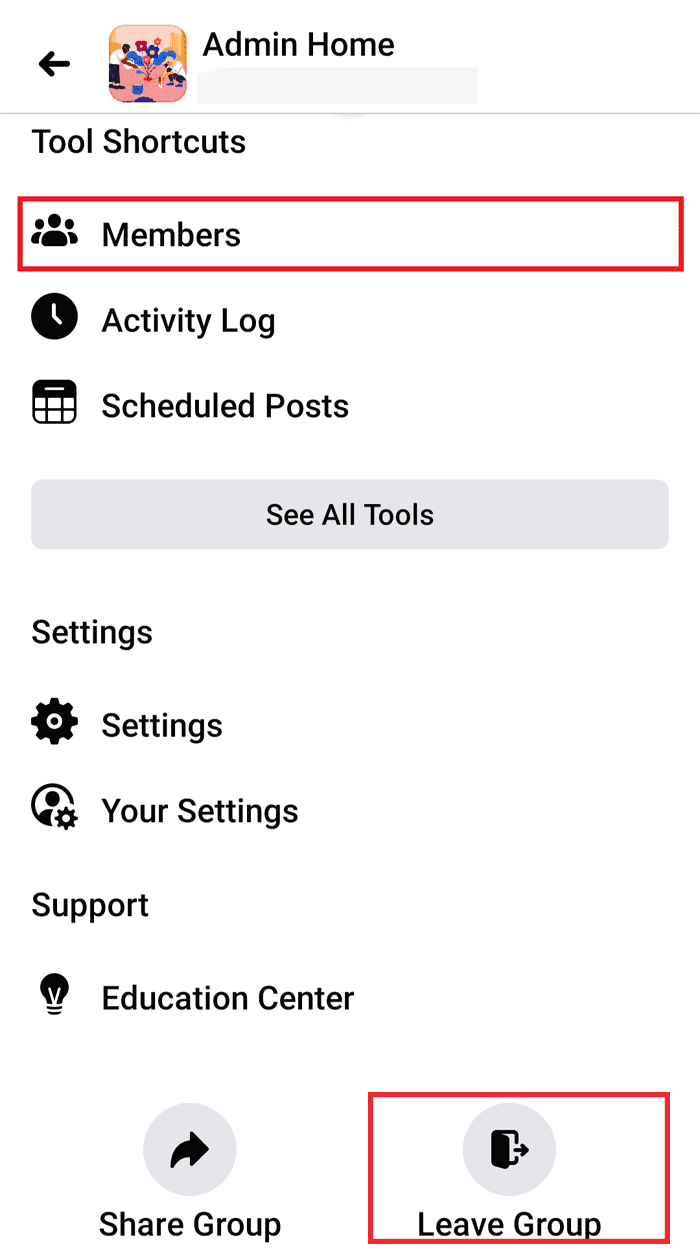
Step 5: Tap Members. Then, remove each member from the list.
Step 6: When you delete all the members, go back to the admin tools section. At the bottom, tap the Leave Group button.
Step 7: Then, click Delete group to confirm your decision to delete this group.
How to Pause a Facebook Group Instead of Deleting
If you don’t want to permanently delete your group but need a break, pausing the group is a good choice. All the activities of all the members and admins (including posts, comments, and likes) will pause. There will be a note at the top of the group page that says the group is on hold. This way, all the data will be saved, and you can restart your group whenever you are ready.
Follow these steps to pause your group:
Step 1: Visit facebook.com/groups and choose the group that you want to pause.
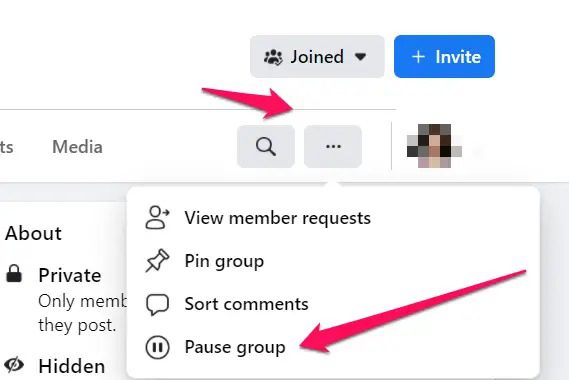
Step 2: Click on the three dots under the group cover picture.
Step 3: Choose Pause group.
Step 4: Choose the reason that you want to pause the group, then select Continue.
Step 5: Choose Continue again to confirm.
Step 6: Then, you can write a note to put on the group page for announcing why you need to pause the group and schedule when the group goes back.
Step 7: When the note is done, click Pause Group at the bottom.
Common Problems When Deleting a Facebook Group
Sometimes, you may encounter several situations in which you fail to delete your Facebook group. Here are the most common problems that you may deal with and how you can fix them.
No Delete Button: You cannot see the delete button if you don’t remove all the other members. So, make sure you have dealt all the requests and delete all the members.
Too Many Members: There is no button to remove all the group members. If your group has too many members, the only thing you can do is to delete them one by one, with a lot of time. Most users in this case choose to pause or archive the group, which is a good choice.
Cannot Remove the Original Creator: You cannot delete the group and the creator (if the creator is in the group). You have no right unless the creator leaves the group.
Technical Glitches: Occasionally, there are situations where the group member count shows 1 (only you), and you cannot remove any members. This is normally due to the cached data. You can clear the browser cache and wait for 24 hours to let the server update the group status.
Conclusion
Knowing how to delete a Facebook group is a maintenance way to keep a good internet presence for any company, organization, etc. But it requires careful execution to since it will lead to all the group data loss. Always prioritize backing up your community’s history and use video downloaders like Moyea Video Downloader to save the important videos in advance. It is also better to tell all the members that you are going to shut down the group before taking action.
-
StreamFab Netflix Downloader Review: Features, Pros & ConsCassie J./2026-03-31
-
5 Hulu Family Sharing Tips for Smooth ViewingCassie J./2026-03-30
-
Netflix Not Working on Roku? Solve It NowCassie J./2026-03-27
-
3 Proven Ways to Watch Netflix Without AdsCassie J./2026-03-25
-
Apowersoft Streaming Video Recorder Review: Features, Pricing, and AlternativesSunny Wen/2026-03-24
-
Best Amazon Prime Video Recorders: Record with the BestPatrick Murray/2026-03-19
-
How to Download Amazon Prime Videos to iPhone/iPadPatrick Murray/2026-03-18
-
YouTube TV DVR: How It Works and How to Record Live TVSunny Wen/2026-03-17
-
How to Record Twitch Streams? All Methods ExplainedPatrick Murray/2026-03-17
-
Download PBS Videos Easily: From Public Clips to Passport ShowsPatrick Murray/2026-03-17









-
Top 5 Udemy Downloaders to Download Udemy Courses on PCPatrick Murray/2025-07-03
-
Best 9 Anime Download Sites to Download Anime [Free & Paid]Patrick Murray/2024-07-12
-
4 Best DRM MPD Downloaders in 2026Leia Liu/2025-05-29
-
HBO Max with Ads VS. No Ads: What Are the DifferencesLumi/2025-05-13
-
6 Best M3U8 Downloaders to Download M3U8 PlaylistsLumi/2025-05-22
-
[2024] How to Download DRM-Protected M3U8 VideosLumi/2024-10-29
-
How to Stream Prime Video on Nintendo Switch?Patrick Murray/2024-09-14
-
How to Activate Tubi on Different Devices? [LG, FireStick, Roku, PS5…]Cassie J./2024-09-24
-
[2026 Latest Review] Best Amazon Prime Video DownloadersPatrick Murray/2025-05-16
-
How to Download an MPD Video with DRMLeia Liu/2024-09-20










Related

YouTube TV DVR: How It Works and How to Record Live TV

Download PBS Videos Easily: From Public Clips to Passport Shows

How to Mute or Unmute Someone on Instagram

How to Update Instagram App to Get the Latest Features

Crunchyroll Offline Viewing for Travel: How to Watch Anime Without Internet

What Is Sling FreeStream and What You Get for Free


 English
 日本語
日本語