Last updated on 2026-03-18, by
How to Download Amazon Prime Videos to iPhone/iPad
Summary:
Downloading videos directly to an iPhone from Amazon Prime Video is limited because the official app keeps downloads locked, and screen recording is blocked by DRM protection. You can use Moyea Amazon Downloader to save videos on a computer first and then transfer them to your iPhone or iPad for flexible offline viewing.
It is really nice to watch shows on Amazon Prime Video if you have a good internet connection. But sometimes that is not the case. Perhaps you are traveling, commuting, or just have slow Wi-Fi. Then, downloading videos to your device is very helpful.
If your device is an iPhone or iPad, you probably ask yourself how to save Prime Video content to watch later without the annoyance of buffering. Well, that is exactly what the intention of this article is. In this article, we will share how to use your iPhone or iPad for downloading Amazon Prime Video in a super easy way so that your favorite movies and shows are already there waiting for you whenever you decide to watch them.
OutlineCLOSE
1. Can You Save Prime Video to iPhone Directly?
Technically yes, and no. You can download movies and shows to your iPhone or iPad from the official Amazon Prime Video app. This feature is handy if you have something you’d like to watch later, and don’t have access to Wi-Fi or mobile data.
However, this downloading comes with limitations. All your downloads will stay inside the Prime Video app only. You can watch them using that app, but you can’t actually move them into your Camera Roll, or your Photos app, because they are protected by Digital Rights Management (DRM) to prevent you from copying them, or sharing them, outside of the Prime Video system.
Limitations of the Official App
Here are some limitations with the official Prime Video app’s download feature that you should be aware of. No doubt the download feature is useful, yes, but there are limits that people generally don’t see.
First of all, downloaded content can only be viewed within the Prime Video app itself. That means that you can’t put the downloaded films and TV shows in your iPhone’s Photo Gallery, Files app, or even on your device’s own video player. In order to view the downloads, you’ll need to open up the Amazon Prime Video app each and every time.
Second of all, the files can’t be shared. It’s impossible to send any downloaded media to another person, or to move it to cloud storage or even onto a computer. Everything remains in the app’s systems only.
Thirdly, downloaded videos don’t last forever. The files that you have downloaded may have an expiration date depending on when they are watched. Even if you have already started watching the video you downloaded, it’s still possible that the file may expire and require a re-download a set time later.
2. Why Screen Recording Doesn’t Work
Some people try a simple trick to save videos from Amazon Prime Video. They open the show and turn on the iPhone’s built-in screen recorder and hope it captures the episode as it plays. Sounds easy. But it rarely works. Usually, the picture goes black while the audio keeps playing. Or the recording just stops showing the video. The reason behind this issue is that the platform uses DRM (digital rights management) and other copyright protections. Those systems block screen recording to stop people from copying the videos. For these reasons, screen recording does not work.
3. Solution: Use a Desktop Downloader
Since downloads inside the Amazon Prime Video app are restricted, lots of people look for another way. A practical fix is a desktop downloader. So, how does this work? You can simply download the movie or episode to your computer first with a desktop downloader. Then you can move the file to your iPhone or iPad like any other video. It works because the video becomes a standard media file. Any video player on your device can open it, so you have more control over where and how you watch.

-
Batch download Amazon Prime Video movies and full or selected seasons of shows at up to 1080p resolution with preferred subtitles and audio tracks. Download Amazon Prime titles as MP4 or MKV file for offline viewing without expiration, and remove ads for offline ad-free watching.
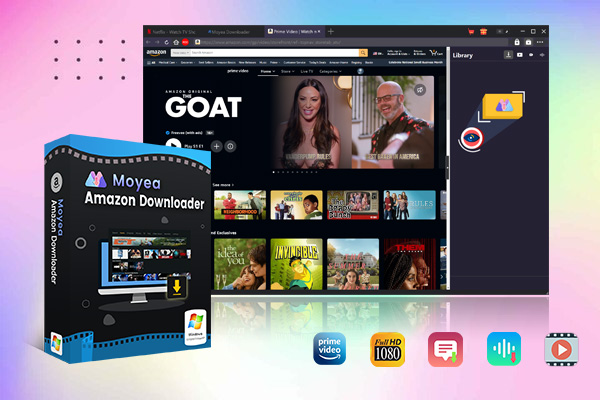
One tool that can help with this method is Moyea Amazon Downloader. Rather than saving videos within the Amazon Prime Video application itself, this program saves the videos directly to your computer. Then you have the option to transfer the video file onto your iPhone or iPad like any other video content. As a result, it offers you much more freedom because you don’t have content locked in the Prime Video app anymore. Finally, it is possible to grab various Prime Video content types, such as movies, TV shows, and Amazon Originals with a batch downloading feature. It allows you to save videos with HD quality up to 1080p and select sound tracks and subtitles before downloading. When the download is completed the video will be saved in popular format such as MP4 or MKV which helps to play it on virtually any computer, or transfer it to your iPhone or iPad to watch when you’re on the go.
Steps to Download Amazon Prime Videos
Step 1. Open Moyea Downloader and click the three-dot menu in the top-right corner, which will show you the settings page. From the General tab, you can choose a folder to save.
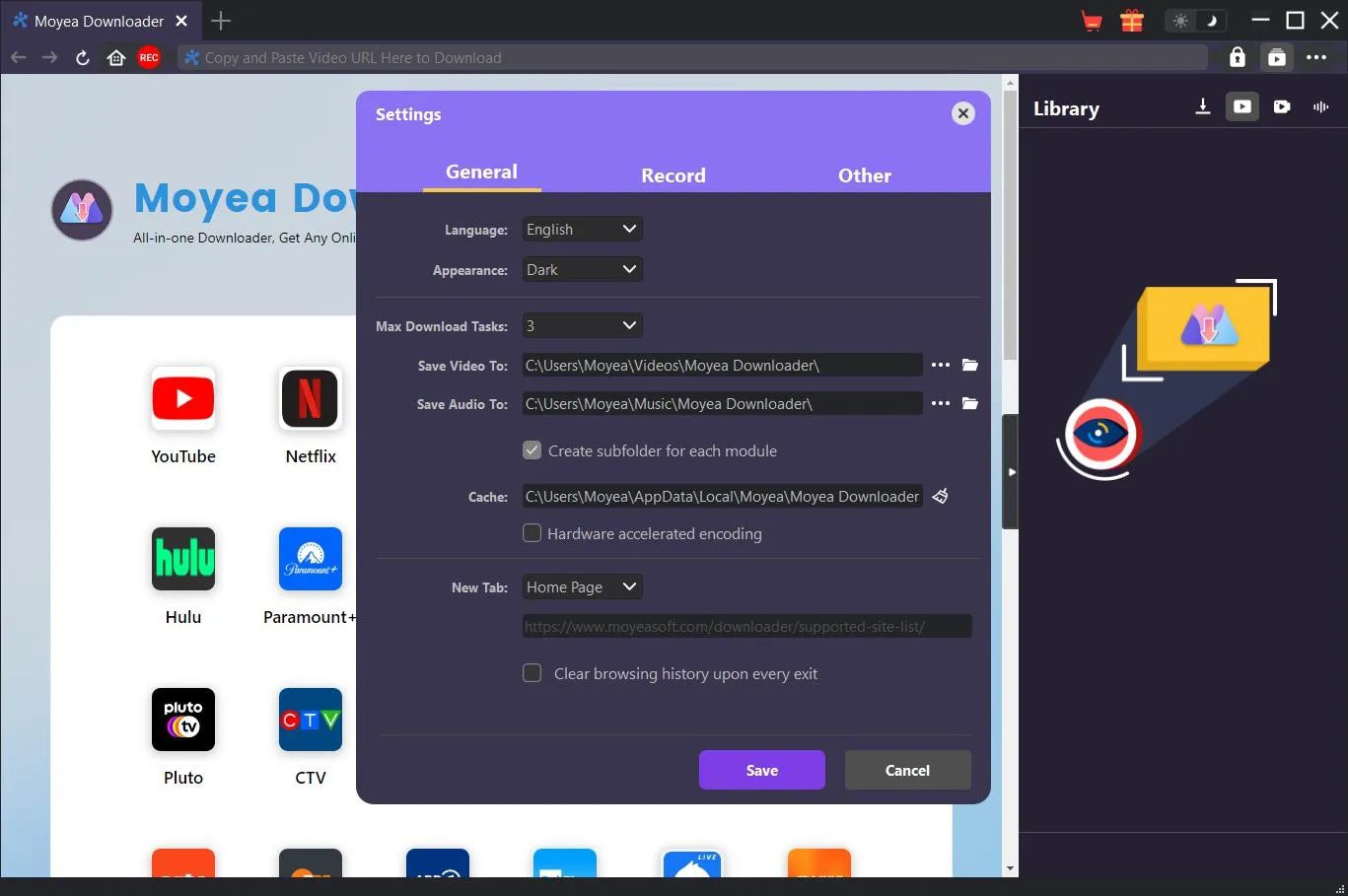
Step 2. Now, use the built-in browser to open Amazon Prime Video and sign in to your account. Then go to the playback page of the movie or episode you want and start playing it so the software can detect the video.
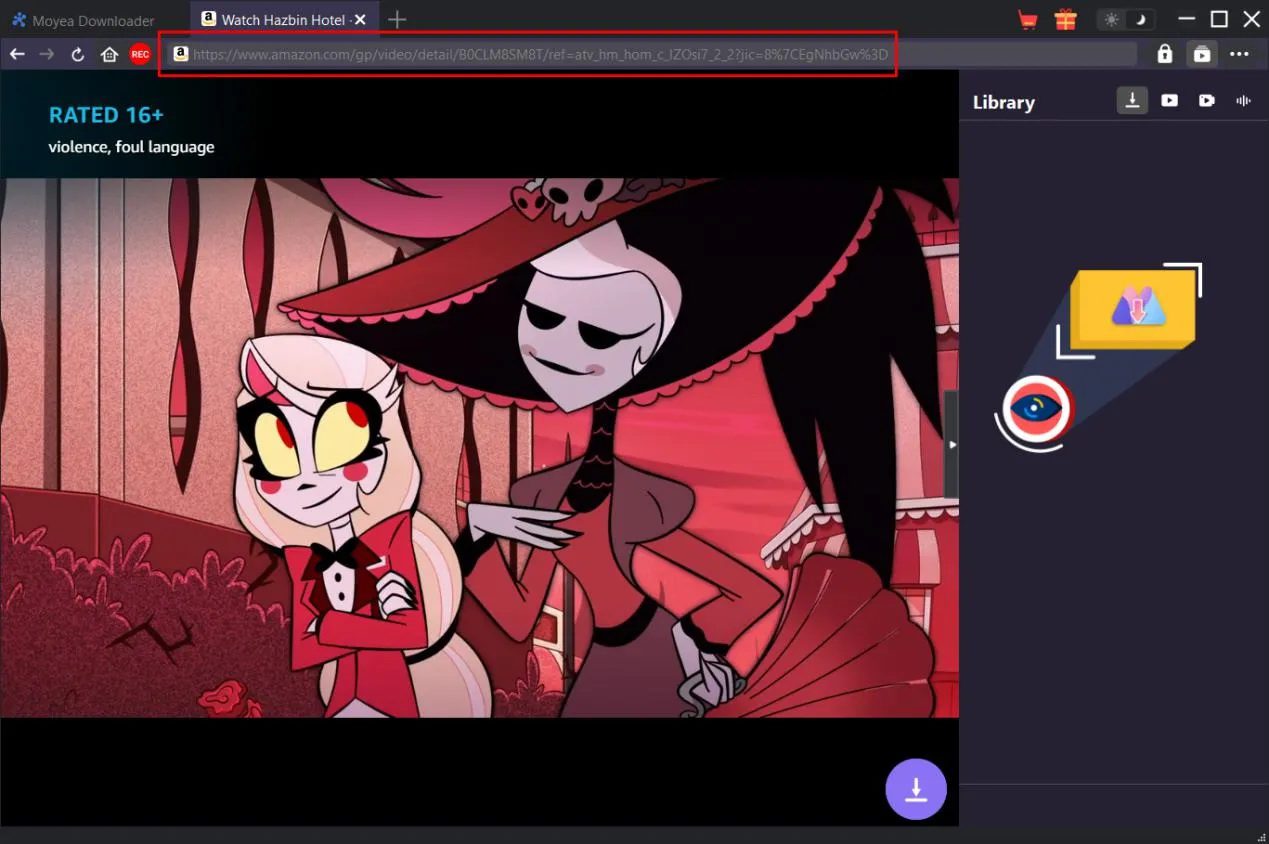
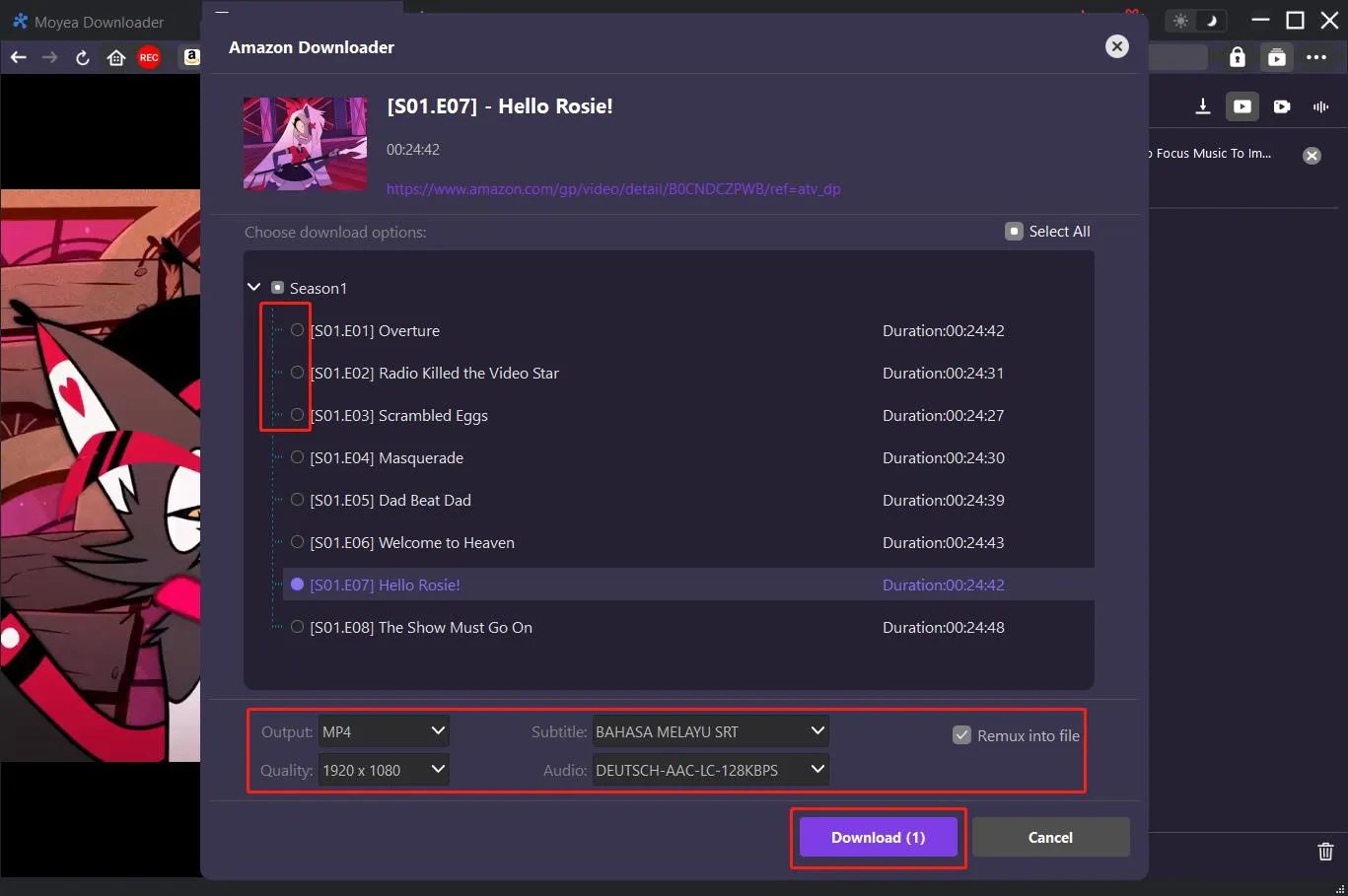
Step 3. Now, go ahead and click the Download icon. The program will analyze the video and show available options like resolution, format (MP4 or MKV), audio tracks, and subtitles. Just simply choose the settings you want and click Download.
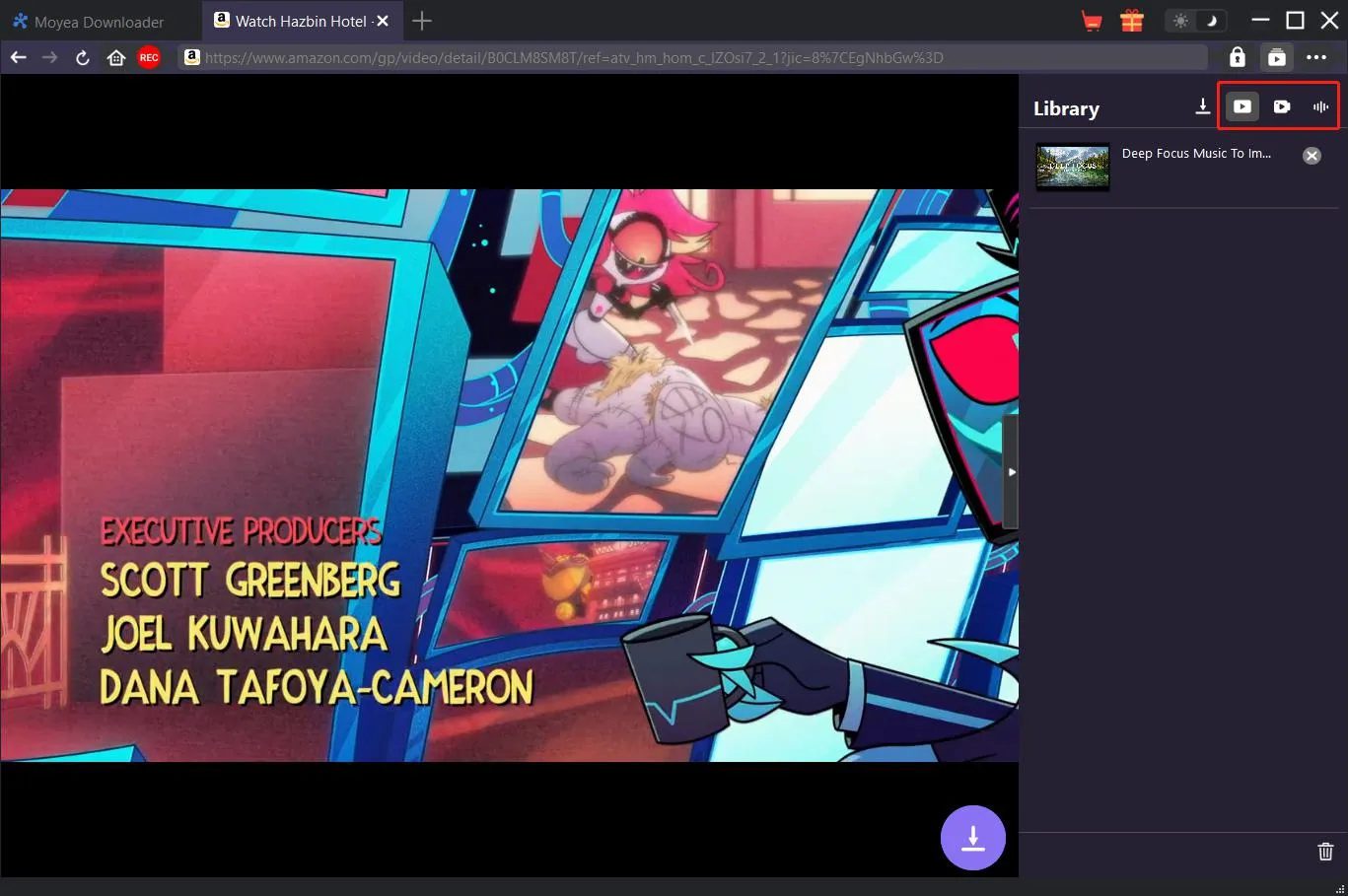
Step 4. Now you will see your Prime Video start downloading. Also, at the right side you can track the progress of your downloading video.
4. How to Transfer the Video to iPhone
After downloading the video on your computer, the next step is just a movie file to your iPhone or iPad. Since the file is saved in a common format like MP4, transferring it is quite simple. Here are two easy methods.
Method 1 — AirDrop (Mac Users)
- Step 1: To AirDrop between the two, turn it on. On the iPhone, go to the Control Center and select "AirDrop". On your Mac, open a new Finder window and activate AirDrop from the sidebar.
- Step 2: Find the downloaded video on your Mac.
- Step 3: Control Click (or Right Click) on the video. Hover over Share and click on AirDrop. Select your iPhone.
- Step 4: Tap "Accept" on your iPhone. Your Mac video will now be saved.
Method 2 — iTunes / File Sharing (Windows Users)
- Step 1: Open iTunes on a Windows computer and download an application to transfer videos to an iPhone device.
- Step 2: Connect the iPhone with Windows computer via USB cable.
- Step 3: Click File Add File to Library. Select the downloaded video.
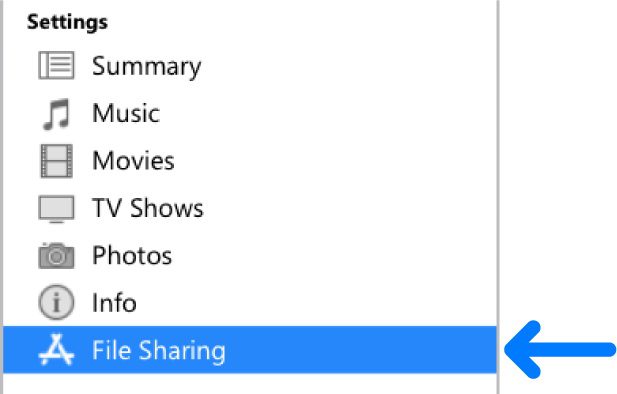
- Step 4: Select the name of the iPhone on iTunes, then go to Movies/File Sharing Part and click Sync to transfer files.
- Step 5: When the syncing is finished, the video will be in an application on the device.
Conclusion
Saving Amazon Prime Videos directly to your iPhone. The Amazon Prime Video application for iPhone prevents saving videos in an external location; however, it keeps all downloads within its own system. In most cases, everything you record from your iPhone screen will be black unless you perform something complicated with recording software. So we recommend that you use the desktop tool Moyea Amazon Downloader. You can freely download Prime Video movies or TV shows to your computer, then transfer them to your iPhone/iPad. This way, you can keep your favorite content ready for offline viewing whenever you want.
-
How to Use Hulu Picture-in-Picture Mode on Any Supported Device?Patrick Murray/2026-04-29
-
How to Watch Deleted YouTube Videos?Patrick Murray/2026-04-29
-
Twitch VOD: What It Is and How It WorksSunny Wen/2026-04-24
-
Full Review of Savethevideo: Is Savethevideo Safe?Patrick Murray/2026-04-21
-
Fix Guide: Prime Video Download Not WorkingPatrick Murray/2026-04-21
-
Is Crunchyroll Free? How to Watch Anime Without PayingSunny Wen/2026-04-20
-
StreamFab Netflix Downloader Review: Features, Pros & ConsCassie J./2026-03-31
-
5 Hulu Family Sharing Tips for Smooth ViewingCassie J./2026-03-30
-
Netflix Not Working on Roku? Solve It NowCassie J./2026-03-27
-
3 Proven Ways to Watch Netflix Without AdsCassie J./2026-03-25








-
Top 5 Udemy Downloaders to Download Udemy Courses on PCPatrick Murray/2025-07-03
-
Best 9 Anime Download Sites to Download Anime [Free & Paid]Patrick Murray/2024-07-12
-
4 Best DRM MPD Downloaders in 2026Leia Liu/2025-05-29
-
HBO Max with Ads VS. No Ads: What Are the DifferencesLumi/2025-05-13
-
6 Best M3U8 Downloaders to Download M3U8 PlaylistsLumi/2025-05-22
-
[2024] How to Download DRM-Protected M3U8 VideosLumi/2024-10-29
-
How to Stream Prime Video on Nintendo Switch?Patrick Murray/2024-09-14
-
How to Activate Tubi on Different Devices? [LG, FireStick, Roku, PS5…]Cassie J./2024-09-24
-
[2026 Latest Review] Best Amazon Prime Video DownloadersPatrick Murray/2025-05-16
-
How to Download an MPD Video with DRMLeia Liu/2024-09-20







Related
Fix Guide: Prime Video Download Not Working
Best Amazon Prime Video Recorders: Record with the Best
Where Are Prime Video Downloads Stored on PC/Mobile?

How to Contact Amazon Prime Video Customer Service for Help/Support?
Quick Guide: How Long Do Prime Video Downloads Last?

Easy Guide: How to Burn Amazon Videos to DVDs?


 English
 日本語
日本語