Last updated on 2026-03-25, by
3 Proven Ways to Watch Netflix Without Ads
Summary:
- In this article, we will show you simple ways to watch Netflix without ads. There are options like a downloader, a browser extension, or upgrading your subscription plan. Among these options, Moyea Netflix Downloader is the most recommended option because it lets you download shows and watch them offline without interruptions.
Open Netflix, start watching a program, and then, suddenly, an advertisement appears. If that sounds strange, you are not the only one. Netflix once earned a name for one thing, namely, ad-free watching. However, Netflix has launched an ad-supported plan, a cheaper subscription option. But with a lower price, you have to see ads. The good news is you’re not stuck with those ads. There are a few simple ways to watch Netflix without ads interruptions. In this article, we’ll walk through three proven options to watch Netflix without ads.
OutlineCLOSE
Quick Overview of 3 Ways to Watch Netflix Without Ads
Before discussing all methods in detail, here’s a quick side‑by‑side look at the three methods. Each option removes Netflix ads differently, so the best choice depends on how you prefer to watch Netflix.
| Method | Ads Removed | Difficulty | Cost | Stability | Best For |
| Use Moyea Netflix Downloader | 100% | Low | Medium | Very High | Users who want ad‑free offline videos and full control |
| Use a Browser Ad Blocker Extension | Partial | High | Low | Medium | People who stream Netflix in a browser |
| Upgrade to an Ad‑Free Plan | 100% | Low | High | Very High | Users who want the official and simplest solution |
Method 1: Use Moyea Netflix Downloader
One effective way to avoid advertisements when streaming on Netflix is to download and watch. Moyea Netflix Downloader allows you to login to your Netflix account with its integrated browser, search for the movie or series, and download the shows in only a few clicks. After saving the video on your computer, you can watch it anytime and anywhere without ads interrupting the movie. Moyea Netflix Downloader also keeps the viewing experience close to the original stream. By using this program, you have the ability to save the MP4 or MKV video files from Netflix at up to 1080P, including any subtitles or varying soundtracks, if available.

-
- Download Netflix movies and shows at up to 1080P without ads.
- Convert Netflix video to MP4/MKV file with original quality.
- Batch download multiple Netflix episodes across seasons.
- Reserve multiple subtitles and audio tracks for easier management.
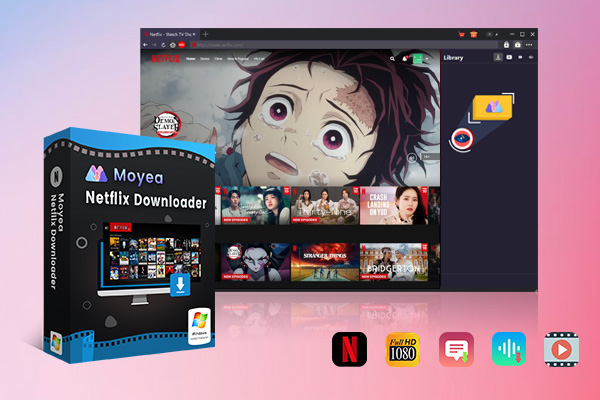
Below are steps to download Netflix videos without ads using Moyea Netflix Downloader:
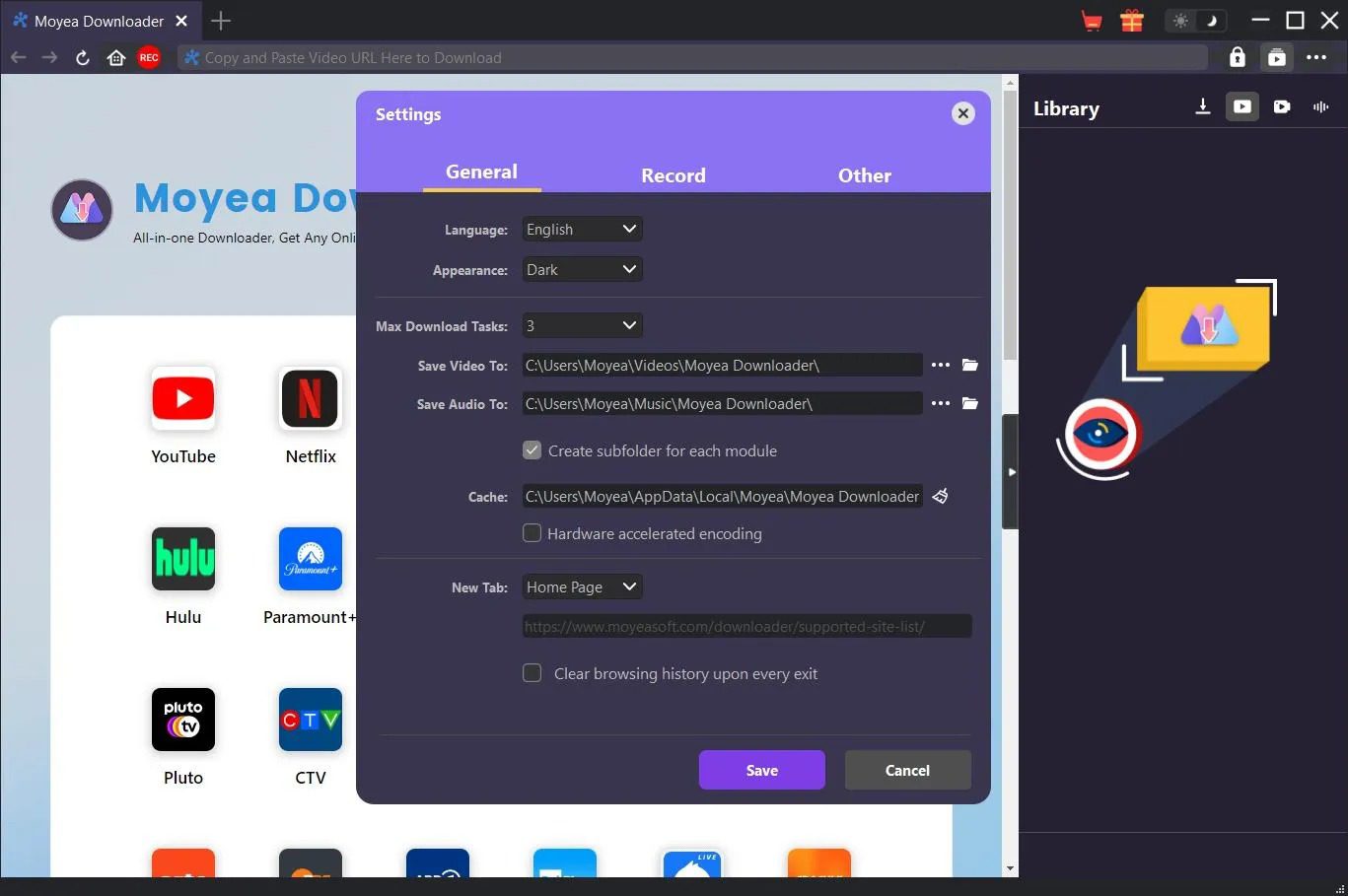
Step 1: Start by opening the Moyea Netflix Downloader. Hit the down arrow next to the Save choice and decide a location for the downloads. To navigate to this, click on the three-dot icon at the right side of the screen, then Preferences. In the General tab, locate the Save Video to option and select the arrow. When you’ve finished, select Save.
Step 2: Login directly to the Netflix subscription on Moyea embedded browser. Search or browse to the video you want to grab. Click on the title and start playing the video.
Step 3: When the video begins to play, click the Download icon. The downloader will analyze the stream and present you with the options: availability, resolution, file size, file format, and bitrate. Finally, click Download to start saving the video.
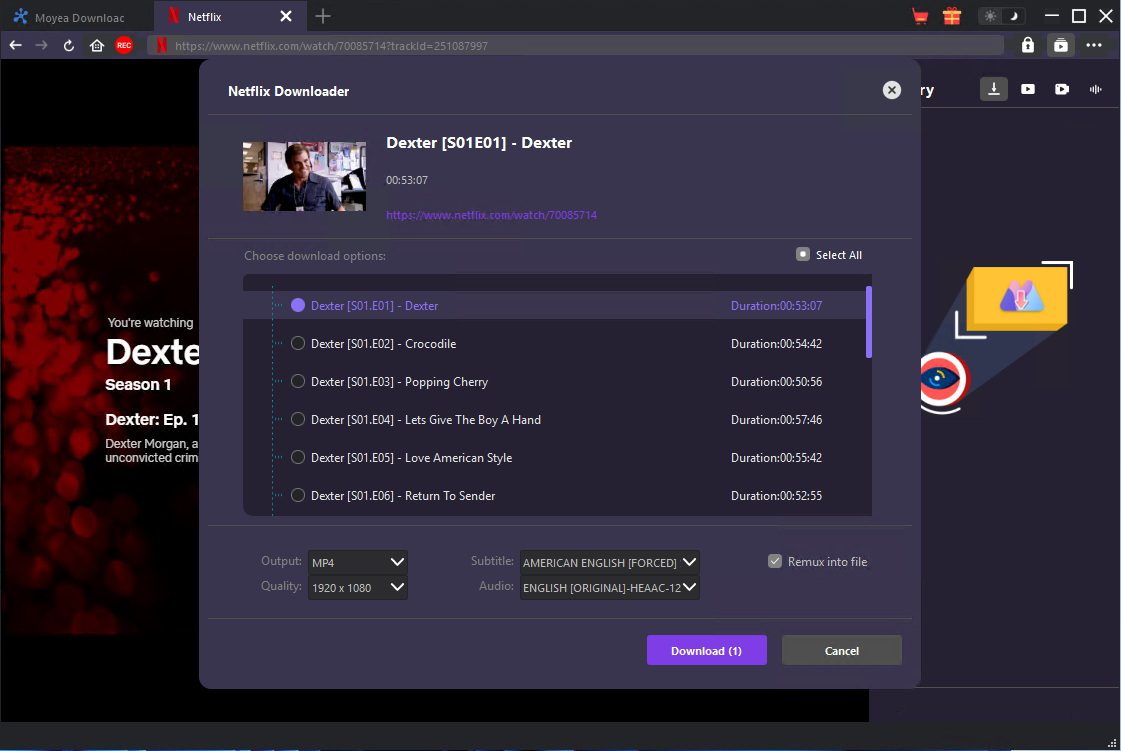
Step 4: Once the download begins, a panel will appear on the right side showing the progress of your downloads. From here, you can pause, stop, or manage the tasks if needed.
Step 5: Your download will appear on the Downloaded Video tab as any other saved video. You can double click on it and it will play it or open the folder in your computer and watch it offline without advertisements.
Method 2: Use Netflix Ad Blocker
A further easy method to block ads on your streaming experience through Netflix is through a browser add-on. "Streaming Enhanced Netflix Disney Prime Video" is one such extension developed by an independent developer and shared via the reddit community of users. Once you download it onto your favorite browsers, all you need to do is load up Netflix, and this will run in the background as you stream via it. It also adds small helpful features like playback speed control and automatic full-screen playback.
It’s easy to use this ad blocker extension:
Step 1: Start by heading to the extension page on Chrome Web Store and clicking Add to Chrome. When prompted to add the extension, do so by clicking Add Extension. The extension icon will be added to the address bar (you’ll see it when you hover over the existing icons).
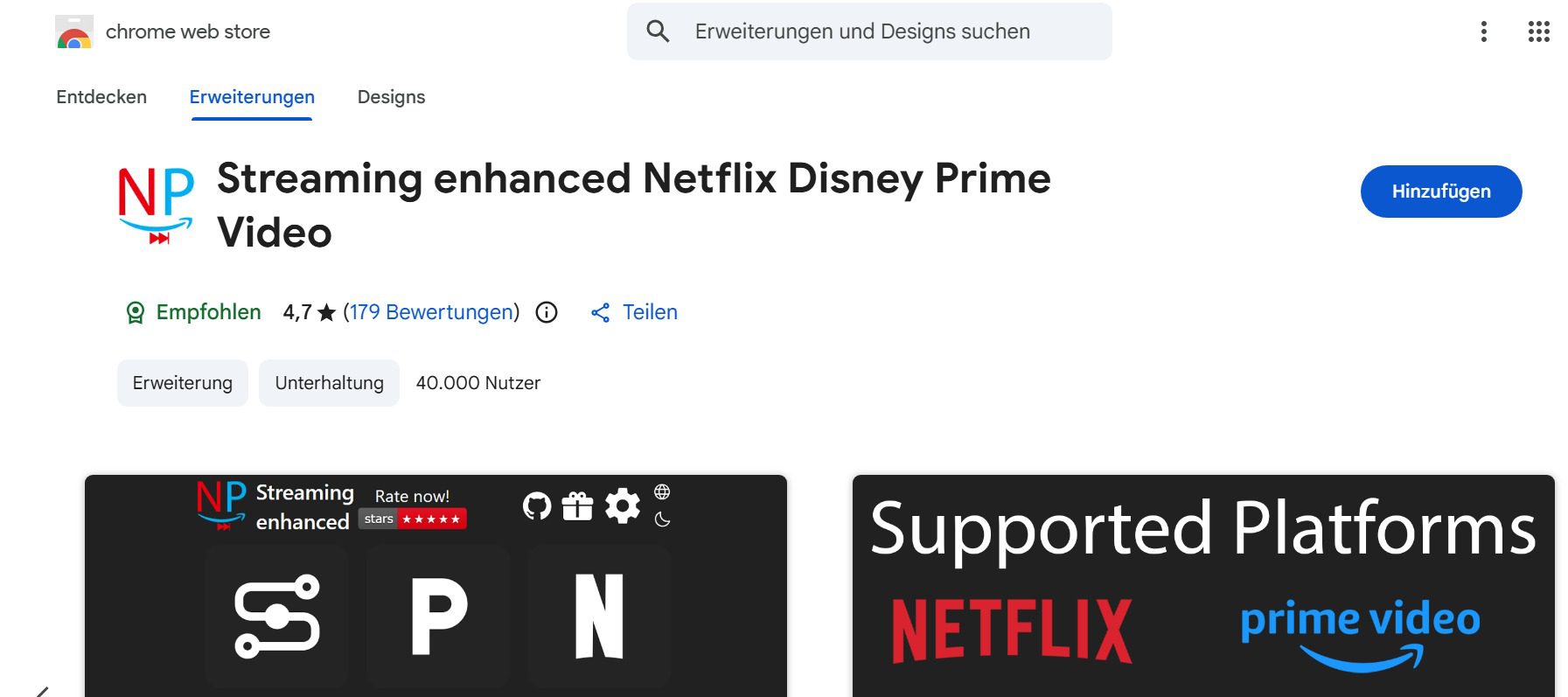
Step 2: Visit Netflix in your Chrome browser and sign into your Netflix account. The extension activates automatically in the background so you needn’t do anything complicated to make it work.
Step 3: Open any movie or TV Show and hit play. When ads appear, the extension automatically skips them or shortens the interruption so playback continues quickly.
Method 3: Upgrade to Ad-Free Plan
The next simplest solution to block ads is to buy a subscription without advertisements. Beyond the classic plan, there are other options on Netflix with various prices; on the cheapest plan, the ads are present. To have them disappear, you have to choose a "higher" plan, "Standard" or "Premium", thus without advertisements. You will be able to enjoy the best movies and series without Ads.
Step 1: Log in to your existing Netflix account in a browser. Click on your profile icon, then select Account. Find your Plan Details and click on Change plan.
Step 2: Review the plans available. Choose Standard or Premium, both of which are ad-free, but the higher tier allows for more simultaneous screens and better video quality.
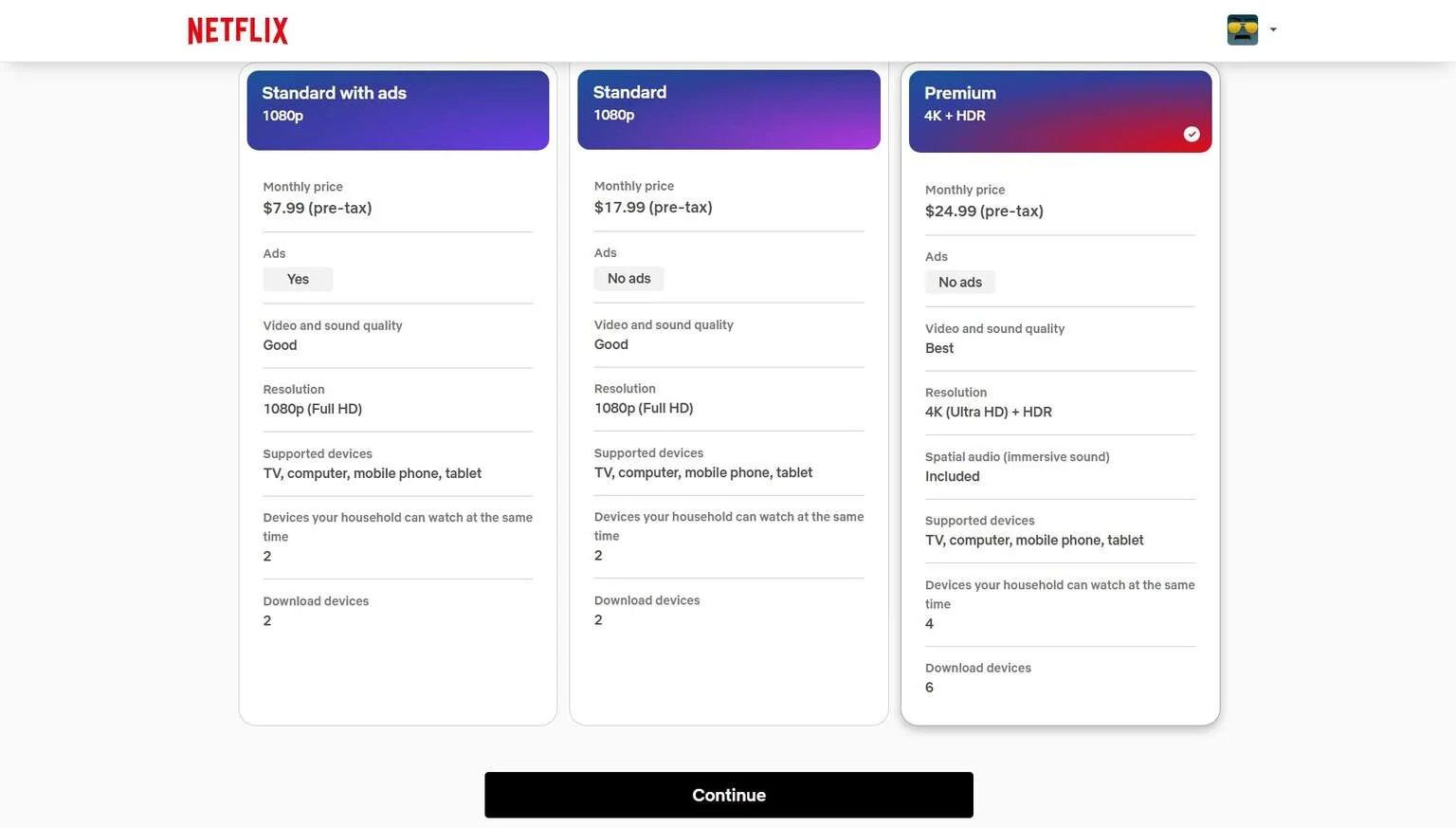
Step 3: Hit Continue and confirm to switch plans. Updating your account to the new subscription should be effective immediately or from your next payment.
Also Read: How Netflix Extra Members Change Account Sharing? | How Long Do Netflix Downloads Last? | Netflix Watch History: Can You Clear or Hide It?
FAQs
Can I remove ads from Netflix for free?
The official way is to just upgrade your plan to No ads. Another way is to use a downloader like Moyea Netflix downloader to download all your favorite Netflix shows without ads and keep them forever.
Will downloading Netflix videos with Moyea affect video quality?
No, with Moyea Netflix downloader you can download videos up to 1080P without losing audio or picture quality. Also, when downloading you can choose subtitles and multiple audio tracks.
Can I use ad blockers on mobile devices?
You can use ad blocker extensions sometimes that work on desktop browsers. Mobile devices have limited support, so offline downloads with Netflix downloaders or just simply upgrading to an ad‑free plan are more practical for phones and tablets.
Conclusion
Ads may take a break while you’re enjoying a good movie or series on Netflix, but the best news is that there’s no way around it. We have discussed several methods on how to watch Netflix without ads. You can either opt to add an ad-skipping browser extension, get an ad-free plan upgrade, or download content to enjoy offline. Out of these options, Moyea Netflix Downloader is our top pick. With this downloader, you can watch all your favorites from Netflix without ads and keep them on your device forever. No need for a paid plan, and also no need for a Netflix subscription every month to watch your Netflix shows and movies. Also, you can download movies and series in high quality, keep subtitles and audio tracks, and watch them anytime without ads. This downloader is a practical solution worth considering.
-
3 Proven Ways to Watch Netflix Without AdsCassie J./2026-03-25
-
Apowersoft Streaming Video Recorder Review: Features, Pricing, and AlternativesSunny Wen/2026-03-24
-
Best Amazon Prime Video Recorders: Record with the BestPatrick Murray/2026-03-19
-
How to Download Amazon Prime Videos to iPhone/iPadPatrick Murray/2026-03-18
-
YouTube TV DVR: How It Works and How to Record Live TVSunny Wen/2026-03-17
-
How to Record Twitch Streams? All Methods ExplainedPatrick Murray/2026-03-17
-
Download PBS Videos Easily: From Public Clips to Passport ShowsPatrick Murray/2026-03-17
-
How to Mute or Unmute Someone on InstagramLeia Liu/2026-03-11
-
YT Saver Review 2026: Is It Safe, Legit, and Worth Buying?Leia Liu/2026-03-10
-
AnyStream Review After Shutdown & Best AlternativeCassie J./2026-02-28







-
Top 5 Udemy Downloaders to Download Udemy Courses on PCPatrick Murray/2025-07-03
-
Best 9 Anime Download Sites to Download Anime [Free & Paid]Patrick Murray/2024-07-12
-
4 Best DRM MPD Downloaders in 2026Leia Liu/2025-05-29
-
HBO Max with Ads VS. No Ads: What Are the DifferencesLumi/2025-05-13
-
6 Best M3U8 Downloaders to Download M3U8 PlaylistsLumi/2025-05-22
-
[2024] How to Download DRM-Protected M3U8 VideosLumi/2024-10-29
-
How to Stream Prime Video on Nintendo Switch?Patrick Murray/2024-09-14
-
How to Activate Tubi on Different Devices? [LG, FireStick, Roku, PS5…]Cassie J./2024-09-24
-
[2026 Latest Review] Best Amazon Prime Video DownloadersPatrick Murray/2025-05-16
-
How to Download an MPD Video with DRMLeia Liu/2024-09-20





Related

How Netflix Extra Members Change Account Sharing?

How to Log out of Netflix on TV? Easy But Secure Methods Here
Netflix Watch History: Can You Clear or Hide It?

Netflix Cancellation Guide: What Happens Next

How Long Do Netflix Downloads Last on Your Device?
Netflix Keeps Kicking Me Out? Try These Solutions


 English
 日本語
日本語