Last updated on 2025-12-12, by
A Complete Guide to Live Streaming on YouTube on All Devices
Summary:
This article provides guidance on how to enable live streaming on YouTube through different devices. It also answers some common questions for users.
If you ever pay attention to people around you while taking the subway or in other occasions, you can notice that at least half of ten are gluing their eyes onto YouTube, and hunting through videos and live streams. It offers a stage for users to demonstrate various aspects of their life. Moreover, its convenience and extensive coverage have attracted billions of users worldwide. As YouTube continues to develop, more forms of entertainment have come into being, among which live streaming enjoys great popularity. This guide will introduce you on how to go live on YouTube through different devices.
MenuCLOSE
Part 1: What You Need Before Going Live
1. YouTube Live Stream Requirements
1) Subscriber requirement: If you want to stream on PC, at least 50 subscribers are required. And if you want to stream on mobile devices, at least 1,000 subscribers are needed, and the channel must have no violation records in the past 30 days.
2) No limits: Channels that have been verified may have no limits. But it’s better to check the official updates before starting streaming.
3) Account: Users should first enable the live streaming feature on YouTube and wait maximum 24 hours for the platform verification.
2. Technology and Tools Needed
1) Network: YouTube recommends an upload speed of at least 6 Mbps.
2) Encoding software: For the pc users, it is recommended to use tools that are compatible with YouTube such as OBS Studio, Streamlabs or Wirecast. For mobile devices users, you can start streaming directly in the YouTube App.
3) Hardware equipment: High-definition camera (1080p or higher) and microphone. If the user requires higher-quality live streaming, a capture card such as Elgato can be equipped.
Part 2: How to Go Live on YouTube [Laptop/ PC]
If you prefer stream on laptop, this part may be of help. But before starting streaming, please ensure that you meet the platform’s requirements. Here are steps on how to stream on YouTube on PC:
1) Firstly, your YouTube account must be enabled and authenticated. After logging into YouTube, click the “Create” icon in the upper right corner.
2) Then select “Go live”. The pop-up information interface will guide you to enter the YouTube streaming section.

3) In this section, you can set streaming parameters before starting such as scheduling, title, description, thumbnail, etc. After the live stream ends, click the red button at the bottom right corner to stop.
Part 3: How to Go Live on YouTube [Mobile]
Streaming on YouTube via mobile devices is more convenient, here are steps on how to live stream on YouTube through mobile devices:
1) Log into YouTube and click on the “Create” icon at the bottom of the screen.
2) Select the “Live” option from the popped-up menu.
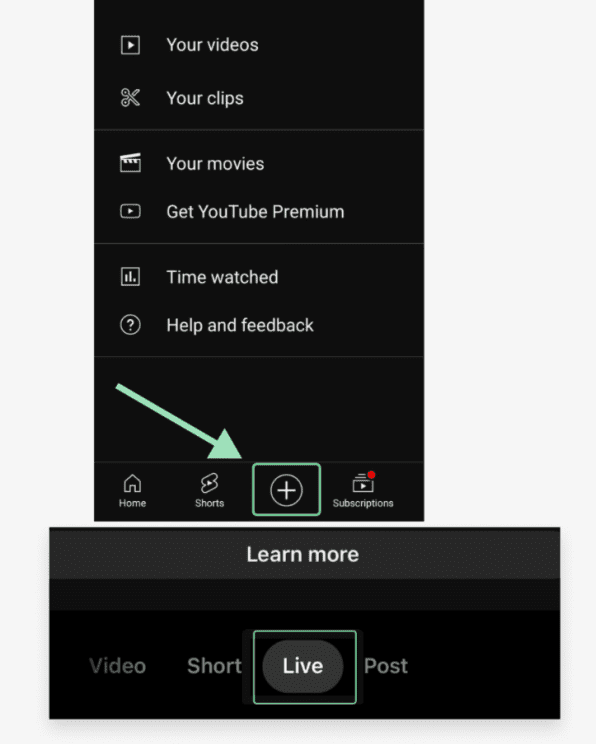
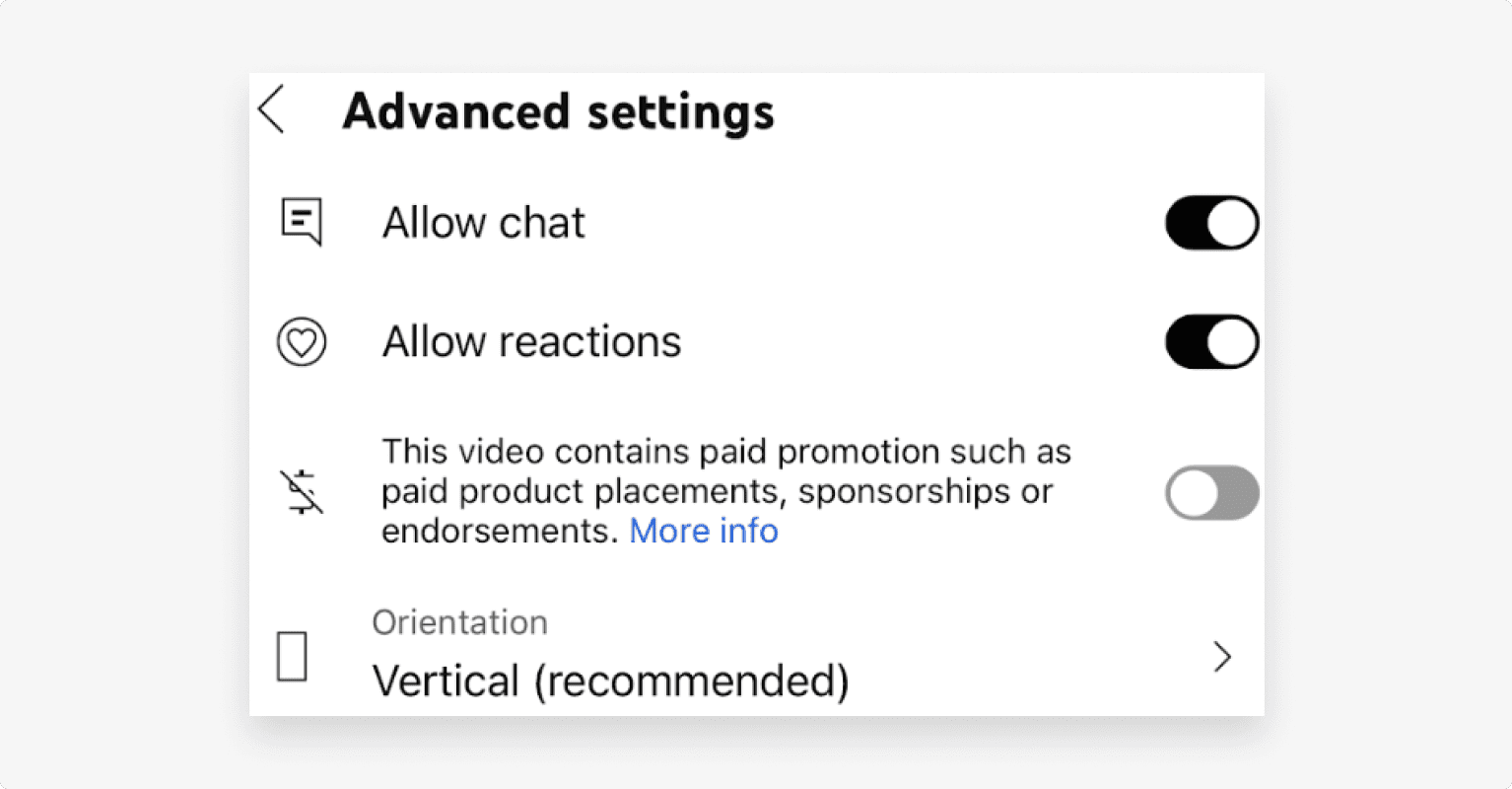
3) Before starting the live streaming, you can edit the title, live description, etc. You can also set age restrictions, and the chat function as needed.
Part 4: How to Go Live with Encoder/Streaming Software
Live streaming through professional encoders can improve the streaming quality and smoothness. Taking OBS Studio as an example, the basic steps on how to enable live streaming on YouTube are as follows:
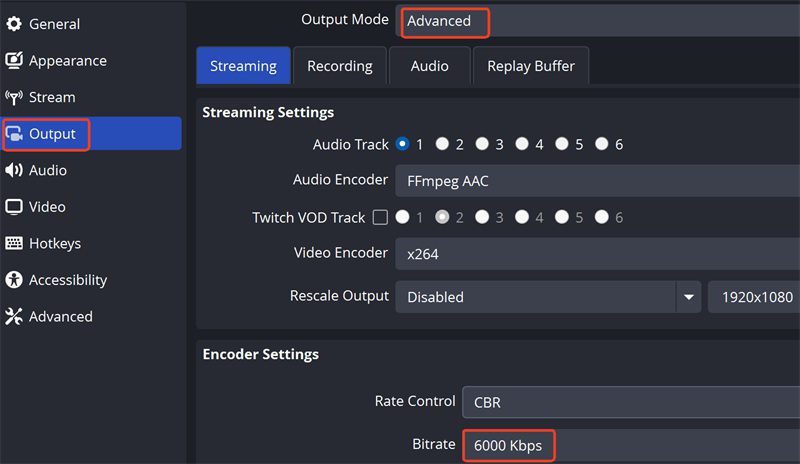
1) Install OBS studio, and you can set parameters like video bitrates before you start streaming on YouTube.
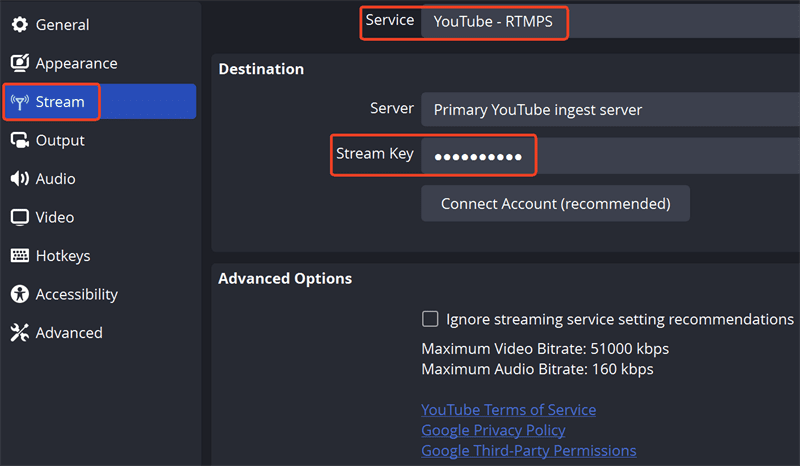
2) Log into your YouTube account and click “Go Live” to access the Live Control Room. Select one stream from the available options here, and YouTube will generate a stream key for it. Copy the key and paste it on OBS.
3) Once all settings are configured, you can preview and test your stream. Click “Start Recording” to test your stream. This helps you see how it will look and sound without broadcasting live, allowing you to make adjustments in time.
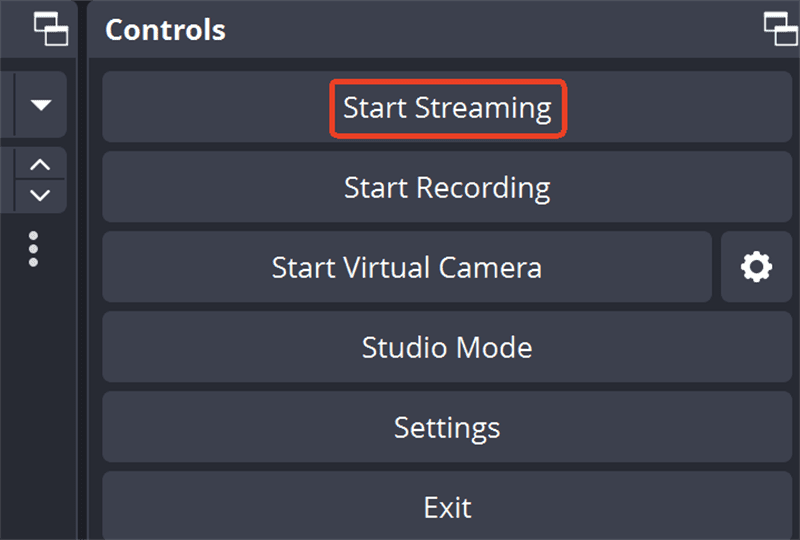
4) Click “Start Streaming” in OBS. You’ll go live on YouTube, and your audience can start watching in real-time.
Part 5: Ending and Managing Your Stream
After ending the stream, professional management is important for enhancing the value of the content. YouTube provides an automatic archiving feature for its users. When you enable this feature, the platform will automatically record and save your live broadcast as a video. Here are brief steps on how to find your recorded stream:
1) Log in to YouTube and enter the YouTube Studio.
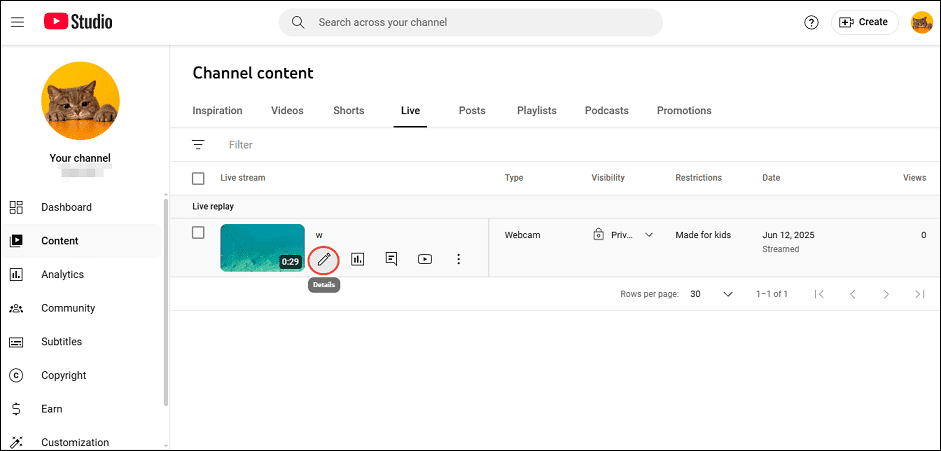
2) Click “Channel Content” in the left menu. Under the “Live Replay” section, you will see your recorded stream. You can edit the video or modify the title, etc.
Note: However, the recorded live broadcast can only be saved for a maximum of 12 hours. So please check and manage your recorded stream in time.
Part 6: Solution: How to Save Your Own YouTube Live Stream to Your Device
If you wish to download YouTube live stream locally or store the video for a longer time, then you might need to use other recording tools.
To PC
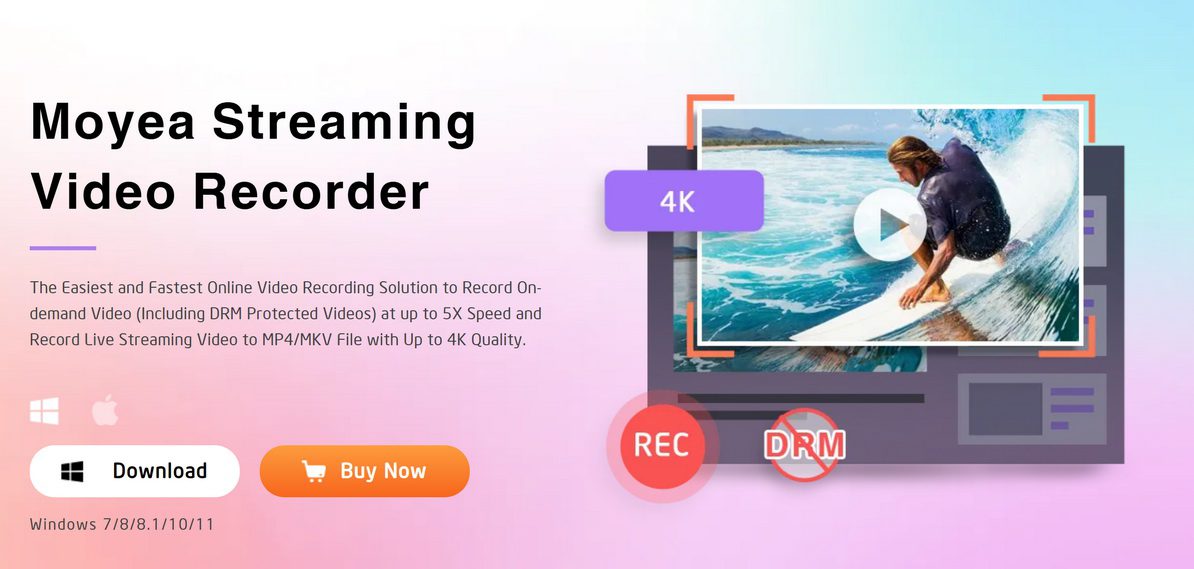
Moyea Streaming Video Recorder is a professional recording software and is compatible with Windows and macOS systems. Users can use it to record online videos and live streams from various streaming platforms. This software can save the recorded live stream as MP4 or MKV format files, and supports recording at up to 4K ultra-high-definition resolution, and thus maintaining the original video quality.
To Mobile
If you want to record and save the stream, but don’t want to download any third-party tool, you can try using the screen recording built in the mobile devices. Whether you are an Android users or iOS, you can find a recording feature on your devices. You can record any content displayed on the screen for free, including the YouTube live stream. But the quality and smoothness of the recorded video may be affected by the device and the network condition. Therefore, this method may be more suitable for recording short content, it may not be the best choice for scenarios that require professional post-editing.
Part 7: FAQs
1. Can I stream on YouTube without a camera?
Yes. Not every stream requires users to enable their camera. You can share your device screen or set images for an audio-based live broadcast.
2. Is YouTube live streaming free?
Yes, live streaming on YouTube is free. You don’t need to pay any fees to turn on the live streaming feature. If you want more professional hardware or services, you may pay extra fees.
3. How long can I livestream on YouTube?
The verified streaming channels have a maximum live broadcast duration of 12 hours, which is enough for most live streaming scenarios. If you need a longer live broadcast time, you can apply for advanced verification.
4. How do I live stream on YouTube without 1,000 subscribers?
If you’re looking to live stream on YouTube but haven’t yet reached 1,000 subscribers, here’s good news for you! You can broadcast from your desktop to avoid that subscriber limit.
-

How to Use Hulu Picture-in-Picture Mode on Any Supported Device?Patrick Murray/2026-04-29
-
How to Watch Deleted YouTube Videos?Patrick Murray/2026-04-29
-
Twitch VOD: What It Is and How It WorksSunny Wen/2026-04-24
-
Full Review of Savethevideo: Is Savethevideo Safe?Patrick Murray/2026-04-21
-
Fix Guide: Prime Video Download Not WorkingPatrick Murray/2026-04-21
-
Is Crunchyroll Free? How to Watch Anime Without PayingSunny Wen/2026-04-20
-
StreamFab Netflix Downloader Review: Features, Pros & ConsCassie J./2026-03-31
-
5 Hulu Family Sharing Tips for Smooth ViewingCassie J./2026-03-30
-
Netflix Not Working on Roku? Solve It NowCassie J./2026-03-27
-
3 Proven Ways to Watch Netflix Without AdsCassie J./2026-03-25






-
Top 5 Udemy Downloaders to Download Udemy Courses on PCPatrick Murray/2025-07-03
-
Best 9 Anime Download Sites to Download Anime [Free & Paid]Patrick Murray/2024-07-12
-
4 Best DRM MPD Downloaders in 2026Leia Liu/2025-05-29
-
HBO Max with Ads VS. No Ads: What Are the DifferencesLumi/2025-05-13
-
6 Best M3U8 Downloaders to Download M3U8 PlaylistsLumi/2025-05-22
-
[2024] How to Download DRM-Protected M3U8 VideosLumi/2024-10-29
-
How to Stream Prime Video on Nintendo Switch?Patrick Murray/2024-09-14
-
How to Activate Tubi on Different Devices? [LG, FireStick, Roku, PS5…]Cassie J./2024-09-24
-
[2026 Latest Review] Best Amazon Prime Video DownloadersPatrick Murray/2025-05-16
-
How to Download an MPD Video with DRMLeia Liu/2024-09-20





Related
Apowersoft Streaming Video Recorder Review: Features, Pricing, and Alternatives
YouTube TV DVR: How It Works and How to Record Live TV

Crunchyroll Offline Viewing for Travel: How to Watch Anime Without Internet
What Is Sling FreeStream and What You Get for Free

How to Record Your Favorite Shows on YouTube TV

How to Make YouTube Safe for Kids: Tips Every Parent Should Know


 English
 日本語
日本語