Last updated on 2026-01-15, by
How to Make YouTube Safe for Kids: Tips Every Parent Should Know
Summary:
As a parent, are you worried about how to ensure your child uses YouTube safely? If so, you definitely don’t want to miss this article!
MenuCLOSE
- Main text: Tips to make YouTube safe
- Tip 1: Use YouTube Kids
- Tip 2: Set Up Parental Controls on Regular YouTube
- Tip 3: Manage Screen Time and Viewing Habits
- Tip 4: Customize What Your Child Can Watch
- Tip 5: Turn Off Personlized Ads
- Tip 6: Save YouTube Videos to Watch Later
- Tip 7: Teach Kids Safety Basics
- Conclusion
YouTube is a platform that combines both fun and risks. Due to its diverse services, it has become a choice for many people around the world, including an increasing number of kids. As a result, parents always ensure kids safe YouTube for their children’s safe YouTube use. It is known that in 2024, the New York City government released a press release stating that YouTube should be held responsible for contributing to the national mental health crisis among teenagers. This incident clearly shows that the negative impact of YouTube on kids has made parents extremely anxious. This is because although YouTube can help children learn knowledge, it also contains inappropriate content, ads, and risks of addiction. To help kids use YouTube safely and relieve parents’concerns, this article will provide a series of effective tips. Please keep reading.
Main text:Tips to make YouTube safe
Tip 1: Use YouTube Kids
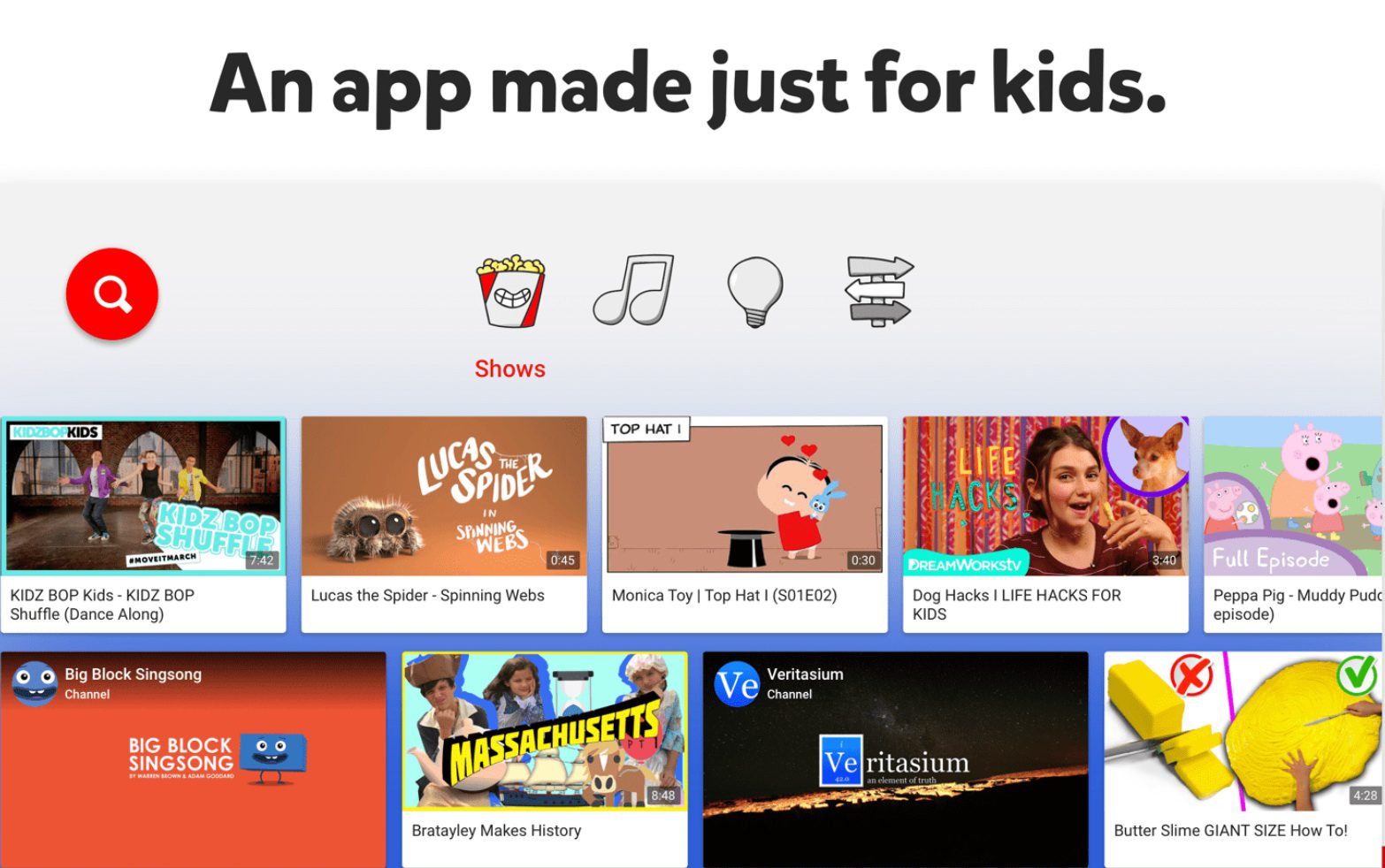
YouTube Kids is a children’s version of YouTube launched in 2015, specifically designed for children aged 3-12. From interface design to video content, YouTube Kids focuses on children, including various types such as educational, cartoons, and parent-child content. Parents can also set certain restrictions, such as password locks, limited usage time, and disabling the search function, to help children stay away from inappropriate videos, reduce screen time, and protect their eyesight. Its features include but are not limited to:
-Time-lock function for parents to control usage
-Ability to disable the search function to prevent inappropriate searches
-No comment function to avoid harassment through messages
-Content filtering to block videos unsuitable for family viewing
It is evident that YouTube Kids meets the needs of many parents. However, it also has some limitations that must be noted:
-Can’t perfectly screen inappropriate videos. Violent content, adult-themed, contains foul language, or misleading information may bypass the filtering system and appear in the app.
-Risk of commercial content. Commercial ads sometimes blur the line with program content, making it difficult for children to distinguish.
-Risk of addiction. The platform’s recommendation algorithm is designed to maximize user time on the platform, which may lead children into an autoplay loop.
-Limited functionality. Despite parental controls, older children may find ways to bypass restrictions.
-Regional restrictions. YouTube for Kids is only available in certain countries.
Tip 2: Set Up Parental Controls on Regular YouTube
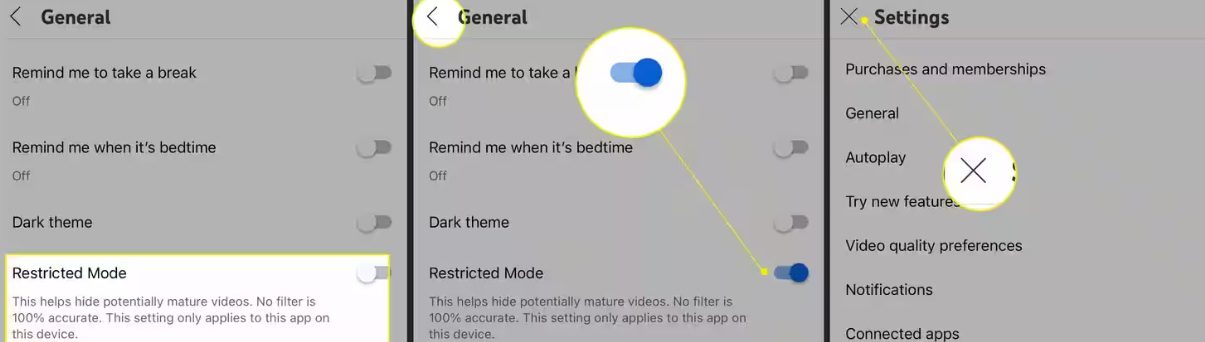
If your kid is over 12 years old, then perhaps your kid can use the regular version of YouTube. However, you need to enable the “Restriction Mode”. It is a browser or app setting that aims to filter out videos that may contain mature content by using community feedback and age restriction signals. The method of enabling it is quite simple. For example, on the app side:
Step 1: Open and access the YouTube app on your mobile device. Then log in to your account.
Step 2: Click the user profile option at the top right corner to access the user settings menu.
Step 3: After entering the settings menu, click on the “General”.
Step 4: You will find a toggle option for disabling the restricted mode. The blue switch indicates that the restricted mode is enabled, while the gray button indicates that the restricted mode is disabled.
Tip 3: Manage Screen Time and Viewing Habits
Compared to the two methods mentioned above, controlling children’s screen time and cultivating their viewing habits are long-term commitments for parents. So how can parents do these two things well? First, establish clear rules. Parents can agree with their children on daily or weekly viewing durations and use built-in smartphone features like “Digital Wellbeing” or tools within the YouTube app such as “Remind me to take a break” to enforce them. Second, try to avoid letting children watch alone in their bedrooms. Parents should encourage children to use devices in common family areas and discuss safety rules before allowing kids to stream from their bedrooms.

Tip 4: Customize What Your Child Can Watch
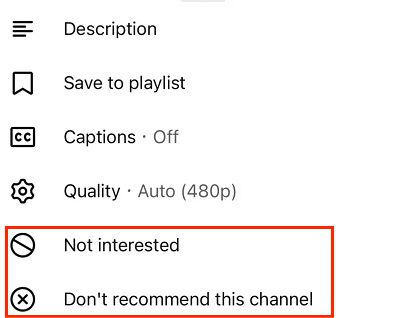
Creating a child-friendly content library is also a good approach. This means that parents can explore and subscribe to a series of high-quality children’s channels t, which can greatly improve the quality of homepage recommendations. At the same time, you should regularly teach your children that when they see video thumbnails or titles they don’t like, they can click “Not interested” or “Don’t recommend this channel,” which can optimize recommended content. Of course, you can also create playlists, collecting and organizing safe and interesting videos in advance so that children can watch directly from the playlist without viewing other content.
Tip 5: Turn Off Personlized Ads
Commercial advertising not only affects the viewing experience, but some commercial ads may also not be suitable for children. Therefore, to reduce the impact of commercial ads on children, you can turn off personalized ads. The process is very simple: You can complete this by going to My Ad Center, selecting About ads on Google, and clicking Close all. This means that the ads your child sees will no longer be targeted based on search and viewing history, but will instead be general ads based on broad information such as age.
Tip 6: Save YouTube Videos to Watch Later
Compared to the above methods, this sixth method, which is to save the videos to be watched in advance, is the one that I personally think is the most effective way to make parents feel most at ease and also the one with the fewest restrictions. By using professional video management tools to save the videos, you can directly prevent your children from using YouTube. At the same time, it can also achieve the purpose of allowing your children to watch. Here, I recommend to you the tool I often use, Moyea Streaming Video Recorder, which allows you to directly record the playing YouTube streaming video on your computer. If you think a downloader is more convenient, then you can use Moyea Video Downloader. With these tools, you can pre-download the carefully selected high-quality content to your home devices, creating a completely offline, ad-free, and risk-free recommendation-free “private video library”. Whether it’s a long trip or outdoor activities, this can provide the ultimate peace-of-mind viewing experience.
Tip 7: Teach Kids Safety Basic
No matter how parents set restrictions and supervise their children, it is still important to remember that the most fundamental aspect lies in educating children to be able to identify bad content by themselves. Children have not yet formally formed their values and beliefs. Therefore, you must learn to patiently and repeatedly tell children not to share personal information such as names, schools, addresses, and phone numbers in comments, descriptions, or anywhere else. Teach them to recognize content that makes them feel uneasy, scared, or confused, and immediately turn off the video and seek help from you. In addition, clearly explain the risks of in-app purchases and clicking on advertisement links, and ensure that the purchase password is not known to the children.
Conclusion
YouTube can be a beneficial platform for children’s growth. However, this requires parents to set it up carefully. With the setup in place, parents should actively involve themselves in their children’s use of YouTube and continuously guide them to distinguish information. However, if you want things to be a bit easier, I suggest you try the tool I recommend. It can record YouTube videos, and you don’t have to worry about restrictions on the content you record.
-

StreamFab Netflix Downloader Review: Features, Pros & ConsCassie J./2026-03-31
-
5 Hulu Family Sharing Tips for Smooth ViewingCassie J./2026-03-30
-
Netflix Not Working on Roku? Solve It NowCassie J./2026-03-27
-
3 Proven Ways to Watch Netflix Without AdsCassie J./2026-03-25
-
Apowersoft Streaming Video Recorder Review: Features, Pricing, and AlternativesSunny Wen/2026-03-24
-
Best Amazon Prime Video Recorders: Record with the BestPatrick Murray/2026-03-19
-
How to Download Amazon Prime Videos to iPhone/iPadPatrick Murray/2026-03-18
-
YouTube TV DVR: How It Works and How to Record Live TVSunny Wen/2026-03-17
-
How to Record Twitch Streams? All Methods ExplainedPatrick Murray/2026-03-17
-
Download PBS Videos Easily: From Public Clips to Passport ShowsPatrick Murray/2026-03-17







-
Top 5 Udemy Downloaders to Download Udemy Courses on PCPatrick Murray/2025-07-03
-
Best 9 Anime Download Sites to Download Anime [Free & Paid]Patrick Murray/2024-07-12
-
4 Best DRM MPD Downloaders in 2026Leia Liu/2025-05-29
-
HBO Max with Ads VS. No Ads: What Are the DifferencesLumi/2025-05-13
-
6 Best M3U8 Downloaders to Download M3U8 PlaylistsLumi/2025-05-22
-
[2024] How to Download DRM-Protected M3U8 VideosLumi/2024-10-29
-
How to Stream Prime Video on Nintendo Switch?Patrick Murray/2024-09-14
-
How to Activate Tubi on Different Devices? [LG, FireStick, Roku, PS5…]Cassie J./2024-09-24
-
[2026 Latest Review] Best Amazon Prime Video DownloadersPatrick Murray/2025-05-16
-
How to Download an MPD Video with DRMLeia Liu/2024-09-20



Related
YouTube TV DVR: How It Works and How to Record Live TV
Download PBS Videos Easily: From Public Clips to Passport Shows
How to Mute or Unmute Someone on Instagram
How to Update Instagram App to Get the Latest Features
Crunchyroll Offline Viewing for Travel: How to Watch Anime Without Internet
What Is Sling FreeStream and What You Get for Free


 English
 日本語
日本語